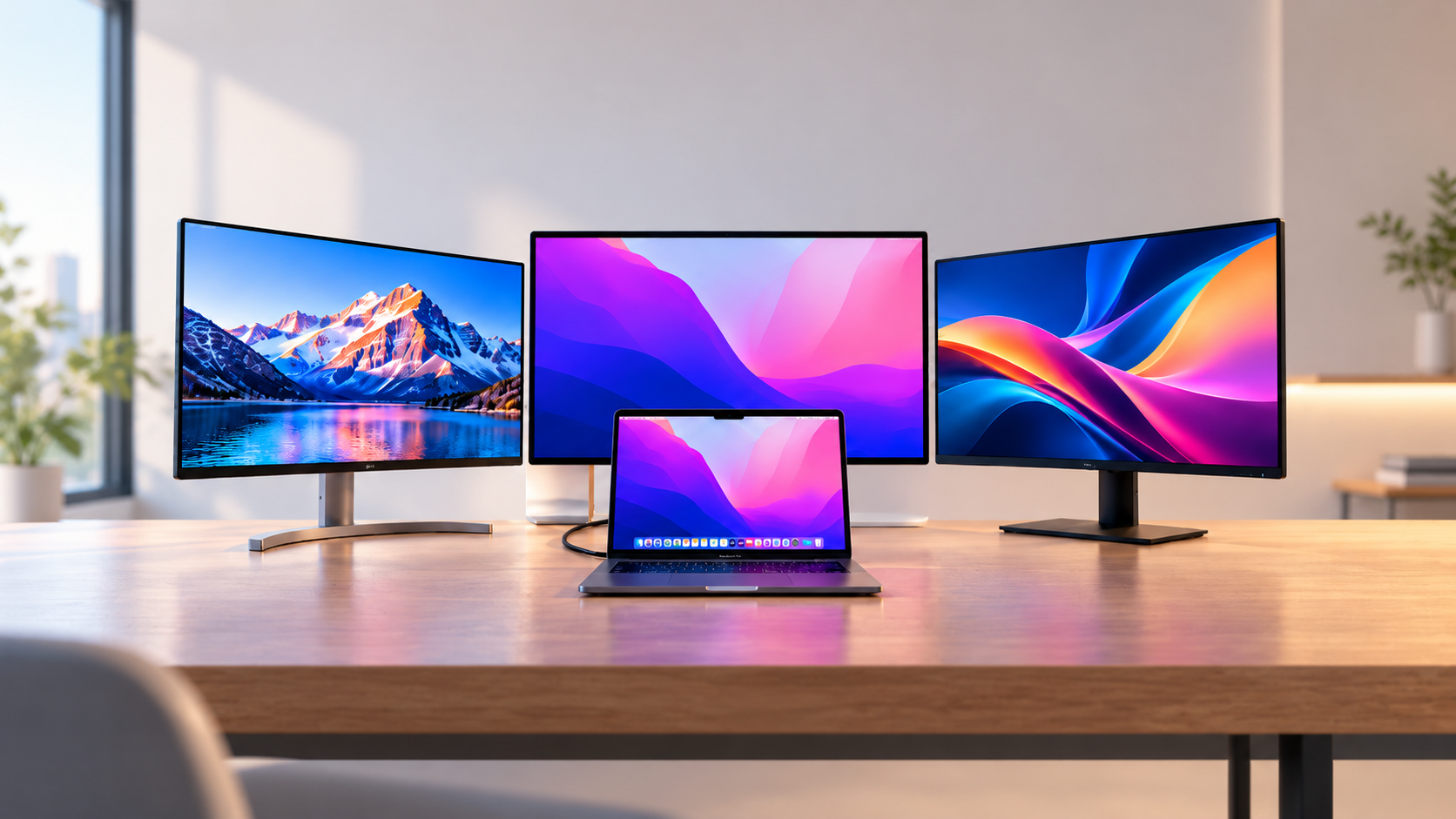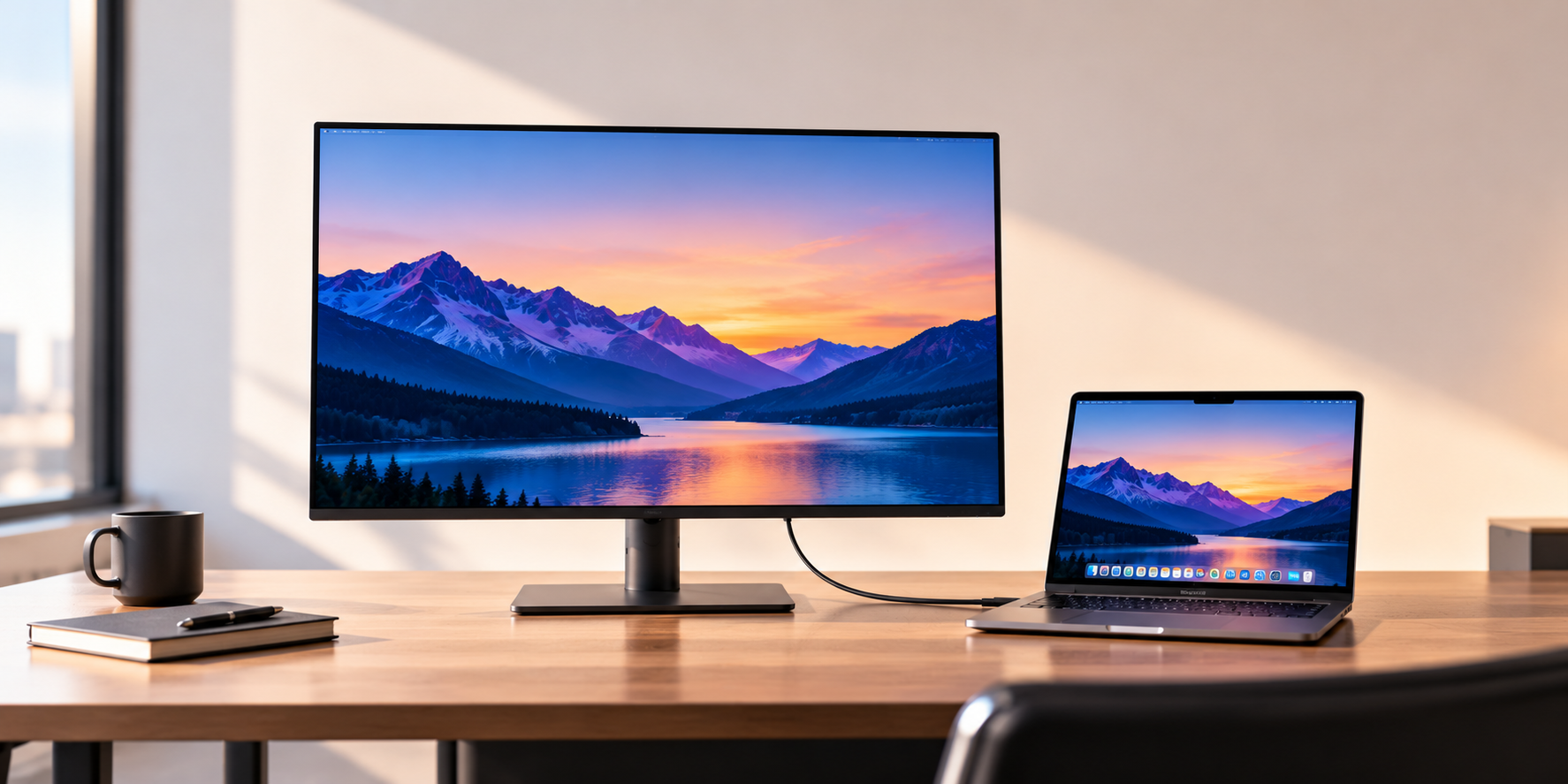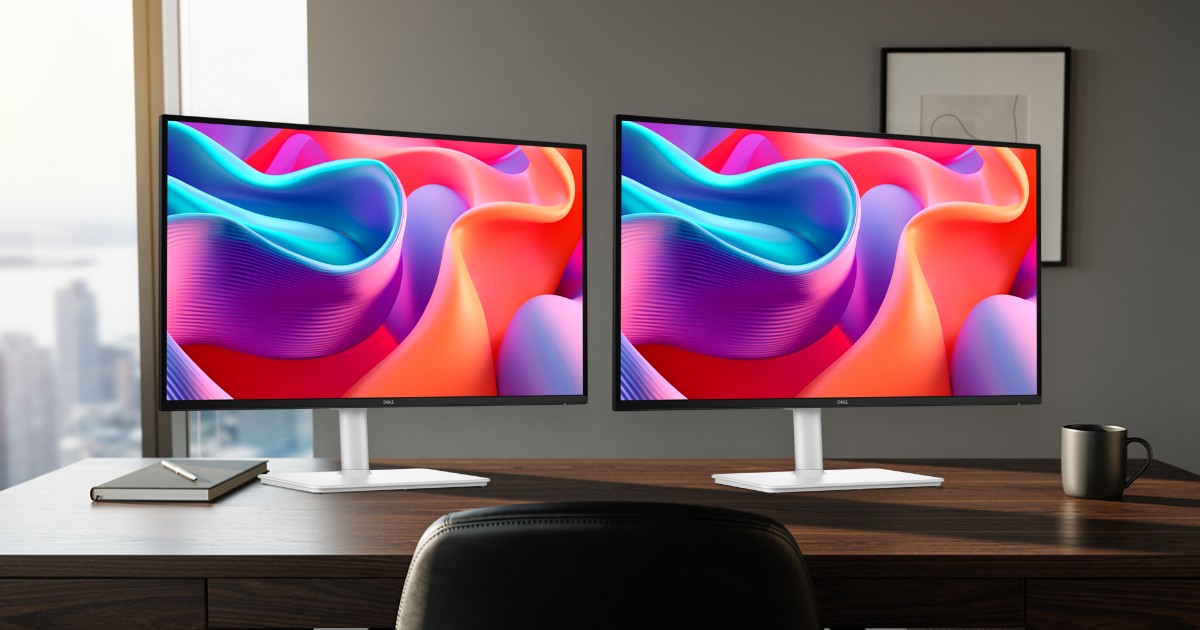
To set up two monitors, first check how many external displays your laptop or desktop supports, because that limit is set by the computer, not by the dock or the monitors. Then connect each monitor to its own video output or to a dual-display dock, choose Extend rather than Duplicate, and arrange the screens to match your desk. Most Windows laptops with Thunderbolt and every recent MacBook Air from the M4 onward can drive two screens; the M1 and M2 MacBook Air can drive only one.
Our picks at a glance
- View at Plugable
For a compatible Thunderbolt setup
- View at Walmart
A second monitor that also charges your laptop
- View at Newegg
An arm for two screens you move through the day
The picks in detail
- Top pick
For a compatible Thunderbolt setup
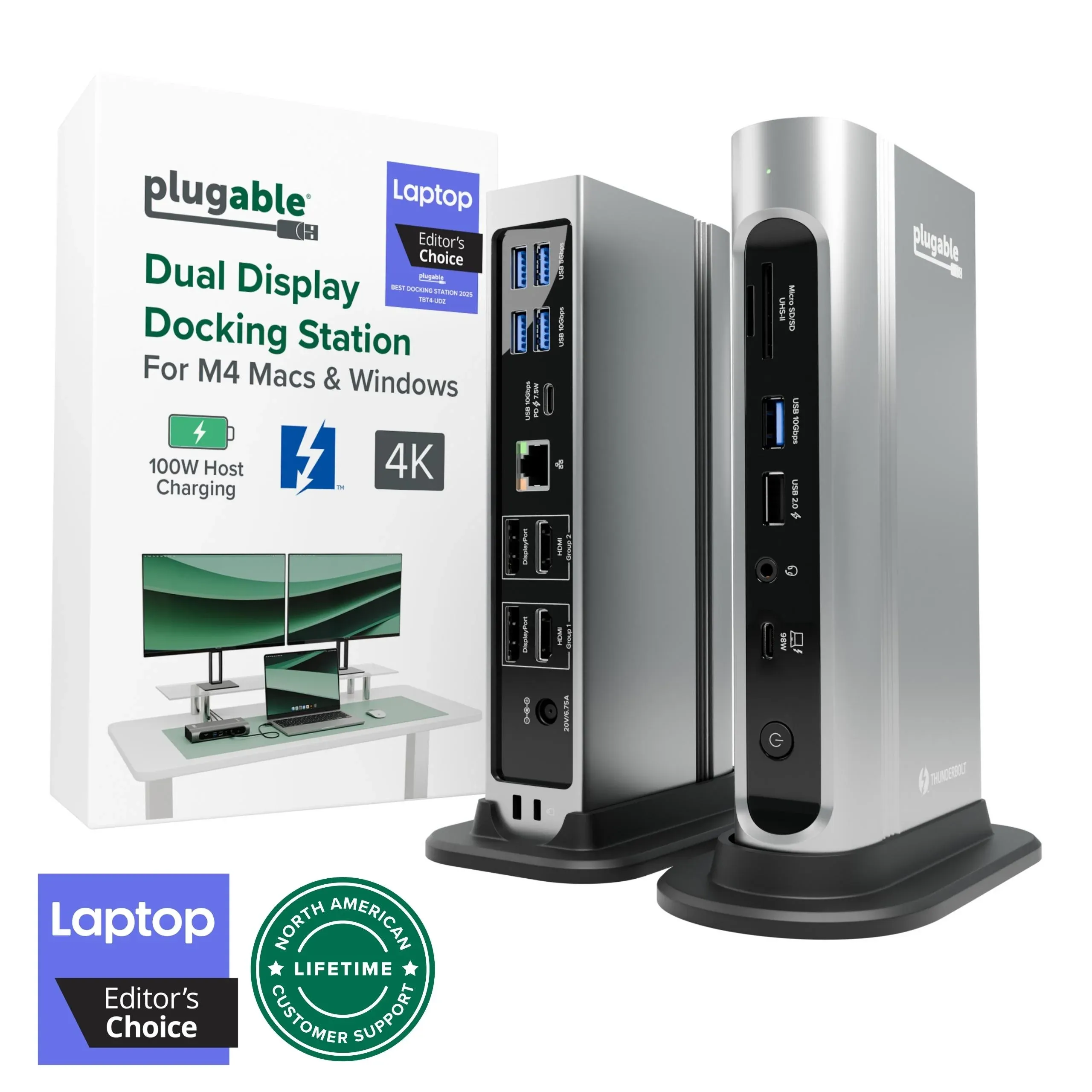
Plugable TBT4-UDZ Thunderbolt 4 16-in-1 Dock
This Thunderbolt 4 dock is worth comparing when your laptop needs more desk connections.
View at PlugableCheck the manufacturer’s compatibility list, supported displays and charging requirements for your exact laptop. A USB-C socket alone does not establish compatibility. This is a research-based selection, not a hands-on test.
- A second monitor that also charges your laptop
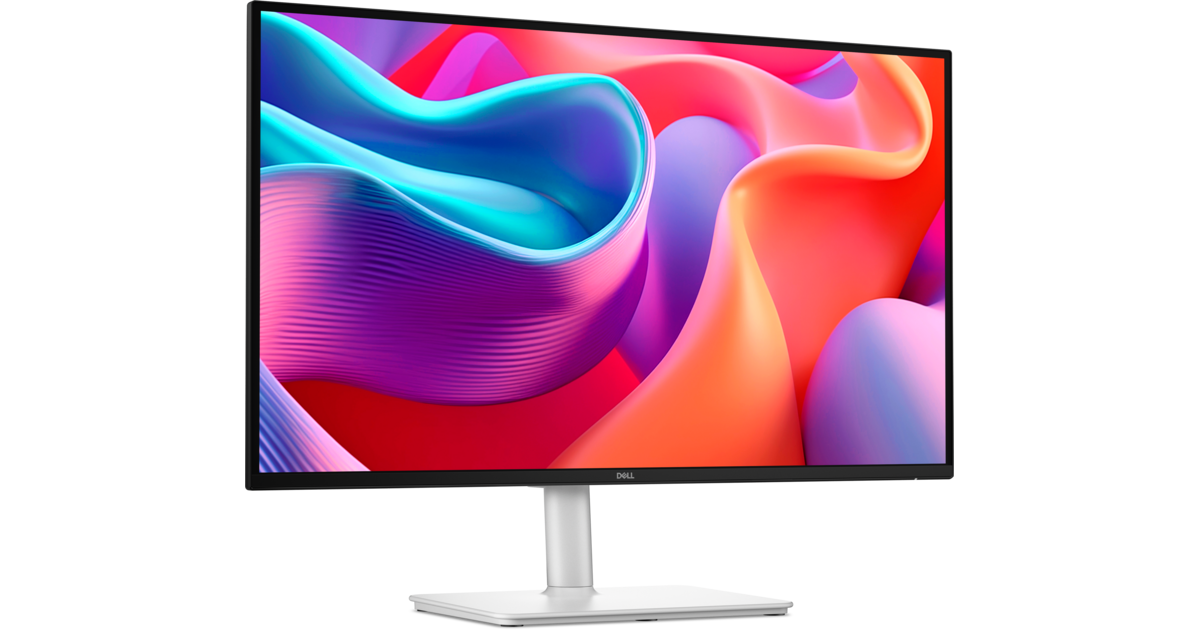
Dell 27 Plus QHD USB-C Monitor (S2725DC)
The Dell 27 Plus QHD is a sensible monitor to add as the second screen.
View at WalmartIt has a 65W USB-C connection (DisplayPort Alt Mode, 5Gbps data) and a fully adjustable stand, with a 2560 x 1440 panel at 144Hz and two 3W speakers. Text is less crisp than on 4K at 27 inches, but 1440p runs at 100% scaling and still gives far more room than a 1080p screen. Buy it if you want one cable to carry video and power from the laptop. Skip it if sharp text is what you care about most.
What we like
- USB-C with up to 65W of charging
- 144Hz for smooth scrolling
- Height, tilt, swivel and pivot stand; two 3W speakers
Watch out for
- 1440p is less sharp than 4K at 27 inches
- Only one HDMI input
- An arm for two screens you move through the day
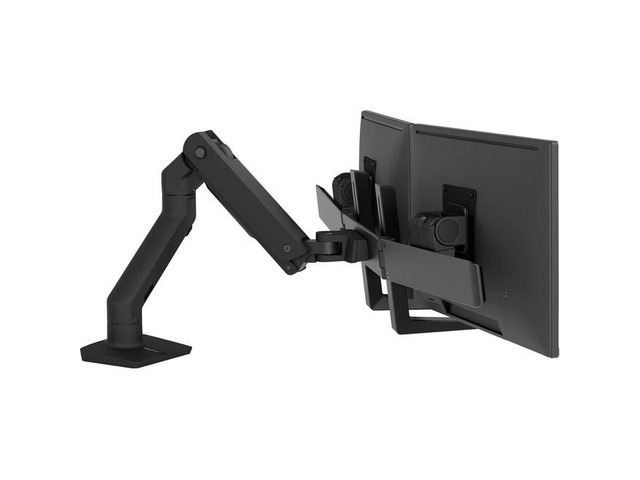
Ergotron HX Desk Dual Monitor Arm (45-476-224)
If you move your two monitors through the day, an arm gives you more desk and easier positioning than the stands they came with.
View at NeweggThe Ergotron HX dual arm holds two screens up to 32 inches and 5 to 17.5 lb each (35 lb in total), and each counterbalanced arm gives 11.5 inches of height adjustment, so you can pull a screen up, down or closer with one hand and it stays put. It comes with a desk clamp (for desks 0.4 to 2.6 inches thick) and a grommet mount, and Ergotron backs it with a 10-year warranty. Skip it if either monitor weighs more than 17.5 lb without its stand: check your spec sheet.
What we like
- Counterbalanced arms with 11.5" of height adjustment
- Screens up to 32"; clamp and grommet mounts included
- 10-year warranty
Watch out for
- 17.5 lb per monitor, less than the VIVO pole mount
- Monitors deeper than 3 inches may reduce the weight it can hold
If you're still choosing the screens themselves, start with our complete guide to home-office monitors.
What you need
- Two monitors. They don't have to match, but two of the same size and resolution are the easiest to line up and scale.
- A video output for each monitor, or one port that can carry two displays (Thunderbolt or USB-C with a dual-display dock).
- One cable per monitor, matching both ends: HDMI to HDMI, DisplayPort to DisplayPort, or USB-C to USB-C.
- A dock, if your laptop has too few video ports. See our best dual monitor docking stations.
- Optional: a dual monitor arm or stand, if the monitors' own stands can't bring them to the same height. See our best dual monitor stands and arms.
Step 1: Check what your computer can drive
Look up your laptop's spec page on the maker's site and find the line about external displays. You want two answers: how many external screens it supports, and which ports carry video.
Here is how to read the ports:
- HDMI. One HDMI port drives one monitor.
- USB-C. Not every USB-C port carries video. It needs DisplayPort Alt Mode, USB4 or Thunderbolt. Look for a DisplayPort or Thunderbolt symbol next to the port, or check the spec sheet. A USB-C port that only carries data won't run a monitor without a DisplayLink dock (more on that below).
- Thunderbolt 4 or 5. The Thunderbolt 4 standard requires a computer to support two 4K displays, so a Thunderbolt laptop can usually run both monitors from one port through a Thunderbolt dock. Our Thunderbolt 5 vs Thunderbolt 4 vs USB4 explainer covers the differences.
- DisplayPort (desktops). If the PC has a separate graphics card, use its outputs, not the motherboard's.
A laptop with one HDMI port and one video-capable USB-C port can run two screens directly, one on each. A laptop with a single USB-C port needs a dock.
One rule applies everywhere: a dock or hub cannot add screens beyond what the computer supports. Apple states this plainly for Macs, and it holds for Windows laptops too.
Step 2: Check your Mac's limit (Mac users only)
Macs have fixed limits per chip, and the MacBook Air is where most people get caught out. These figures are from Apple's tech-spec page for each model:
MacBook Air | External displays (Apple's tech specs) |
|---|---|
M1 (2020) | One, up to 6K at 60Hz |
M2 (2022, 13-inch; 2023, 15-inch) | One, up to 6K at 60Hz |
M3 (2024, 13-inch and 15-inch) | One, up to 6K at 60Hz; a second, up to 5K at 60Hz, only with the lid closed |
M4 (2025, 13-inch and 15-inch) | Up to two, up to 6K at 60Hz, with the built-in screen on |
M5 (13-inch) | Up to two, both up to 6K at 60Hz or 4K at 144Hz, including both over a single Thunderbolt port |
So an M1 or M2 MacBook Air will not show a second external monitor through any normal dock. An M3 Air will, but only with its own screen closed.
The current MacBook Pro tech specs list up to two external displays with the M5 chip, up to three with the M5 Pro and up to four with the M5 Max, over any combination of the Thunderbolt and HDMI ports. If you're still deciding which MacBook to buy, our MacBook Air vs MacBook Pro comparison covers the rest.
macOS doesn't support DisplayPort MST. MST (Multi-Stream Transport) is what lets one monitor pass a signal on to a second, a setup often called daisy-chaining, and some dual-output USB-C adapters use it too. CalDigit's support page says macOS does not support it and can at best mirror the monitors. Windows supports MST daisy-chaining in extended mode on laptops that support it. On a Mac, connect each monitor to its own port, or use a Thunderbolt dock that gives each display its own output. Our best Thunderbolt docks for MacBook and Windows laptops lists docks that do this.
Step 3: Choose your cables or dock
If your computer has two video outputs, use them and skip the dock: a direct cable to each monitor has the fewest things to go wrong.
If you need a dock, the connection type matters more than the brand:
- Thunderbolt dock. Needs a Thunderbolt port on the laptop. It gives the most bandwidth, and one cable carries both screens, data and charging. The Dell WD22TB4 in our dual-monitor dock guide drives two displays up to 4K this way.
- USB-C dock. Works over an ordinary video-capable USB-C port, usually with a lower limit on screens or resolution than Thunderbolt.
- DisplayLink dock. Works over plain USB 3.0 using a driver, so it suits a laptop whose USB-C port carries no video. The trade-off is resolution: the Plugable UD-3900 in our guide caps two displays at 1920 x 1200.
A USB-C monitor can cut down the cable count further, because one cable carries the picture and charges the laptop. Our best USB-C monitors guide covers which ones supply enough power. For the wider dock-versus-hub question, see our guide to USB-C and Thunderbolt docking stations.
A 120Hz or 144Hz monitor only reaches that rate if the port, the cable and any dock in between all support it at that resolution. A dock's spec sheet lists its limits per display.
Step 4: Connect and switch on
- Plug in the monitors' power cables and switch them on.
- Connect each monitor to its port or to the dock, then connect the dock to the laptop.
- On each monitor, use its menu buttons to select the input you're using (HDMI 1, DisplayPort or USB-C). Many monitors don't switch inputs on their own.
- Wait a few seconds for the computer to detect both screens. If they mirror each other, Steps 5 and 6 fix that.
Step 5: Set up the screens on Windows
All of this is in Start > Settings > System > Display.
- Extend the desktop. Press Windows + P and choose Extend. Duplicate shows the same picture on every screen; Extend spreads one desktop across them.
- Find out which screen is which. Select Identify. A number appears on each monitor.
- Arrange them. Drag the numbered boxes until they match your desk, left to right, then select Apply. Move the pointer across to check it crosses where you expect.
- Line up the edges. If the screens are different sizes, drag one box up or down so their top edges or centers line up the way they do on your desk. Otherwise the pointer jumps or sticks at the border.
- Set the resolution. Select each monitor in turn and, under Display resolution, pick the option marked (Recommended). That is the screen's native resolution.
- Set the scaling. Under Scale & layout, Windows also marks a Scale setting as (Recommended). With two different monitors, you may want to change it so text looks the same size on both (see the tip below).
- Set the refresh rate. Go to Advanced display and use Choose a refresh rate for each monitor. A new monitor may start at 60Hz even when it supports more.
- Keep windows where you put them. Expand Multiple displays and turn on Remember window locations based on monitor connection. This helps when you undock and redock a laptop every day.
Mixing resolutions. Take a 27-inch 4K screen next to an older 24-inch 1080p one. Their pixel densities differ a lot (about 163 pixels per inch against about 92), so at the same scale setting text looks much smaller on the 4K screen. Raise the 4K monitor's scale until text looks a similar size on both. Some mismatch will remain. If you're buying both screens new, two of the same model avoids the issue.
Step 6: Set up the screens on a Mac
Open System Settings > Displays.
- Extend the desktop. Select each external monitor and set Use as to an extended display rather than a mirror. Apple describes Use as as the choice between mirroring, extending, or making a display the main display.
- Arrange them. Select Arrange and drag the display icons to match your desk. Line up top edges here too if the screens differ in size.
- Pick the main display. In the Arrange view, drag the white menu bar to the screen you want as the main one.
- Set the resolution. Resolution set to Default picks the display's best setting; the other options trade sharpness for larger text.
- Check the refresh rate. If the monitor supports more than one rate, a Refresh rate menu appears for it.
Step 7: Set up the desk
The aim is two screens at the same height, with their edges touching or nearly touching.
Choose a layout. If you use one screen far more than the other, put that one straight in front of you and the second to one side, angled in toward you. If you use both equally, put the join between them in front of you and angle both in slightly.
Match heights and sizes. Two of the same model on height-adjustable stands are easy to line up. Different models usually sit at different heights, and a tilt-only stand can't be raised to match.
Monitor arm or stands?
- Use the monitors' own stands if both adjust for height and the screens are the same size.
- Use a dual monitor arm if the stands can't match heights, you want the desk space back, or you want to swing the screens around. Check three numbers first: each monitor's size, its weight and its VESA mounting pattern (the four screw holes on the back, usually 75 x 75mm or 100 x 100mm). Also check your desk's edge is thin enough for the clamp.
- Use a freestanding dual stand if you can't clamp or drill your desk.
Our best dual monitor stands and arms guide matches arms to screen sizes and weights. If you're torn between two screens and one wide one, our best ultrawide monitors for work covers the single-screen alternative.
Troubleshooting a dual monitor setup
The second monitor isn't detected.
- Check the monitor is set to the right input, and that both ends of the cable are fully seated.
- On Windows, go to Settings > System > Display > Multiple displays > Detect. On a Mac, open Displays settings and hold the Option key: the Night Shift button changes to Detect Displays.
- Try another cable and another port. A USB-C port that carries data only won't send video.
- On a Mac, check the chip limit in Step 2. An M1 or M2 MacBook Air will never show a second external monitor through a standard dock.
- With a DisplayLink dock, install or update the DisplayLink driver. Without it, the dock's video outputs stay dark.
Both screens show the same picture (mirrored, not extended).
- On Windows, press Windows + P and choose Extend.
- On a Mac, set Use as to extended display for each monitor in Displays settings.
- If a Mac still mirrors two monitors on one cable, the adapter or monitor chain is using MST, which macOS can only mirror. Give each monitor its own port, or use a Thunderbolt dock with a separate output for each display.
The refresh rate is wrong, or the higher rate is missing.
- On Windows, set it under Advanced display > Choose a refresh rate. A rate marked with an asterisk changes the resolution too, so pick one without it at your native resolution.
- On a Mac, use the Refresh rate menu in Displays settings.
- If the rate you want isn't listed, the cable, port or dock can't carry it at that resolution. Try a direct cable from the laptop; if that works, the dock is the limit.
The screen flickers.
- Reseat or replace the cable first.
- Check the refresh rate. Apple's help page notes that a screen may appear to flicker if the rate is set too low.
- Plug the monitor straight into the computer, bypassing the dock, to see whether the dock is the cause.
Windows forgets the arrangement after docking. Turn on Remember window locations based on monitor connection (Step 5), arrange the screens again, and use the same dock port each time.
How we wrote this guide
We have not tested these steps on our own laptops or monitors. The menu paths come from Microsoft's and Apple's help pages, the Mac display limits from Apple's tech-spec page for each model, and the MST limit from CalDigit's support page, all linked under Sources. Dock and arm details come from our own dock and stand guides, which link their spec sheets.
Questions people ask
Can I run two external monitors from one laptop?
Yes, if the laptop supports two external displays. Check its spec page: many laptops can run one screen from HDMI and one from a video-capable USB-C port, and a Thunderbolt laptop can usually run both through one Thunderbolt dock.
Can a MacBook Air run two external monitors?
It depends on the chip. Apple lists one external display for the M1 and M2 MacBook Air, two with the lid closed for the M3, and up to two with the lid open for the M4 and M5.
Will a dock let my Mac use more monitors?
No. Apple says a hub or dock does not increase the maximum number of displays a Mac supports. A dock only gives each supported display a port to plug into.
Why does my Mac mirror both monitors when I daisy-chain them?
Daisy-chaining uses DisplayPort MST, which macOS doesn’t support except as mirroring. Connect each monitor to its own port or use a Thunderbolt dock with a separate output for each display.
Do my two monitors need to be the same?
No, but two of the same size and resolution are easier to line up and scale. With different models, raise the scaling on the sharper screen so text looks a similar size on both.
Sources we used
- Apple: MacBook Air (M1, 2020) technical specifications
- Apple: MacBook Air (M2, 2022) technical specifications
- Apple: MacBook Air (15-inch, M2, 2023) technical specifications
- Apple: MacBook Air (13-inch, M3, 2024) technical specifications
- Apple: MacBook Air (15-inch, M3, 2024) technical specifications
- Apple: MacBook Air (13-inch, M4, 2025) technical specifications
- Apple: MacBook Air (15-inch, M4, 2025) technical specifications
- Apple: MacBook Air (13-inch, M5) technical specifications
- Apple: MacBook Pro technical specifications
- Apple: How many displays can be connected to MacBook Pro (hubs and docks)
- Apple: Displays settings on Mac
- CalDigit: DisplayPort Multi-Stream Transport (MST) support on macOS and Windows
- Microsoft: How to use multiple monitors in Windows
- Microsoft: Change your screen resolution and layout in Windows
- Microsoft: Change the refresh rate on your monitor in Windows
- Selected product: manufacturer specifications and compatibility
Comments
No comments yet. Start the conversation.