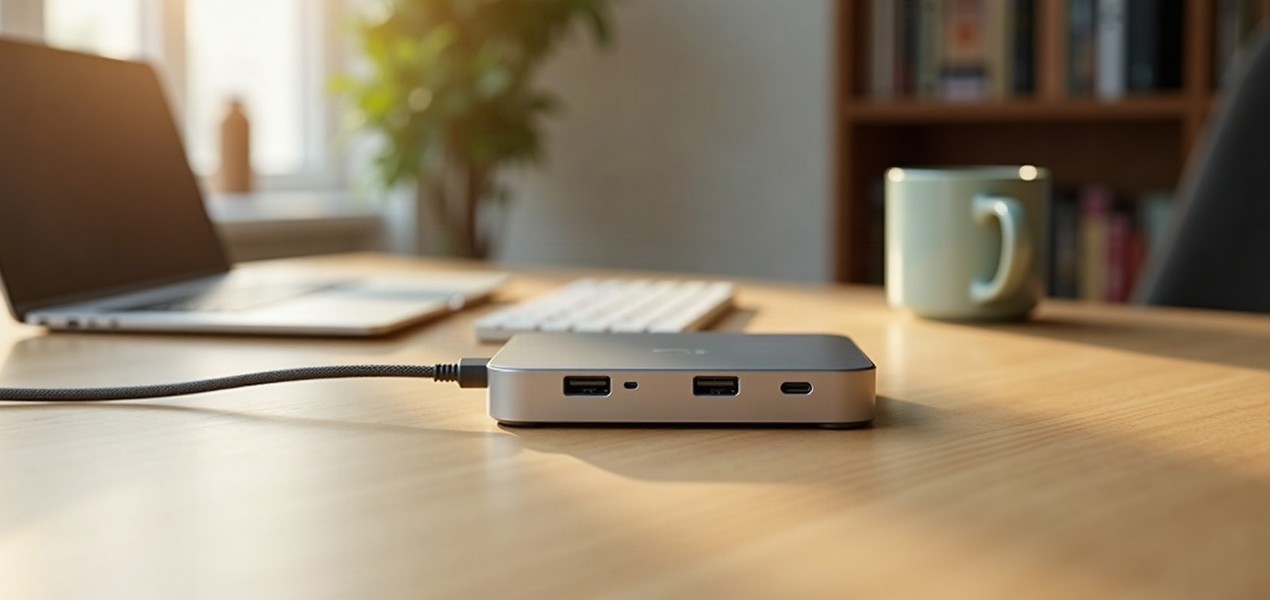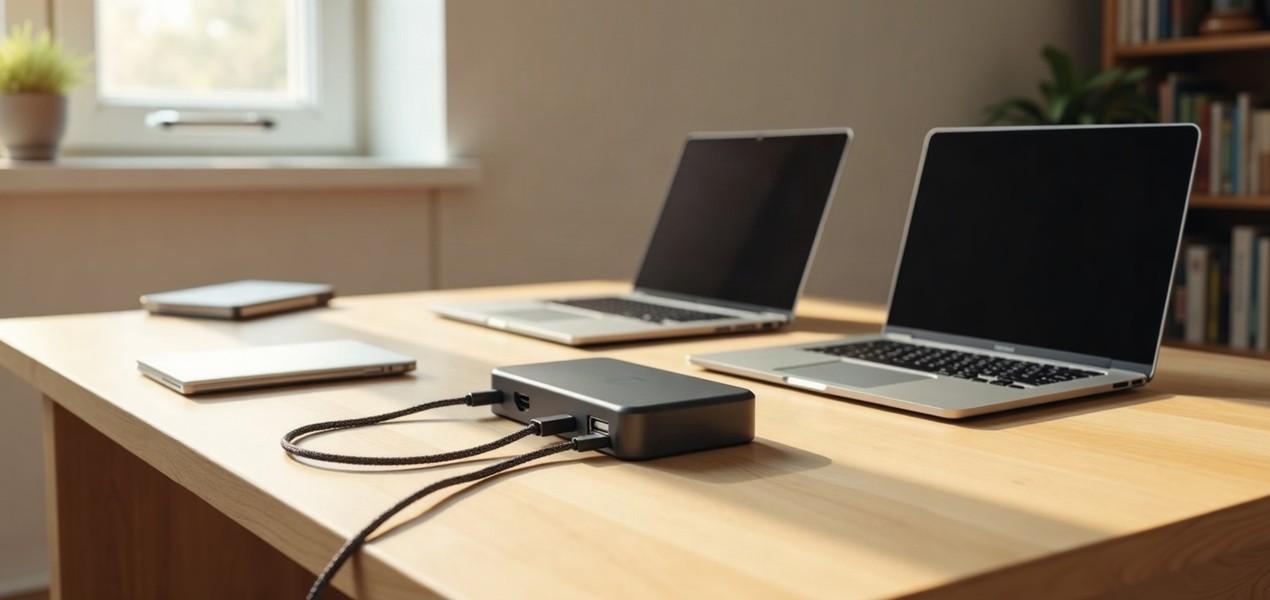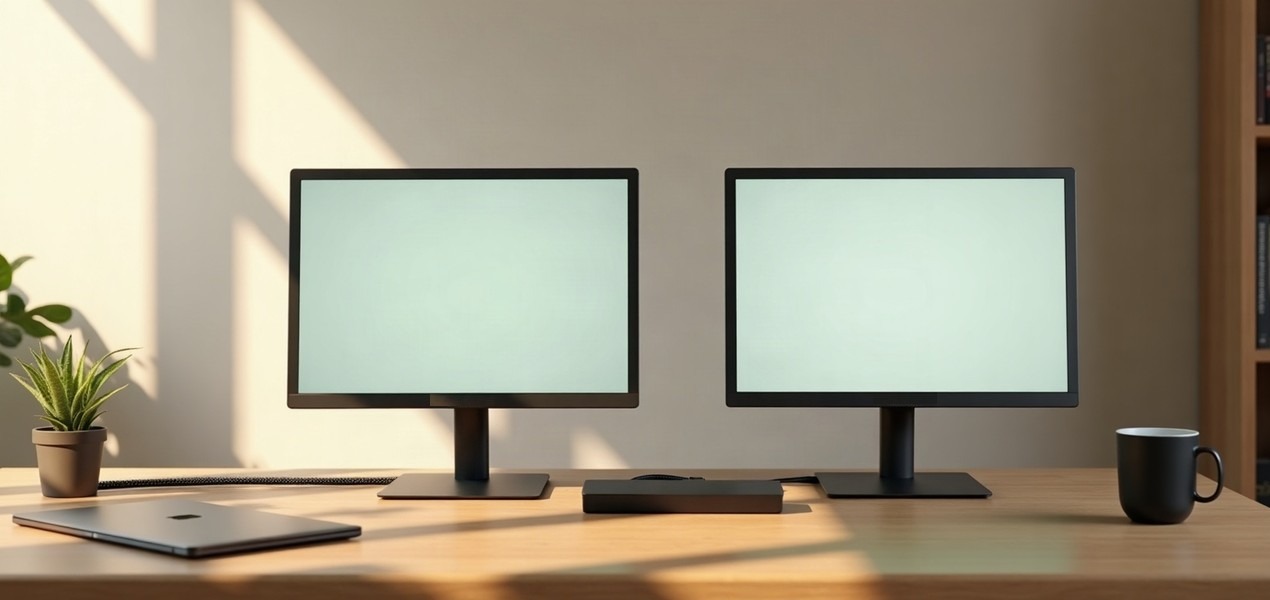
The best dual monitor docking station for most laptops is the Plugable TBT4-UDZ. One Thunderbolt 4 cable carries two 4K 60Hz screens through ordinary HDMI or DisplayPort cables, 16 ports and up to 100W of charging, and on a recent Mac it gives two separate, extended screens, not two copies of one. If you use a base M1 or M2 MacBook, which can drive only one screen natively, the Plugable UD-3900 below is the way to get two.
Our picks at a glance
- View at Plugable
Best overall
- View at CalDigit
Best for a MacBook desk with lots of accessories
- View at Walmart
Best for three screens on Windows
- View at Best Buy
Best for travel
- View at Target
Best for base M1 and M2 Macs and older laptops
The picks in detail
- Top pick
Best overall
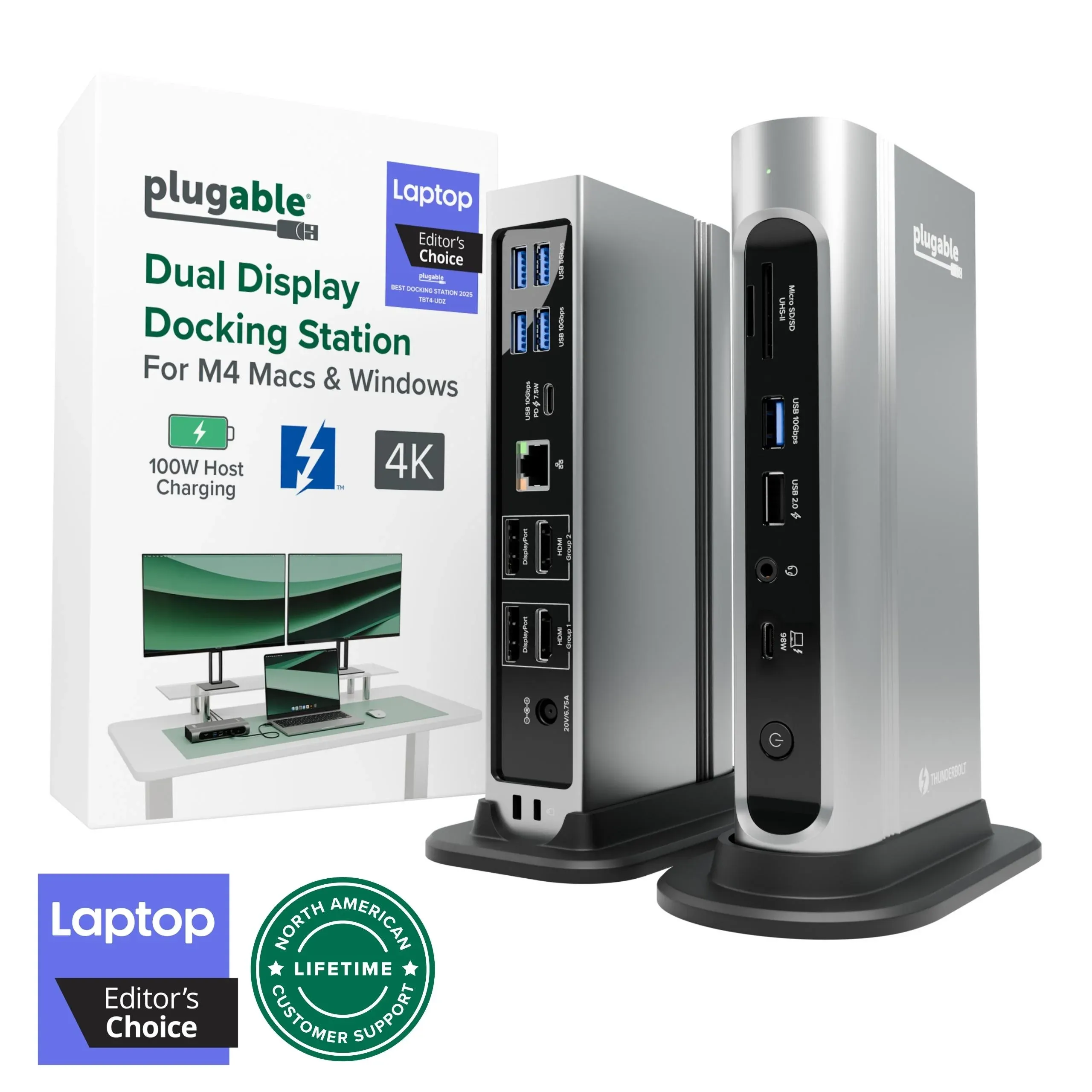
Plugable TBT4-UDZ Thunderbolt 4 16-in-1 Dock
The Plugable TBT4-UDZ is the dual monitor dock most people should buy.
View at PlugableIt has two HDMI and two DisplayPort outputs, so two monitors plug straight in with ordinary cables, and one Thunderbolt 4 cable to the laptop carries both screens, 16 ports and up to 100W of charging (98W certified). On a Mac with an M4, M5 or any Pro or Max chip it extends your desktop across two 4K 60Hz screens, and a base M3 can do the same with the lid closed. A Windows Thunderbolt 4 or USB4 laptop can run up to four screens from it. Skip it if your monitors only take USB-C or Thunderbolt input: it does not support them.
What we like
- Two HDMI and two DisplayPort outputs, two extended 4K 60Hz screens on recent Macs
- Up to 100W of laptop charging (98W certified)
- Up to four screens on a Windows Thunderbolt 4 or USB4 laptop; 2-year warranty
Watch out for
- Base M1 and M2 Macs get one external screen, as with any Thunderbolt dock
- USB-C and Thunderbolt monitors are not supported
- Best for a MacBook desk with lots of accessories
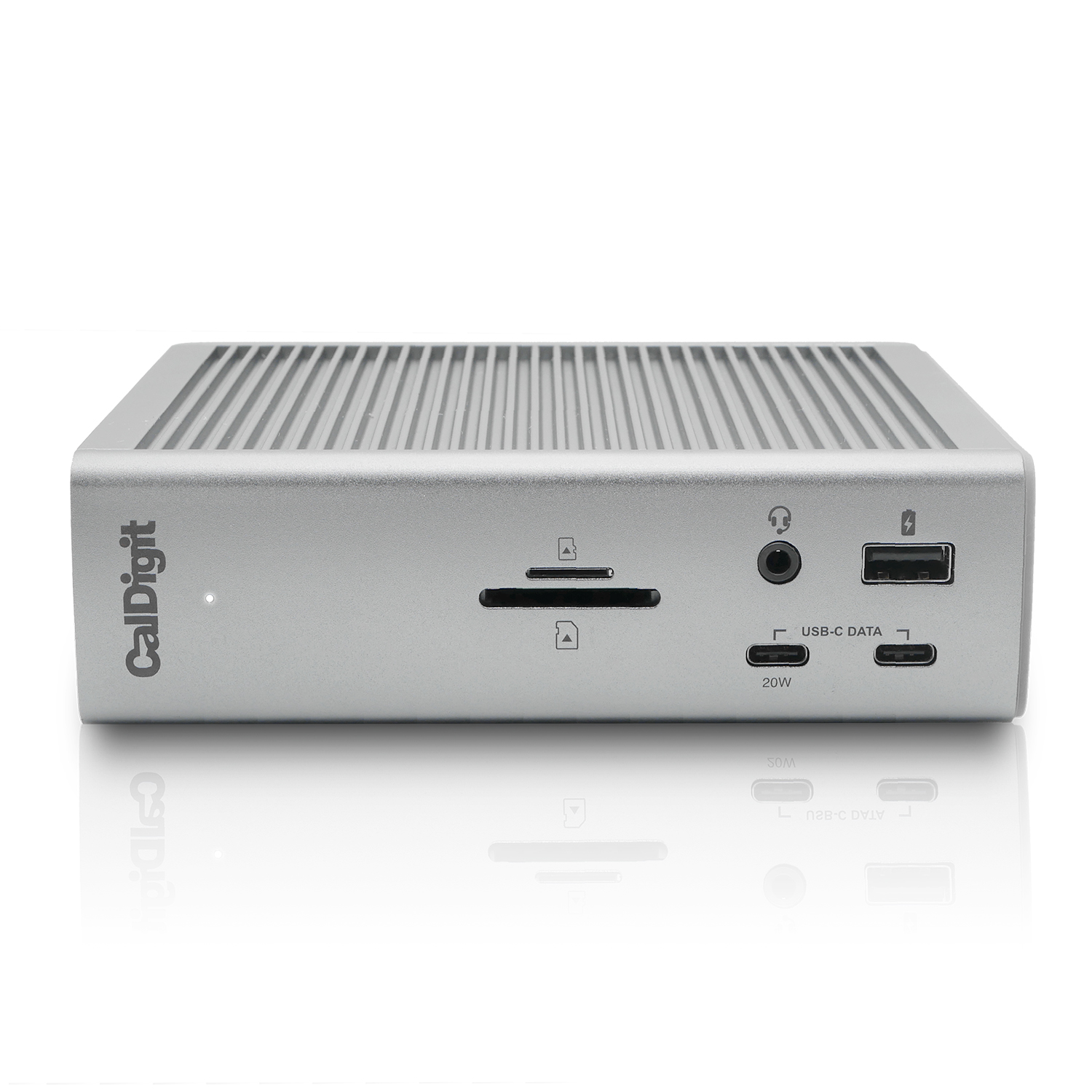
CalDigit Thunderbolt Station 4 (TS4)
The CalDigit TS4 suits a MacBook owner who wants two screens and a desk full of accessories on one cable.
View at CalDigitIt has 18 ports, including three Thunderbolt 4, three 10Gb/s USB-C and five USB-A ports, SD and microSD readers and 2.5 Gigabit Ethernet, and it charges the laptop at up to 98W. Two monitors connect to its one DisplayPort 1.4 output and a spare Thunderbolt port, or to two Thunderbolt ports. That makes it a better fit for USB-C and DisplayPort monitors than HDMI ones: HDMI needs an adapter, and on a Mac an HDMI adapter is limited to 4K at 60Hz. Two extended screens work on Macs with an M4 or M5 chip or any Pro or Max chip, and on Windows Thunderbolt 3 and 4 laptops.
What we like
- 18 ports, including 2.5 Gigabit Ethernet and SD and microSD readers
- Up to 98W of laptop charging
- Two extended screens on M4, M5, Pro and Max Macs; 2-year warranty
Watch out for
- Only one dedicated video output; the second screen needs a Thunderbolt port and a USB-C cable or adapter
- No HDMI port, and HDMI adapters are limited to 4K 60Hz on a Mac
- Best for three screens on Windows
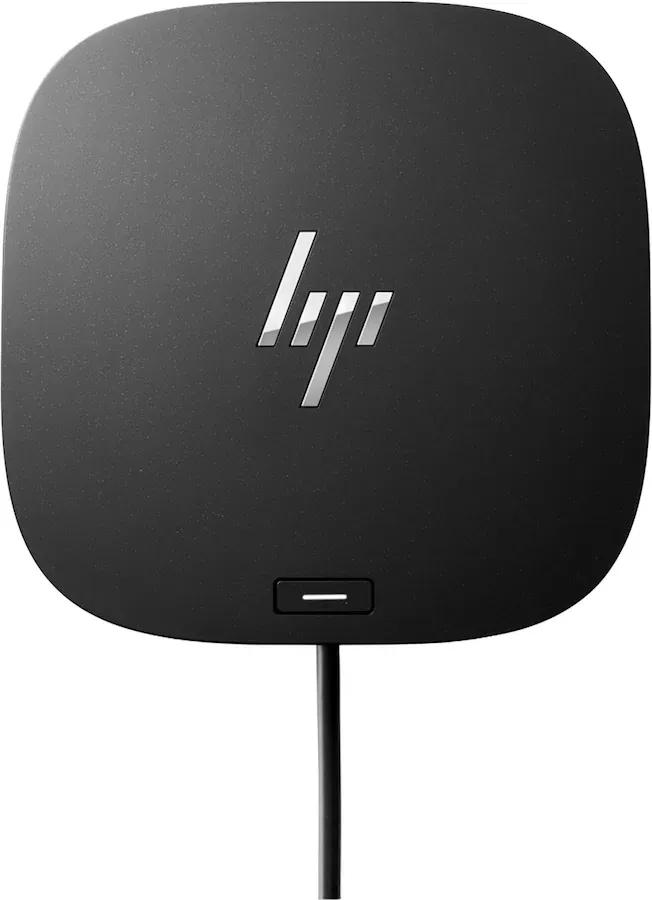
HP USB-C Dock G5
The HP USB-C Dock G5 is for Windows laptops that have USB-C with video but no Thunderbolt.
View at WalmartIt takes up to three displays through two DisplayPort outputs and an HDMI 2.0 port, charges the laptop at up to 100W and adds Gigabit Ethernet, four USB 3.0 ports and a 15W USB-C port, in a 4.8-inch-square box. Do not buy it for a Mac. It drives its screens with DisplayPort MST, which macOS does not support for extended displays, so on a MacBook every monitor shows the same picture. HP also provides no Ethernet or audio drivers for Macs.
What we like
- Up to three displays over plain USB-C, no Thunderbolt needed
- Up to 100W of laptop charging
- Gigabit Ethernet, four USB 3.0 ports and a 15W USB-C port
Watch out for
- Mirrors rather than extends multiple screens on a Mac
- Only one downstream USB-C port; one-year warranty
- Best for travel
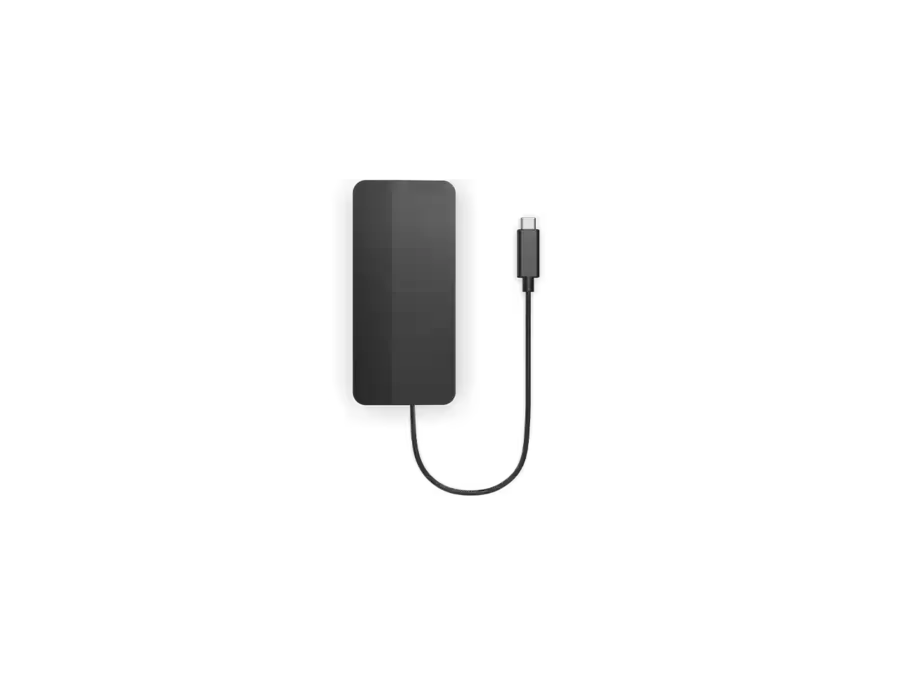
Lenovo USB-C Dual Display Travel Dock
Lenovo’s USB-C Dual Display Travel Dock is the one to pack in a laptop bag for two screens at a hotel desk or a hot desk.
View at Best BuyIts fixed USB-C cable connects a DisplayPort 1.4 and an HDMI output, each up to 4K at 60Hz, plus Gigabit Ethernet, one 10Gbps USB-A port and two 10Gbps USB-C ports. Lenovo lists up to 100W of laptop charging when the dock is plugged into a 135W USB-C adapter, but this version (40B90000US) comes with no adapter in the box, so budget for one or bring your own. Like the HP, it is a Windows dock for two screens: on a Mac its two monitors mirror each other.
What we like
- Two screens up to 4K 60Hz through DisplayPort and HDMI
- Gigabit Ethernet and two 10Gbps USB-C ports in a small body
- Up to 100W of laptop charging with a 135W USB-C adapter
Watch out for
- No power adapter in the box with 40B90000US
- Two screens mirror on a Mac; only one USB-A port
- Best for base M1 and M2 Macs and older laptops
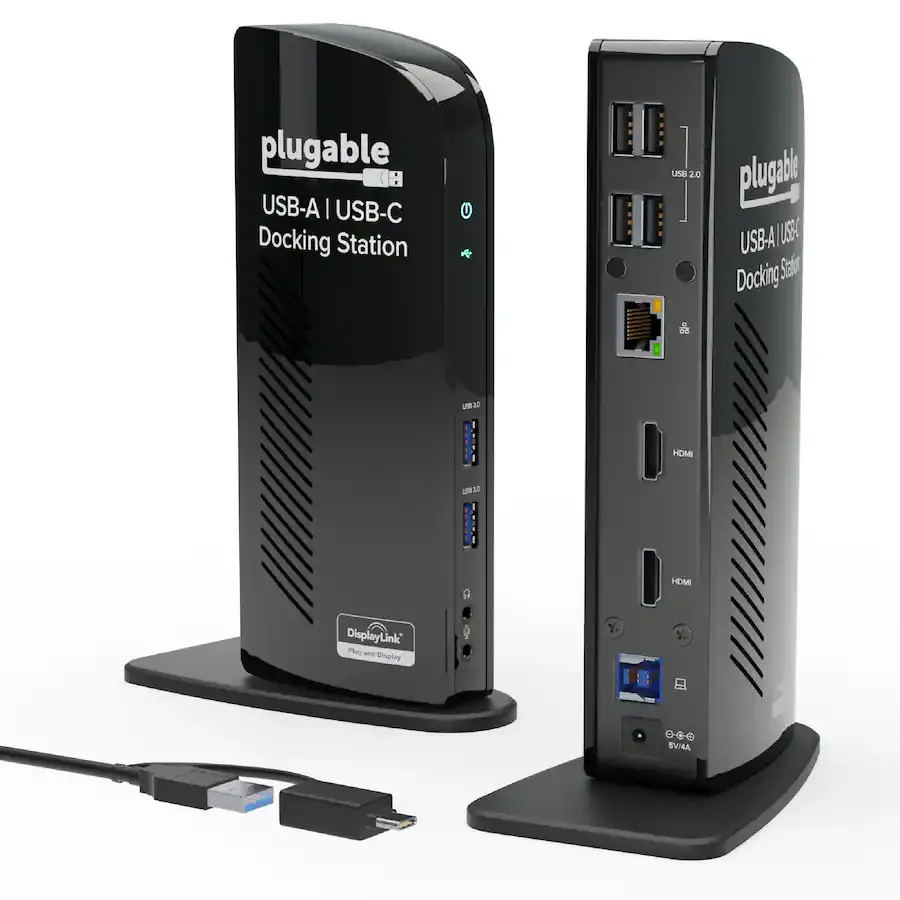
Plugable UD-3900
The Plugable UD-3900 is the only pick here that gives two separate screens on a base M1 or M2 MacBook, and it also works with older laptops whose USB ports carry no video.
View at TargetIt uses DisplayLink, which sends the picture over ordinary USB as data, so it gets around the Mac’s own display limit. Its hybrid cable fits USB 3.0 or USB-C ports. The trade-offs are big: two screens top out at 1920 x 1200 at 60Hz, it does not charge the laptop at all, and DisplayLink cannot play copy-protected video such as Netflix. On a Mac you install DisplayLink Manager and grant it macOS Screen Recording permission. Buy it only if the docks above cannot give you two screens.
What we like
- Two extended screens on any Apple silicon Mac, including base M1 and M2
- Works over USB 3.0 or USB-C, with no video support needed from the port
- Gigabit Ethernet, two USB 3.0 and four USB 2.0 ports; 2-year coverage
Watch out for
- Does not charge the laptop
- Two screens limited to 1920 x 1200; no Netflix or other copy-protected video
- Needs the DisplayLink driver and, on a Mac, Screen Recording permission
For how docks, hubs and connection types work, see our guide to USB-C and Thunderbolt docking stations.
The short version
- Best overall: Plugable TBT4-UDZ. Two HDMI and two DisplayPort outputs, up to 100W charging, two extended screens on M4, M5, Pro and Max Macs.
- Best for a MacBook desk with lots of accessories: CalDigit TS4. 18 ports and up to 98W charging; the second screen goes on a Thunderbolt port.
- Best for three screens on Windows: HP USB-C Dock G5. Three displays and 100W over plain USB-C, but it only mirrors on a Mac.
- Best for travel: Lenovo USB-C Dual Display Travel Dock. Two 4K screens from a small dock; bring your own USB-C adapter for charging.
- Best for base M1 and M2 Macs and older laptops: Plugable UD-3900. DisplayLink gives two 1920 x 1200 screens on almost any laptop, without charging.
How the docks compare
Dock | Laptop connection | Screens on Windows | Two extended screens on a Mac? | Laptop charging |
|---|---|---|---|---|
Plugable TBT4-UDZ | Thunderbolt 4 | Up to 4 (Thunderbolt 4 or USB4) | Yes: M4, M5, Pro and Max; base M3 with the lid closed | Up to 100W (98W certified) |
CalDigit TS4 | Thunderbolt 4 | 2 (Thunderbolt 3 or 4) | Yes: M4, M5, Pro and Max | Up to 98W |
HP USB-C Dock G5 | USB-C | Up to 3 | No, screens mirror | Up to 100W |
Lenovo Travel Dock | USB-C | 2 | No, screens mirror | Up to 100W with a 135W USB-C adapter (not included) |
Plugable UD-3900 | USB 3.0 or USB-C (DisplayLink) | 2, up to 1920 x 1200 | Yes, any Apple silicon Mac | None |
Charging is the most each dock can send to the laptop. Check it against the wattage printed on your laptop's own charger: if the dock supplies less, the laptop usually still charges, just more slowly.
Two screens on a Mac: which docks extend and which mirror
This is the point most dual monitor dock listings skip. A Mac can show two different screens through a dock only if two things are true.
First, the Mac itself must support two external displays. A dock cannot raise that limit; Apple states that a hub or daisy-chaining does not increase the number of displays a Mac supports. Apple lists two external displays for MacBook Air with M4 or M5 and for MacBook Pro with M4, M4 Pro or M5, three for M5 Pro and four for M5 Max. Base M1 and M2 Macs support one, and a base M3 MacBook Air supports two only with its lid closed.
Second, the dock must send each screen its own signal in a way macOS understands. Thunderbolt docks such as the TBT4-UDZ and TS4 do. Most plain USB-C docks with two or three video outputs, including the HP G5 and the Lenovo travel dock, split one USB-C video signal between the screens with a technique called DisplayPort Multi-Stream Transport (MST). Windows supports MST fully. macOS does not support it for extended displays, so on a Mac the screens show the same picture.
The exception is DisplayLink. A DisplayLink dock like the Plugable UD-3900 has its own graphics chip and receives the picture as USB data through a driver, so its screens sit outside the Mac's native display count. That is why it can add two separate screens to a base M1 or M2 MacBook Air. The cost is lower resolution, no copy-protected video and some extra processor load.
In short, for two separate screens on a Mac: buy the Plugable TBT4-UDZ or the CalDigit TS4 if your Mac has an M4, M5, Pro or Max chip, and the Plugable UD-3900 if it has a base M1 or M2. Don't buy the HP G5 or the Lenovo travel dock for a Mac. Our Thunderbolt docks guide goes further into Mac models and ports.
Thunderbolt, USB-C or DisplayLink
The connection type matters more than the brand.
- Thunderbolt docks (Plugable TBT4-UDZ, CalDigit TS4) carry two high-resolution screens, fast data and up to about 100W of charging on one cable, on both Macs and Windows. They need a Thunderbolt or USB4 port for their full ability. Plugged into a plain USB-C laptop they still work, but CalDigit lists one external display for the TS4 on a USB-C Windows laptop, and Plugable lists two for the TBT4-UDZ. Our Thunderbolt 5 vs Thunderbolt 4 vs USB4 comparison explains the port names.
- USB-C docks (HP G5, Lenovo travel dock) work with any laptop whose USB-C port supports video (DisplayPort Alt Mode) and charging. They are a good choice for Windows. On a Mac they give one screen, or several mirrored screens.
- DisplayLink docks (Plugable UD-3900) work over almost any USB 3.0 or USB-C port, need a driver, and suit spreadsheets, documents and email rather than video or games.
Most Windows laptop owners should check one thing first: whether the laptop's USB-C port is marked Thunderbolt or USB4. If it is, buy the TBT4-UDZ. If it is plain USB-C with video, the HP G5 is the better match.
Match the dock to your monitors
Count the inputs on your monitors before you buy. The TBT4-UDZ takes HDMI and DisplayPort monitors directly, but not USB-C ones. The TS4 has one DisplayPort output and sends a second screen through a Thunderbolt port, which suits USB-C monitors and DisplayPort monitors with a USB-C-to-DisplayPort cable. The HP G5 and Lenovo travel dock each have DisplayPort and HDMI. The UD-3900 has two HDMI outputs and does not support DisplayPort monitors.
Resolution limits differ too. The TBT4-UDZ and the Lenovo dock run each screen at up to 4K 60Hz. The TS4 reaches 4K 60Hz on two screens with most laptops, and up to 6K 60Hz with an M1 Pro, M1 Max or M1 Ultra Mac. The UD-3900 is limited to 1920 x 1200 on two screens. For setting the screens up once they are connected, see our dual monitor setup guide, and if you still need the monitors themselves, our best monitors for a home office guide covers sizes and connections.
How we chose
These recommendations are research-based. We have not tested these docks. We read each maker's own product page, product sheet or user guide for the laptop connection, number of screens, Mac support, charging and ports, and every figure here comes from those documents, linked under Sources. We looked for docks that run two monitors from one cable and that cover the common cases: a recent Mac, a Windows laptop with or without Thunderbolt, travel, and laptops that cannot drive two screens natively. An earlier version of this guide included the Kensington SD5780T and the Dell WD22TB4. Kensington now lists the SD5780T as discontinued, and Dell's US store no longer lists the WD22TB4, so we replaced both.
We link to stores we could confirm sell each exact model; we don't compare their prices.
Questions people ask
Can a USB-C docking station run two monitors on a MacBook?
Only some can. Thunderbolt docks give two separate screens on Macs that support two displays, but many plain USB-C dual monitor docks, including the HP G5 and Lenovo travel dock, use DisplayPort MST, which macOS does not support for extended displays, so both screens show the same picture.
How do I get two monitors on a base M1 or M2 MacBook Air?
Use a DisplayLink dock such as the Plugable UD-3900. Base M1 and M2 Macs drive only one external display natively, and a Thunderbolt dock cannot raise that, but DisplayLink sends the picture over USB as data and adds two screens at up to 1920 x 1200.
Do I need a Thunderbolt port for a dual monitor dock?
No. The HP G5 and Lenovo travel dock run two or more screens from a USB-C port that supports video, and the Plugable UD-3900 works over USB 3.0. A Thunderbolt or USB4 port gets the most from the Plugable TBT4-UDZ and CalDigit TS4, and on a Mac it is what gives two extended screens.
Can a docking station charge my laptop?
Most of these can. The TBT4-UDZ supplies up to 100W (98W certified), the TS4 up to 98W, the HP G5 up to 100W and the Lenovo travel dock up to 100W with a separate 135W USB-C adapter. The Plugable UD-3900 does not charge the laptop.
Will a dual monitor dock play Netflix on both screens?
The Thunderbolt and USB-C docks here use the laptop’s own video output, so streaming works as it would on a directly connected monitor. DisplayLink docks such as the Plugable UD-3900 do not support copy-protected video such as Netflix.
Sources we used
- Plugable TBT4-UDZ Thunderbolt 4 16-in-1 Docking Station
- CalDigit Thunderbolt Station 4 (TS4)
- HP USB-C Dock G5 (26D32AA) product sheet (HP, US)
- Lenovo USB-C Dual Display Travel Dock overview (Lenovo Support)
- Lenovo USB-C Dual Display Travel Dock User Guide, March 2024 (Lenovo PDF, retailer-hosted copy)
- Plugable UD-3900 Universal Dual Monitor Docking Station
- Plugable: Understanding MST multi-display setups with Windows, macOS and DisplayPort
- Apple: How many displays can be connected to MacBook Pro
- Apple: How many displays can be connected to MacBook Air
- Kensington SD5780T product page (marked discontinued)
Comments
No comments yet. Start the conversation.