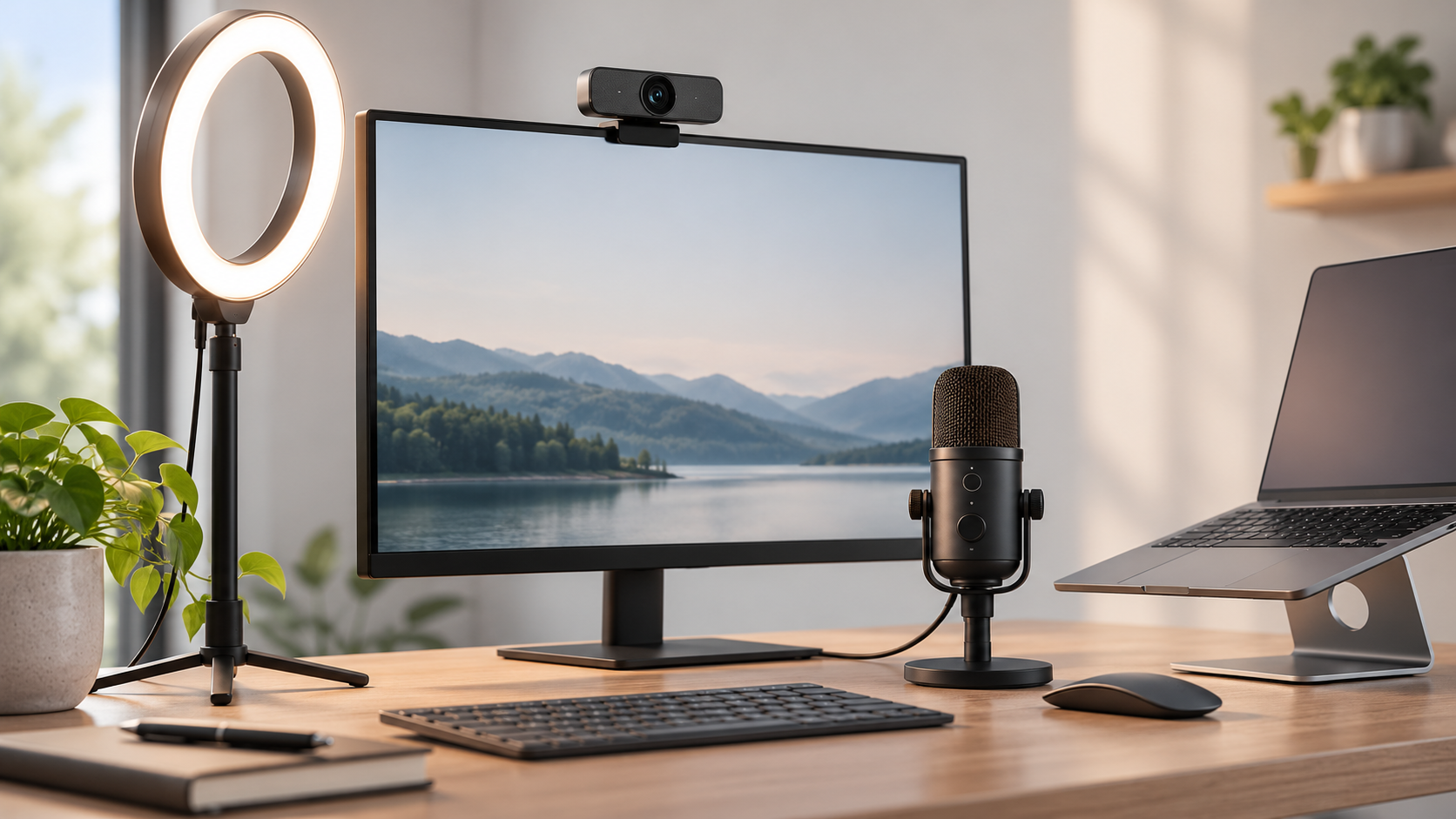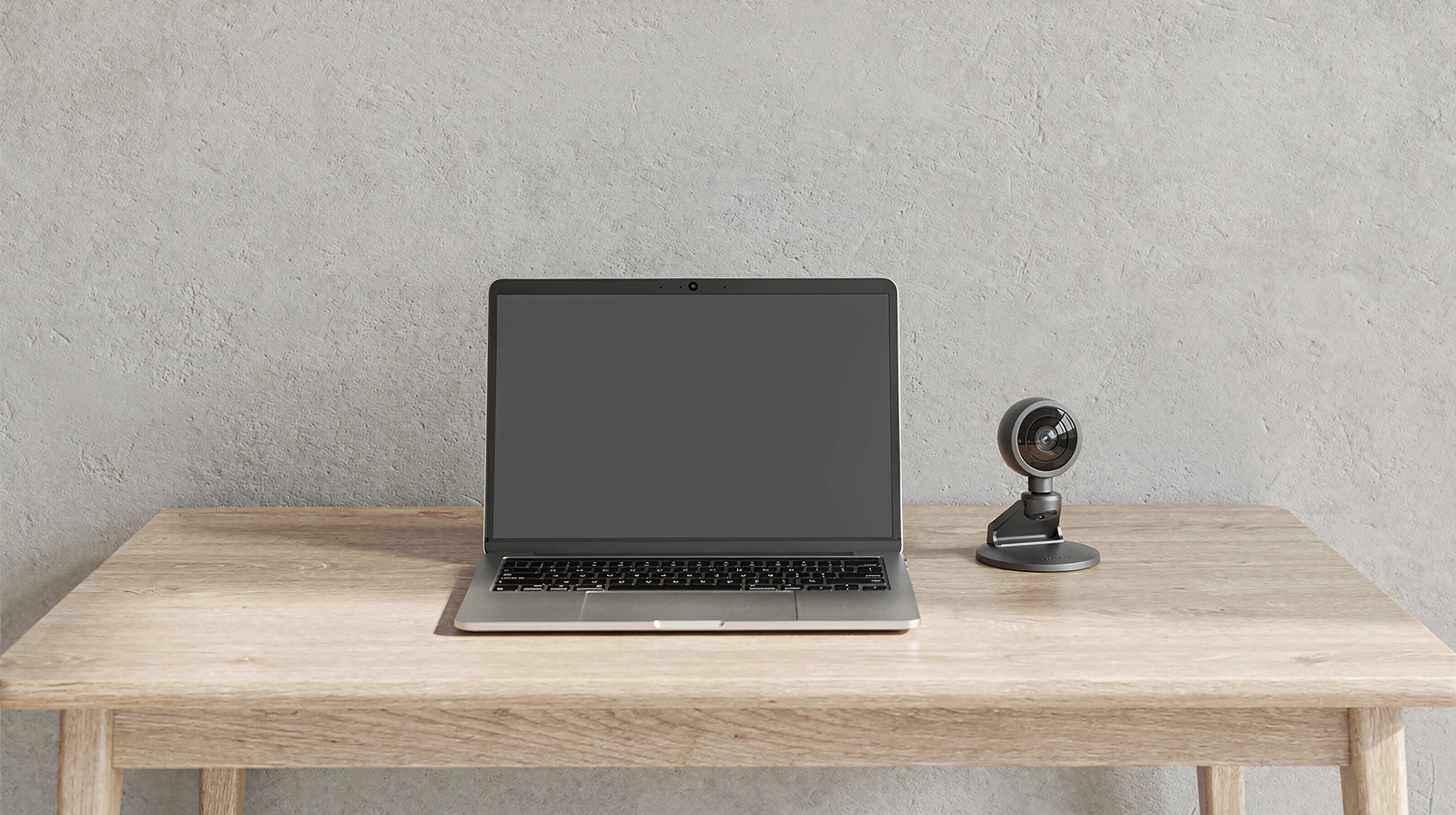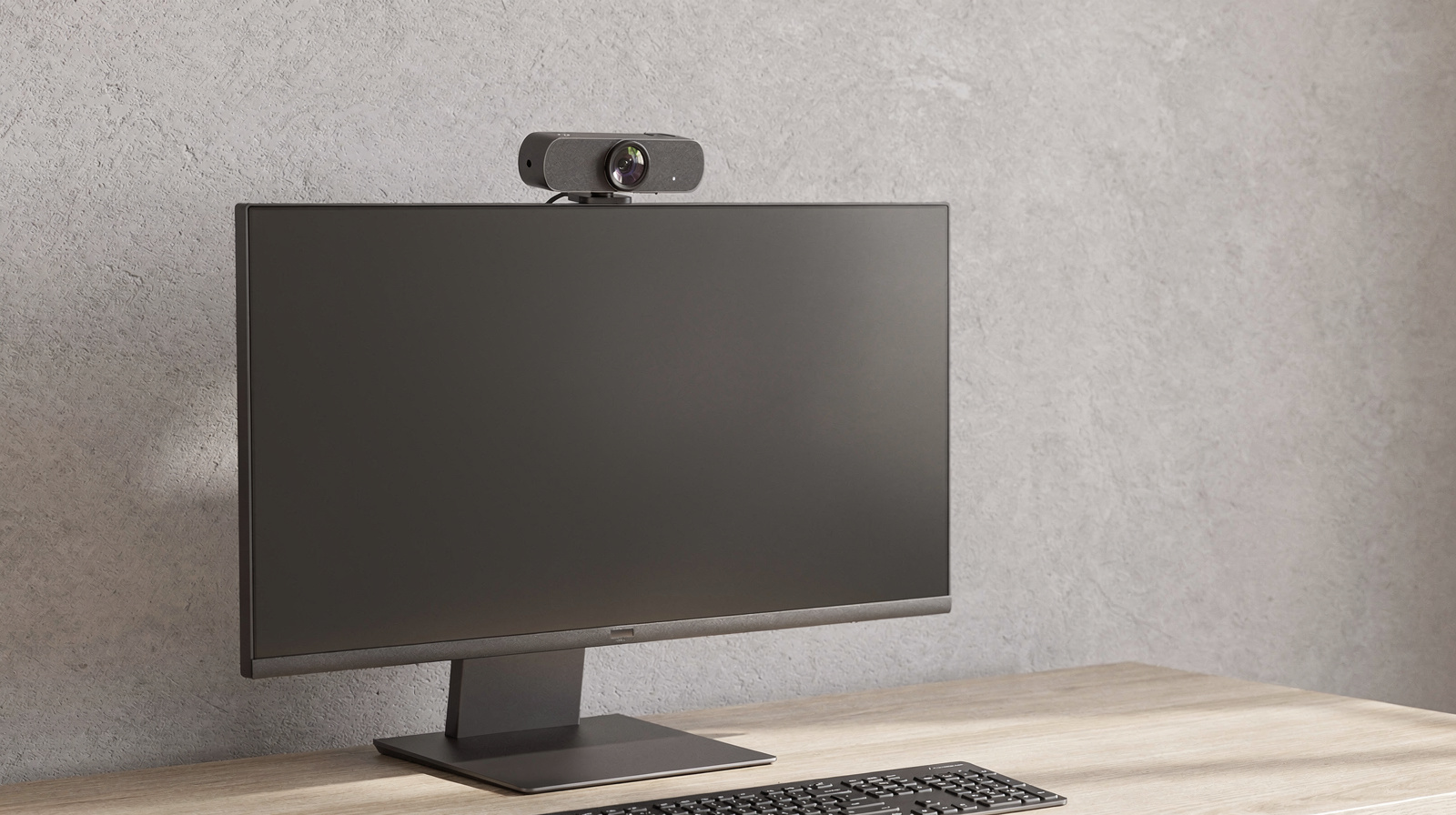
Most people should buy the Logitech Brio 500. Zoom and Teams calls rarely carry more than 1080p, and the Brio 500 records 1080p with autofocus, lets you choose one of three framings and carries the Teams, Zoom and Google Meet certification many IT departments ask for. If your computer only has USB-A ports, the Brio 100 is the simple upgrade. For 4K, the Logitech MX Brio is certified for the same apps, and the Insta360 Link 2C adds automatic framing for one person or a group.
Our picks at a glance
- View at Staples
Best overall
- View at Best Buy
Best simple upgrade
- View at B&H Photo
Best 4K webcam
- View at B&H Photo
Best for auto framing
The picks in detail
- Top pick
Best overall
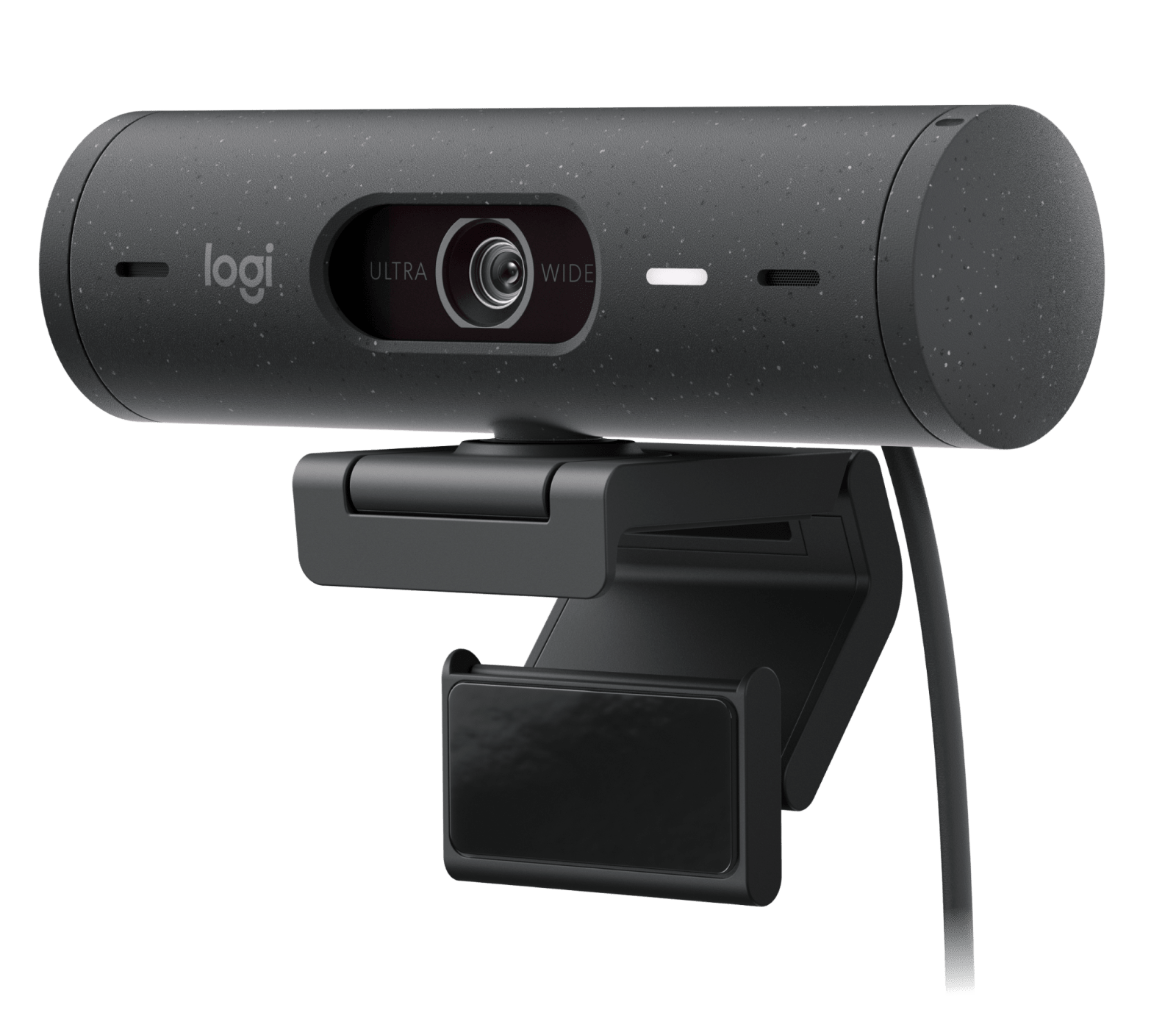
Logitech Brio 500 Webcam (960-001493)
The Brio 500 is the webcam most people should buy.
View at StaplesIt records 1080p at 30fps with autofocus, which matches what Zoom and Teams actually send, and it is certified for Microsoft Teams, Zoom, Google Meet and Works With Chromebook. You can set the field of view to 90°, 78° or 65°, so it frames a tight head-and-shoulders shot or a wider room, and the free Logi Tune app adds RightSight auto-framing. It has a stereo mic and an integrated privacy shutter. Skip it if your computer has no USB-C port that carries video, or if you want 60fps at full HD.
What we like
- Certified for Teams, Zoom, Google Meet and Works With Chromebook
- Autofocus with three field-of-view settings
- Stereo mic and integrated privacy shutter
Watch out for
- 1080p at 30fps at most (60fps only at 720p)
- Auto-framing needs Logi Tune, which isn’t available for ChromeOS
- Won’t work through a USB-C adapter that carries only power
- Best simple upgrade
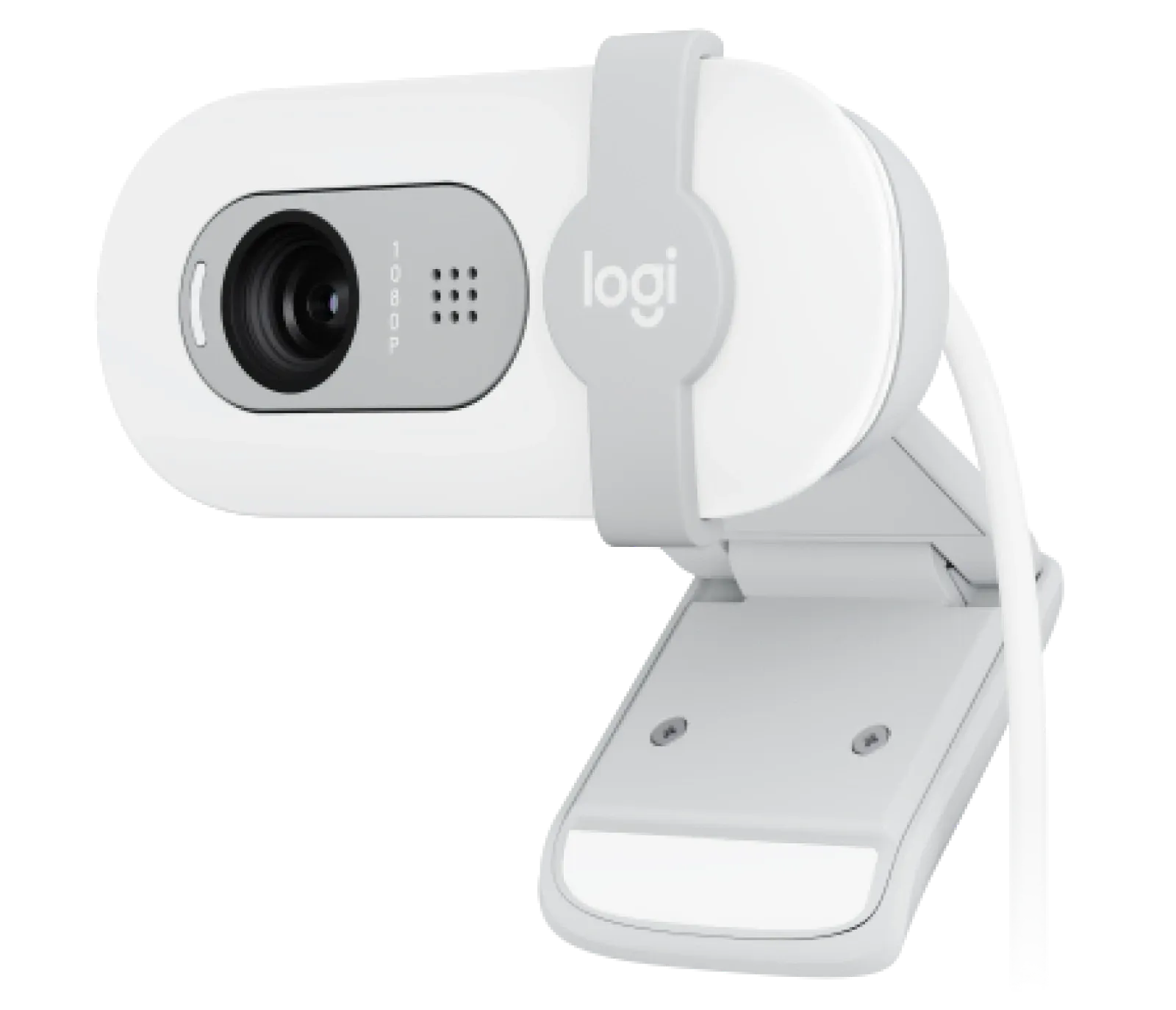
Logitech Brio 100 Webcam (960-001616)
The Brio 100 is for older laptops and desktops with USB-A ports, and for anyone who wants a plain 1080p camera on top of a monitor without installing anything.
View at Best BuyIt records 1080p at 30fps, has a built-in omnidirectional mic, an integrated privacy shutter and RightLight 2 auto-light balance. The lens is fixed focus with a 58° field of view, which frames one person at a desk and hides most of the room. Logitech lists it as compatible with Teams, Google Meet and Zoom but not certified, so skip it if your employer only supports certified devices.
What we like
- USB-A plug-and-play
- Built-in mic and integrated privacy shutter
- 1080p at 30fps
Watch out for
- Fixed focus, not autofocus
- No Teams or Zoom certification listed
- Best 4K webcam
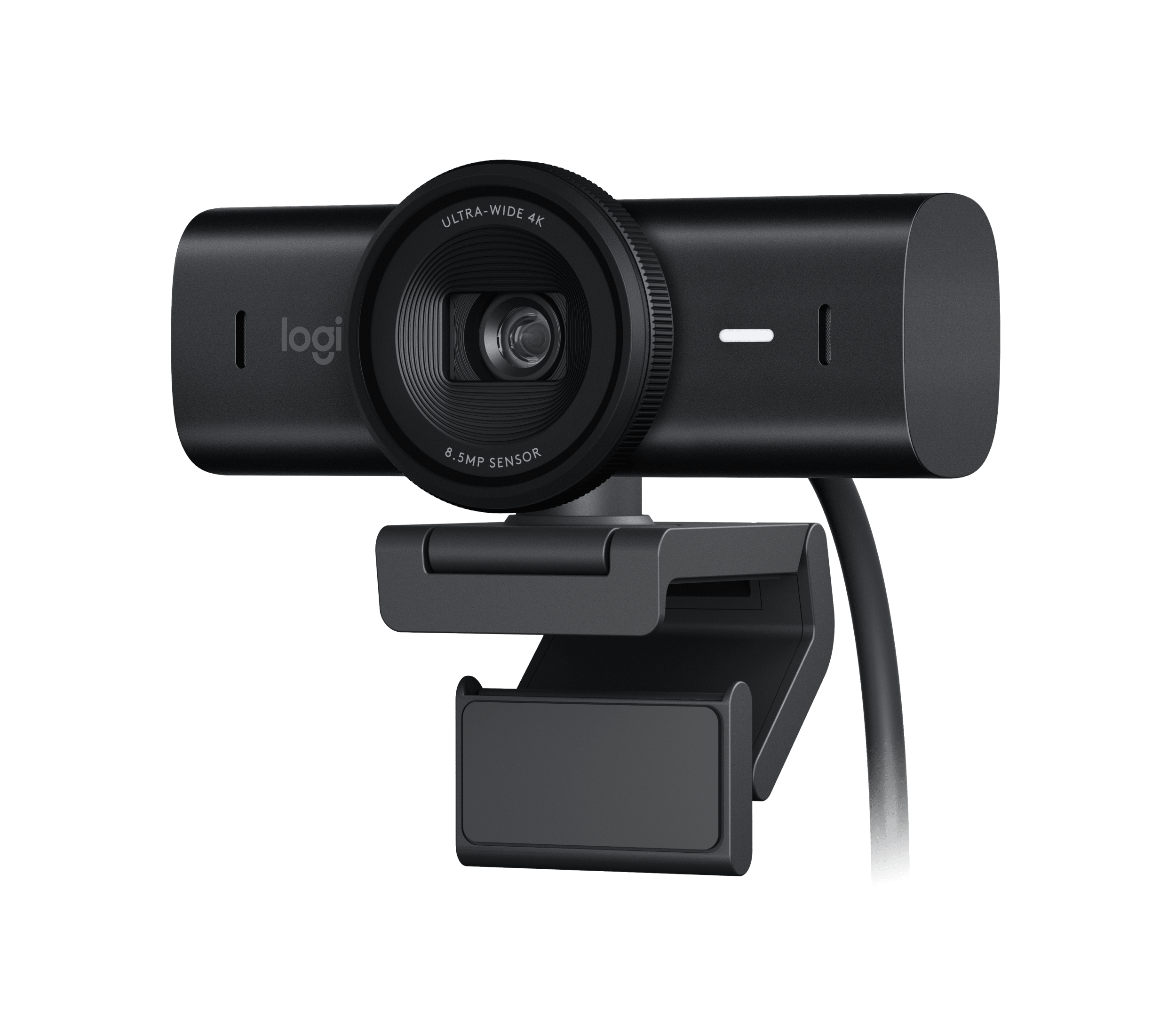
Logitech MX Brio 4K Webcam (960-001558)
The MX Brio is the pick if you want a certified camera with the most image headroom.
View at B&H PhotoIts 8.5MP Sony STARVIS sensor records 4K at 30fps or 1080p at 60fps, with autofocus, dual beamforming mics and a privacy shutter you rotate over the lens. It is certified for Teams, Zoom, Google Meet, Works With Chromebook and Streamlabs. Show Mode lets you tilt it down to share notes on the desk, and Logi Options+ or G HUB add fine image controls. Buy it if you present often or crop your picture; skip it if your laptop has no USB-C port that supports USB 3.0, because that is a firm requirement.
What we like
- 4K at 30fps or 1080p at 60fps from an 8.5MP sensor
- Certified for Teams, Zoom and Google Meet
- Show Mode, 1/4-inch tripod thread and privacy shutter
Watch out for
- Needs a USB-C port that supports USB 3.0
- Logitech’s support pages cover video freezes under heavy use, traced to interference from nearby USB-C ports; its fixes are another port, a powered hub or dock, or a USB-A cable
- Best for auto framing
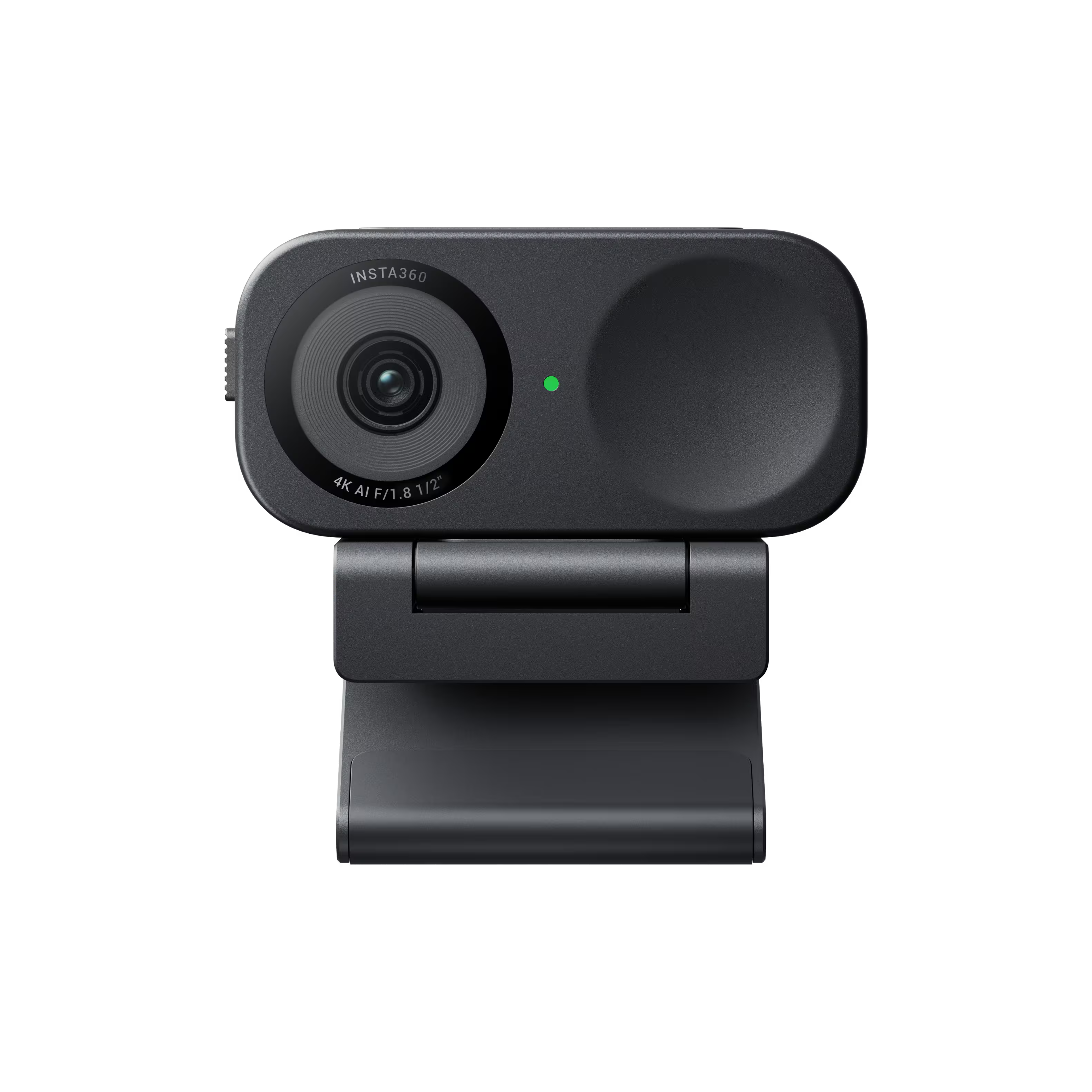
Insta360 Link 2C 4K AI Webcam (CINSABNA)
The Link 2C is for people who move around on calls or share one camera with a colleague.
View at B&H PhotoIts Auto Framing zooms to keep one person or a whole group in view, and its 1/2-inch sensor records 4K at 30fps or 1080p at 60fps with HDR in every mode. Phase-detection autofocus works from 4 inches, the built-in audio uses AI noise cancelling, and it has a privacy shutter and a magnetic mount with a tripod thread. It connects by USB-C, or USB-A with the included adapter, and it is Zoom certified. Skip it if you use a Windows laptop with an ARM processor: Insta360’s Link Controller software doesn’t support it.
What we like
- 4K at 30fps, 1080p at 60fps, HDR in all modes
- Auto Framing for one person or a group
- Works with USB-C or USB-A ports; Zoom certified
Watch out for
- Link Controller doesn’t support ARM-based Windows
- Fixed 79.5° field of view (digital zoom only)
- Insta360 warns that its background blur and replacement may have compatibility issues with AMD graphics on Windows
A webcam is not the first fix, though. Light in front of you and a camera at eye level change your picture more than any of these, and our complete guide to looking and sounding professional on video calls walks through both.
The short version
- Best overall: Logitech Brio 500. 1080p with autofocus, three field-of-view settings, certified for Teams, Zoom and Google Meet.
- Best simple upgrade: Logitech Brio 100. 1080p, built-in mic and privacy shutter over USB-A; fixed focus.
- Best 4K webcam: Logitech MX Brio. 4K at 30fps or 1080p at 60fps, certified for Teams, Zoom and Google Meet.
- Best for auto framing: Insta360 Link 2C. 4K, a 1/2-inch sensor and Auto Framing; Zoom certified.
How they compare
Webcam | Top video modes | Field of view (diagonal) | Focus | Mic | Connection | Certified for |
|---|---|---|---|---|---|---|
Logitech Brio 500 | 1080p/30fps, 720p/60fps | 90°, 78° or 65° | Autofocus | Stereo | USB-C | Teams, Zoom, Google Meet |
Logitech Brio 100 | 1080p/30fps | 58° | Fixed focus | Omnidirectional | USB-A | None listed |
Logitech MX Brio | 4K/30fps, 1080p/60fps | 90°, 78° or 65° | Autofocus | Dual beamforming | USB-C (USB 3.0) | Teams, Zoom, Google Meet |
Insta360 Link 2C | 4K/30fps, 1080p/60fps | 79.5° (fixed) | Phase-detection autofocus | AI noise cancelling | USB-C (USB 2.0) or USB-A adapter | Zoom |
All four have a built-in microphone and a physical privacy shutter.
Is an external webcam worth it over your laptop camera?
Often, yes, but check your laptop first. If its spec page lists 1080p video and your calls look fine in good light, a new webcam may change less than you expect. Our webcam vs laptop camera comparison goes through what laptop makers list and how to decide in five minutes. If you’re still choosing a laptop, camera quality is one of the things we compare in our guide to laptops for working from home.
An external webcam earns its place in three situations:
- You work with the lid closed. If your laptop sits closed on a stand while you use an external monitor, its built-in camera is out of action. A webcam clipped to the monitor solves that.
- You want the camera at eye level. A webcam on top of your main monitor looks at you straight on, rather than up from a laptop screen off to one side.
- You want features a laptop camera lacks. Autofocus, a choice of field of view, auto-framing and a physical shutter are all on these webcams; check your laptop’s spec page to see which it already has.
What matters in a webcam for Zoom meetings and Teams calls
Resolution and frame rate
1080p at 30fps is the baseline for every webcam here, and it is all most calls need. Zoom and Teams send at most 1080p in a meeting, and often less, depending on your plan, your connection and the meeting layout. Insta360 makes the same point on its own spec page. A 4K camera still has uses. The extra detail keeps the picture sharp when the camera crops or zooms to frame you, and the MX Brio and Link 2C can run 1080p at 60fps for smoother motion.
Field of view
Field of view decides how much of the room the camera sees. A narrow view, like the Brio 100’s 58°, frames one person at a desk and hides more of the room behind you. A wide view suits two people sharing a camera. The Brio 500 and MX Brio switch between 90°, 78° and 65°, so one webcam covers both. The Link 2C is fixed at 79.5° and uses digital zoom and Auto Framing to tighten the shot.
Autofocus or fixed focus
Autofocus keeps you sharp as you lean in or sit back, and lets the camera focus on something you hold up. The Link 2C’s phase-detection autofocus works from 4 inches away. A fixed-focus lens, like the Brio 100’s, is set for a typical sitting distance and doesn’t adjust.
Built-in microphones
Every pick has a built-in mic, so you can take a call without a headset. The Brio 100 has one omnidirectional mic with a range of up to 3 feet; the Brio 500 has a stereo mic; the MX Brio has dual beamforming, noise-reducing mics; and the Link 2C uses AI noise cancelling with three audio modes. A webcam mic sits an arm’s length away, though. If you share a room or take many calls, a headset or a desk microphone will sound clearer; our guide to USB microphones for remote workers compares four.
Privacy shutter
All four webcams have a physical shutter you close over the lens between calls. On the MX Brio you rotate it, and on the Brio 100 you slide it. It’s a simple, visible way to know the camera isn’t showing anything.
Connection: USB-A or USB-C
Check which ports you have free. The Brio 100 uses USB-A, which suits older laptops and desktops. The Brio 500 needs a USB-C port, and Logitech notes it won’t be recognized through an adapter that carries only power. The MX Brio needs a USB-C port that supports USB 3.0. The Link 2C comes with a USB-C cable and a USB-C to USB-A adapter, so it fits either. If your laptop is short on ports, a dock adds more; see our guide to docking stations for two monitors.
What “certified for Teams and Zoom” means
Certification means the platform has approved the camera, and the maker lists it on its spec sheet. Logitech lists the Brio 500 and MX Brio as certified for Microsoft Teams, Zoom and Google Meet, and Insta360 lists the Link 2 series as officially Zoom certified. An uncertified webcam still works in these apps: Logitech lists the Brio 100 as compatible with Teams, Google Meet and Zoom. Certification matters when your employer’s IT team only supports certified devices. If IT also wants to manage cameras centrally, Logitech sells a business model, the MX Brio 705 for Business, which IT can manage remotely through Logitech Sync.
Setting up your webcam
Mount the webcam on the screen you look at most, so you’re looking toward the lens during a call. The Brio 500 and MX Brio come with a clip that fits laptops and monitors, the Link 2C comes with a magnetic mount, and the MX Brio and Link 2C also have a 1/4-inch thread for a tripod. If you’re still planning your desk around a new screen, our guide to home-office monitors covers sizes and resolutions.
Three settings are worth a look once it’s plugged in:
- Select it in the app. Zoom and Teams both let you pick your camera and microphone in their settings; choose the webcam, or your laptop’s built-in camera may stay active.
- Install the maker’s software if you want the extras. Auto-framing on the Brio 500 needs Logi Tune, fine image controls on the MX Brio need Logi Options+ or G HUB, and the Link 2C’s framing and modes are set in Insta360’s Link Controller. The Logitech cameras work as plain webcams without it.
- Check your computer supports that software. Logi Tune isn’t available for ChromeOS, and Link Controller doesn’t support ARM-based Windows laptops.
How we chose
We have not tested these webcams. We started from webcams that major US retailers sell, read each spec from the maker’s own page, and left out models built mainly for streaming. We weighted certification for Teams and Zoom, autofocus and a choice of field of view, and a mix of USB-A and USB-C so there is a pick for older and newer computers. We link only to retailers that sell the exact model new, and we don’t compare their prices.
Questions people ask
Is 1080p good enough for Zoom and Teams meetings?
Yes. Zoom and Teams send at most 1080p in a meeting, and often less, so a 1080p webcam such as the Brio 500 covers what the other side sees. 4K helps mainly when the camera crops or zooms to frame you.
Do I need a webcam certified for Microsoft Teams or Zoom?
Not usually. Uncertified webcams such as the Brio 100 still work in both apps. Choose a certified model, such as the Brio 500 or MX Brio, if your workplace only supports certified devices.
Do these webcams work with a Mac?
Yes. Logitech lists macOS support for all three of its picks, with macOS 10.15 or later for the Brio 100 and MX Brio. Insta360’s Link Controller software for the Link 2C needs macOS 11.0 or later.
Will a USB-C webcam work with a USB-A port?
Only some. The Link 2C comes with a USB-C to USB-A adapter. The Brio 500 and MX Brio need a USB-C port, and the MX Brio’s port must support USB 3.0.
Does a 4K webcam make me look better on calls?
Not by resolution alone, because the call app sends 1080p at most. Light in front of you and a lens at eye level make a bigger difference, and our video-calls guide covers both.
Sources we used
- Logitech Brio 500 specs and compatibility (Logitech)
- My BRIO 500/501 does not connect or is not recognized by my computer (Logitech support)
- Logitech Brio 100 specs and compatibility (Logitech)
- Logitech MX Brio specs and compatibility (Logitech)
- How to troubleshoot MX Brio webcam freezes (Logitech support)
- MX Brio 705 for Business (Logitech)
- Insta360 Link 2 and Link 2C specs (Insta360)
- Insta360 Link 2C (CINSABNA) listing (Best Buy)
Comments
No comments yet. Start the conversation.