The complete guide
How to Look and Sound Professional on Video Calls
How to look good on video calls: fix your light, camera height, background and sound first, with the Zoom, Teams and Google Meet settings that help.
Read the guide
4 guides in this topic
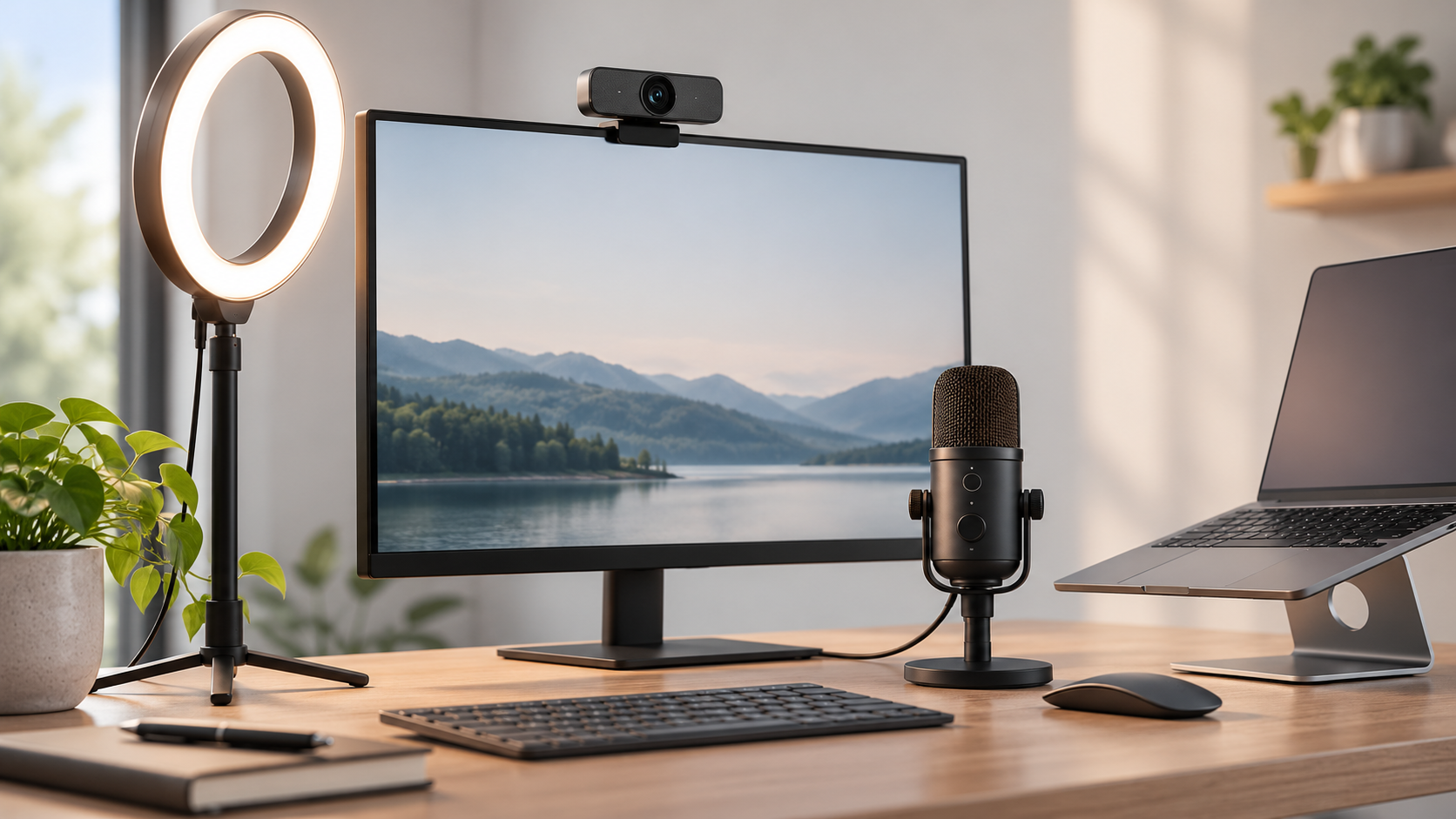
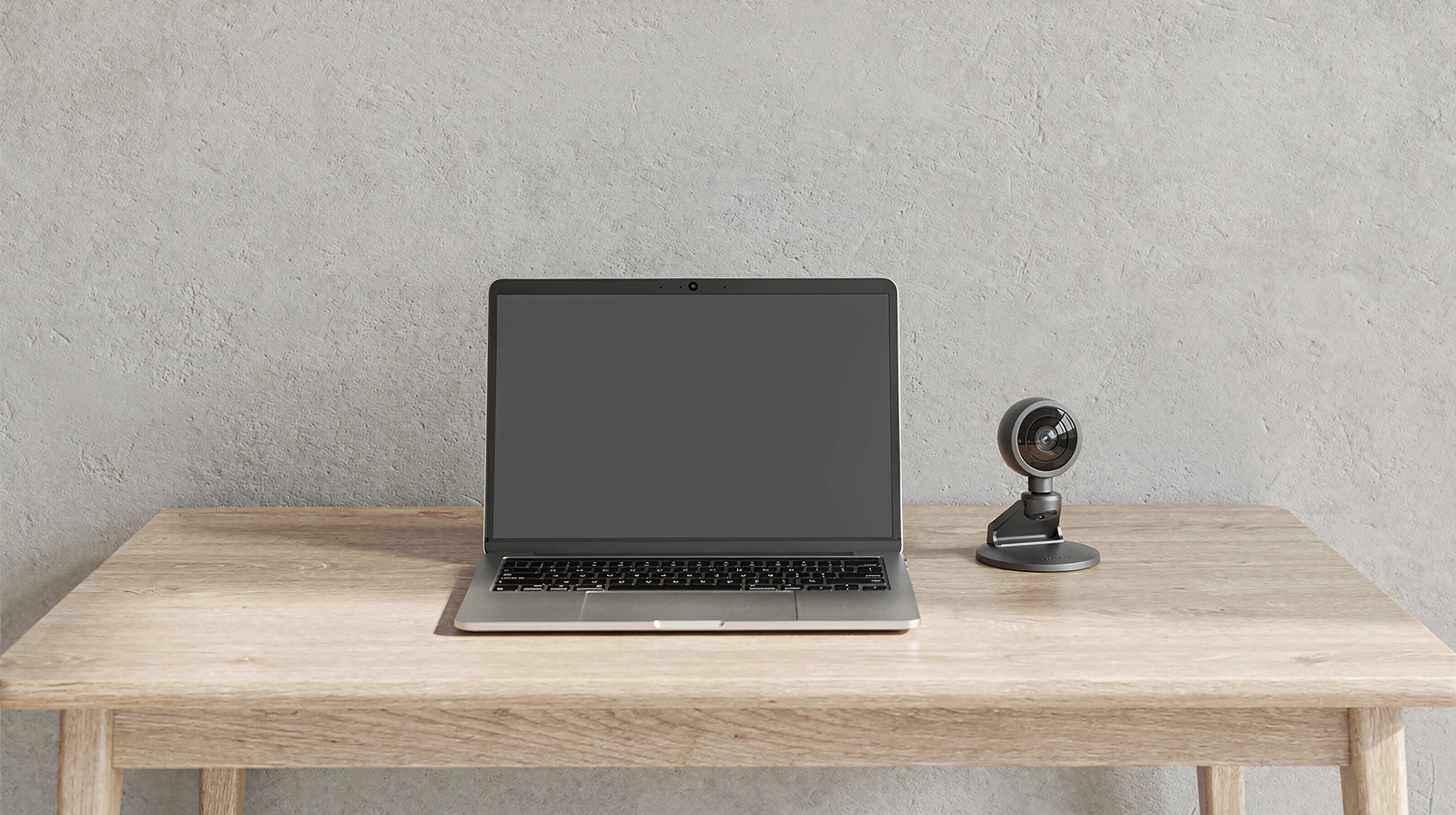
How you come across on a video call often matters as much as what you say, and a laptop's built-in camera and microphone are rarely good enough for daily meetings. A dedicated webcam brings sharper video and better low-light performance; a decent microphone (whether a headset or a standalone mic) cuts out the room echo and background noise that built-in mics pick up. Lighting is the cheapest upgrade of all, and often the one people skip. The right setup depends on how often you're on calls and whether you present, share your screen, or mostly listen. We test cameras, microphones and lighting for realistic home-office conditions, not studio setups, so you can look and sound professional without overspending.
The complete guide
How to look good on video calls: fix your light, camera height, background and sound first, with the Zoom, Teams and Google Meet settings that help.
Read the guide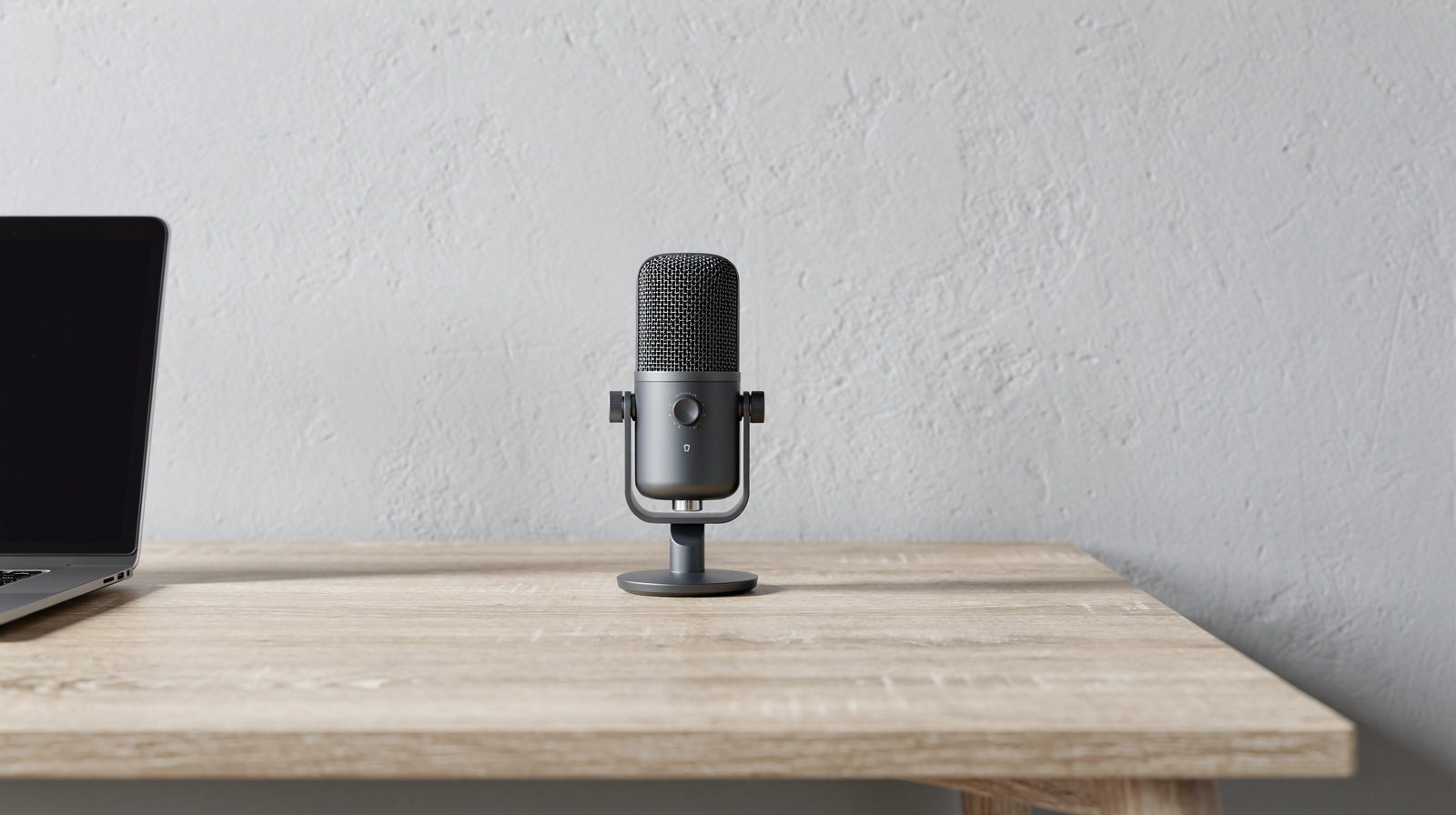
Four USB microphones for Zoom, Teams and Meet, with a plain buy-or-skip for each: dynamic or condenser for your room, the cable in the box, whether you need a stand, and the software involved.
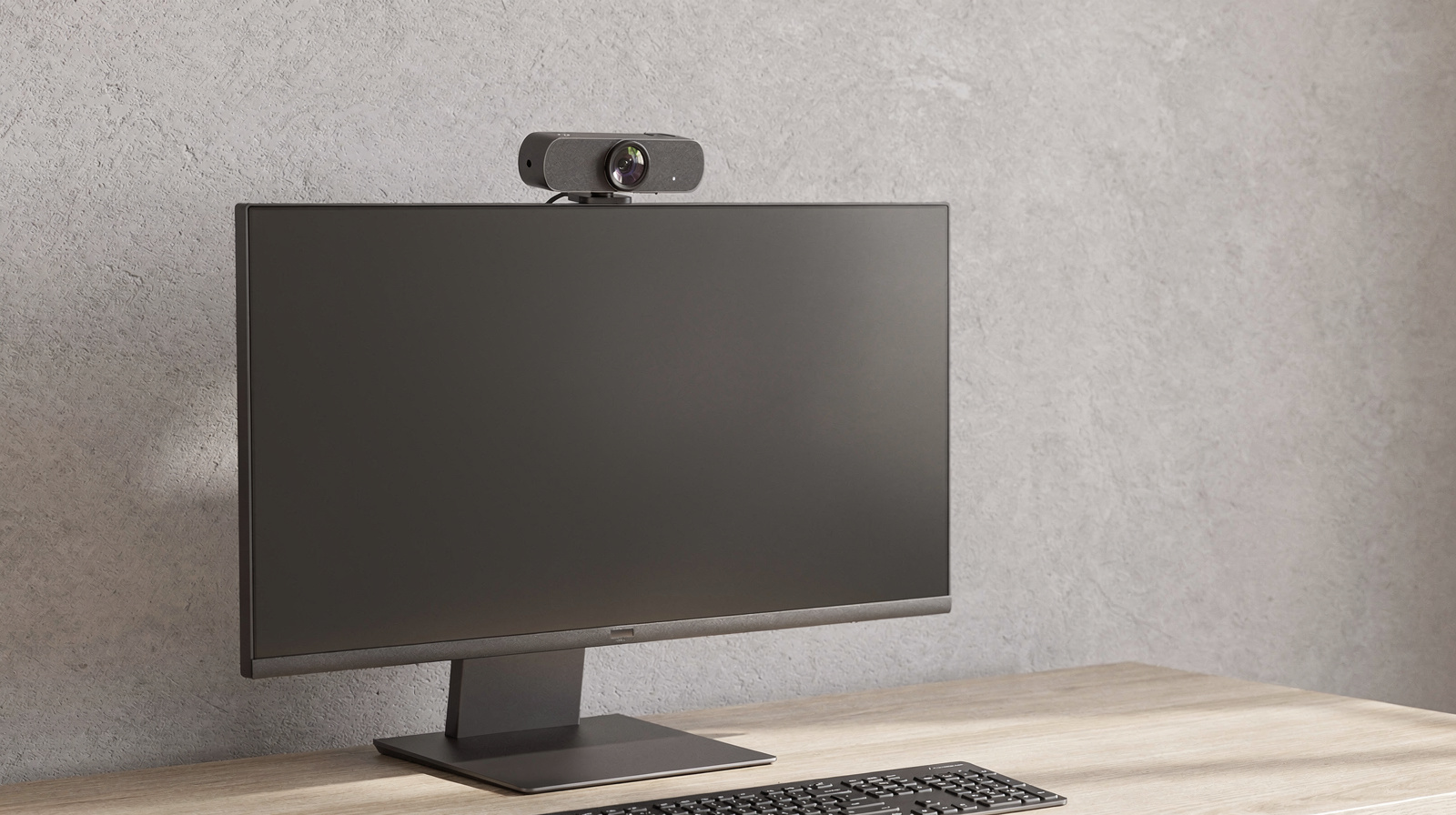
Four webcams for Zoom and Teams calls, from a simple 1080p upgrade to 4K, and which one suits your computer, your room and your IT department.