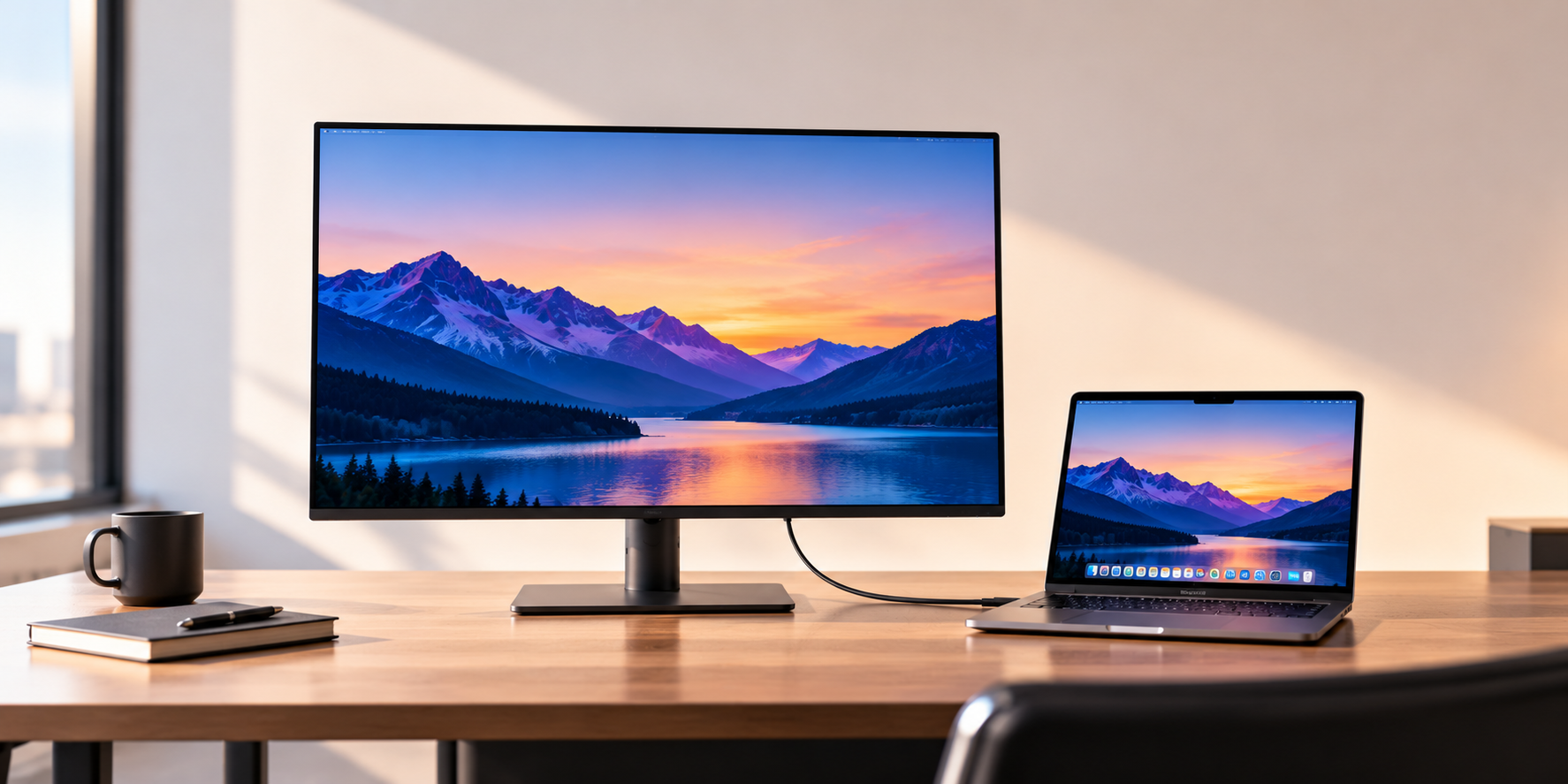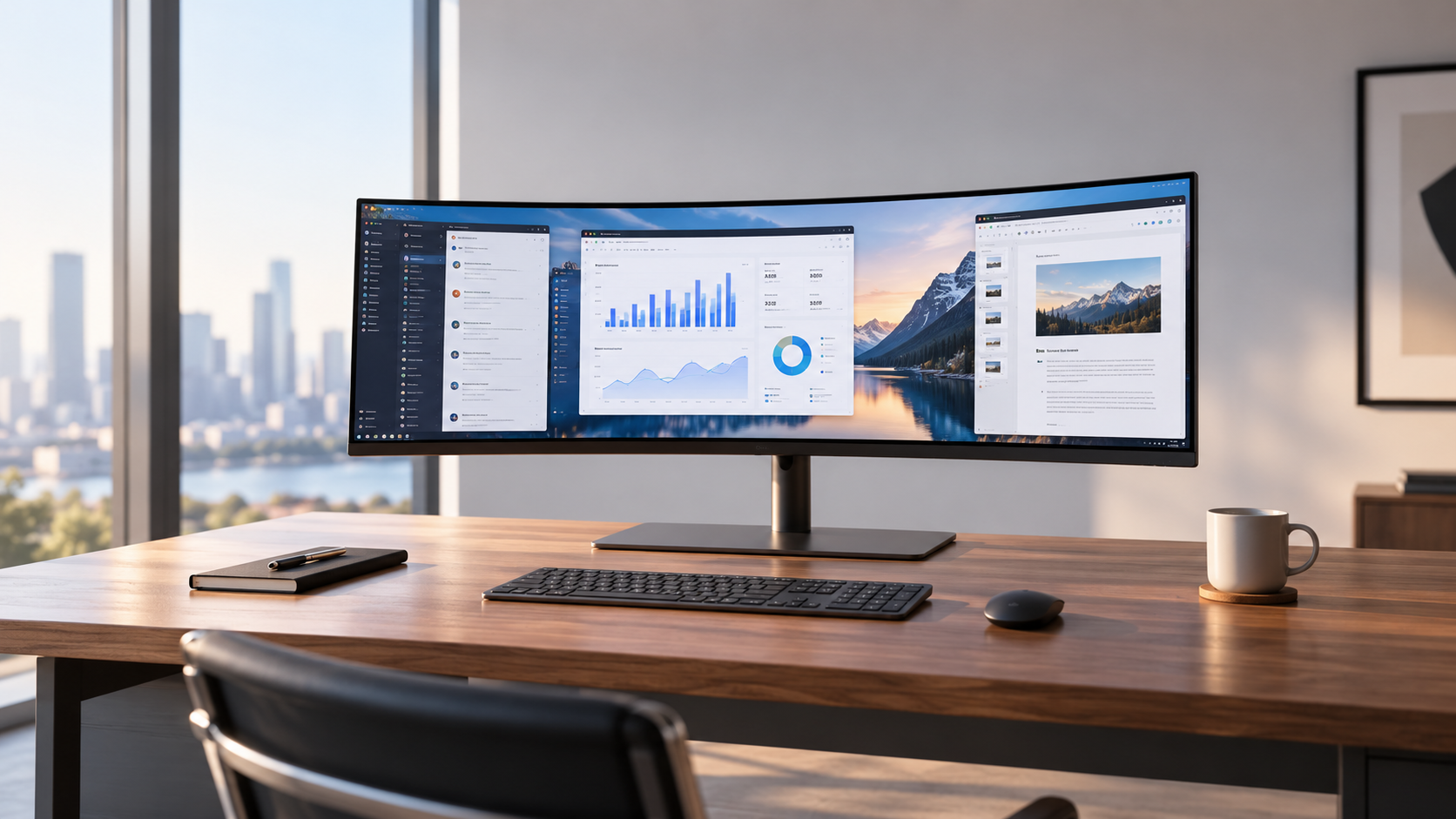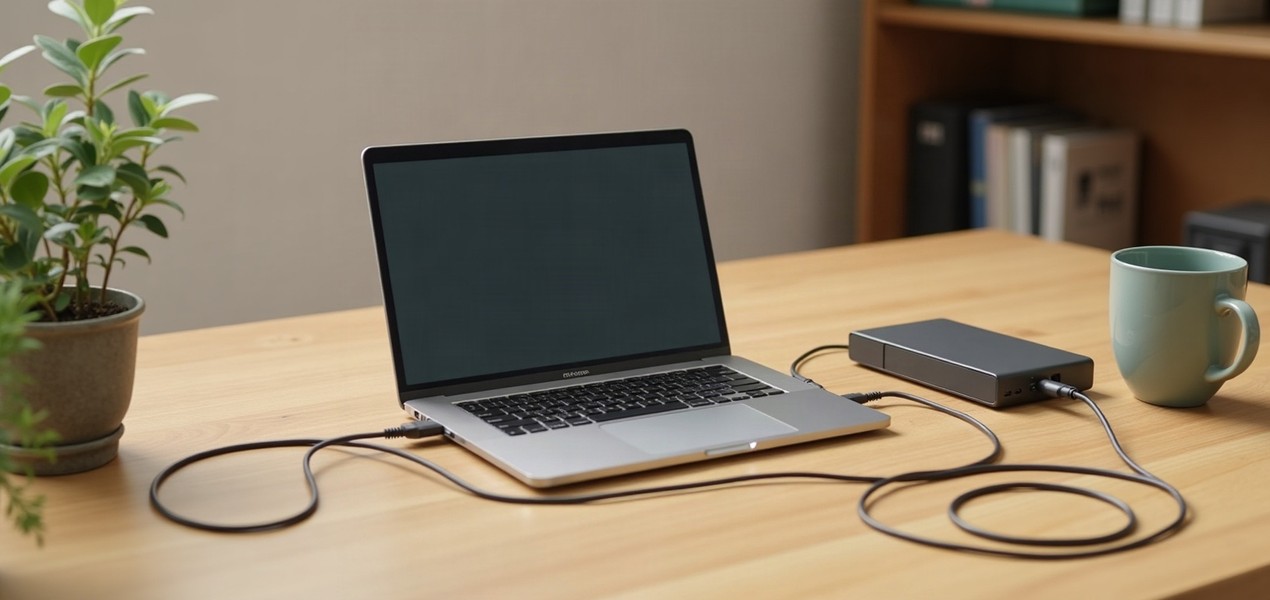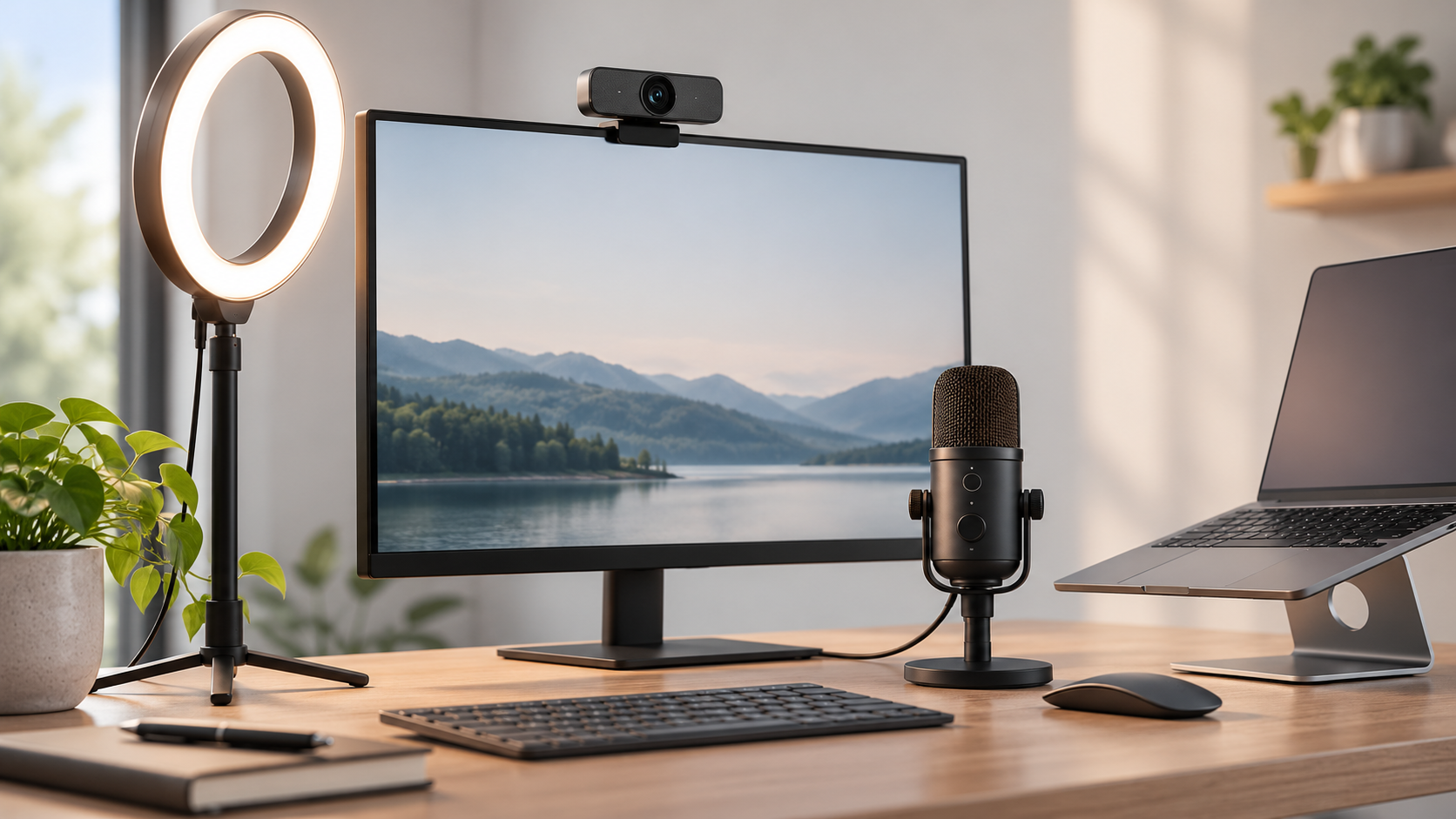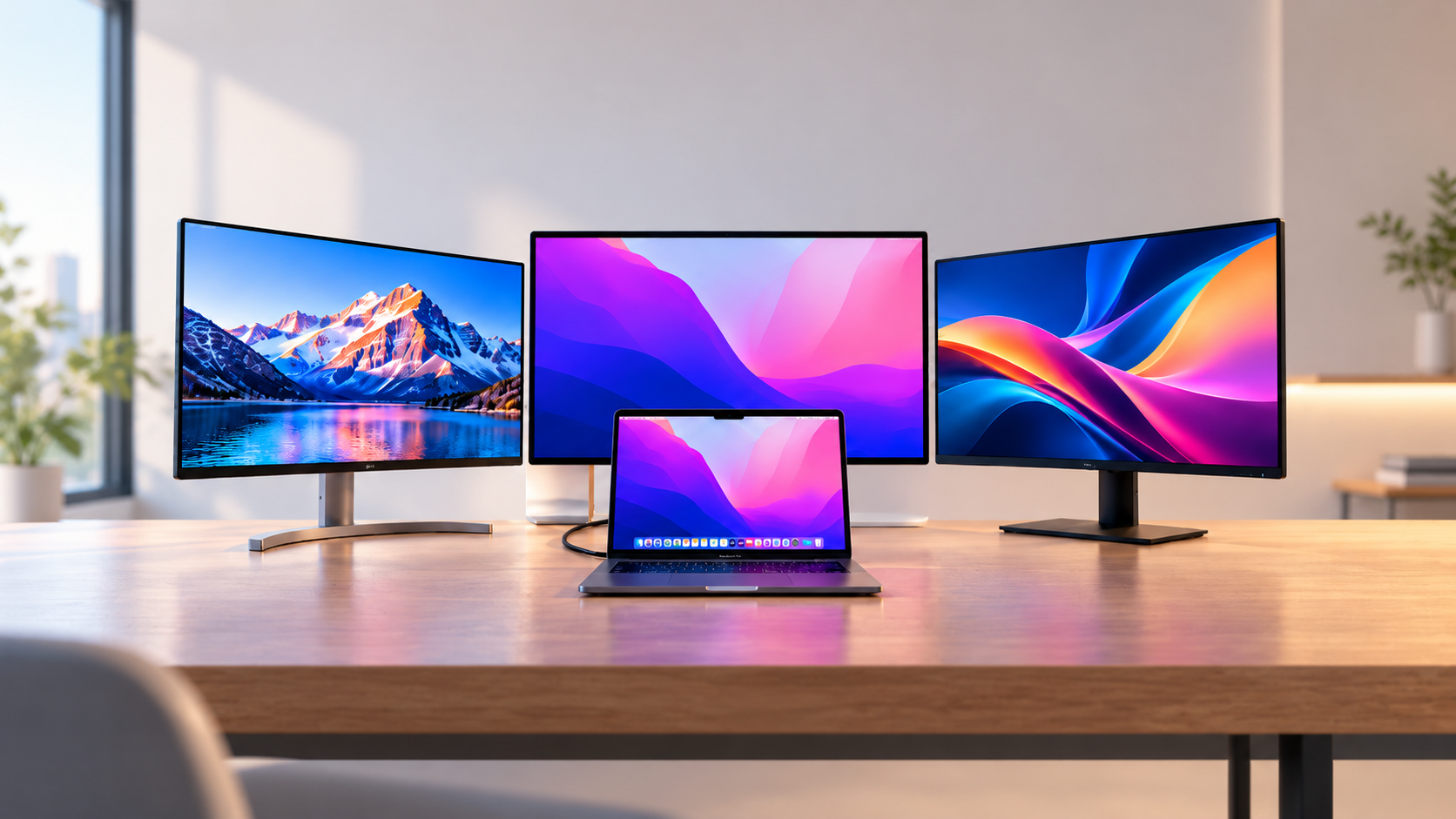
The best monitor for a MacBook Pro is Apple's Studio Display. Its 27-inch 5K screen matches the way macOS scales text, so it looks as sharp as the MacBook's own display, and one Thunderbolt 5 cable charges the laptop at up to 96W and adds a camera and speakers. If you want a fully adjustable stand included, the BenQ MA270S is the 5K alternative; for a bigger screen, the 32-inch BenQ MA320U. For size, ports and stands across all monitors, see our guide to the best monitors for a home office.
Our picks at a glance
- View at Walmart
Best overall for Mac
- View at Adorama
Best 5K alternative
- View at Adorama
Best big screen
The picks in detail
- Top pick
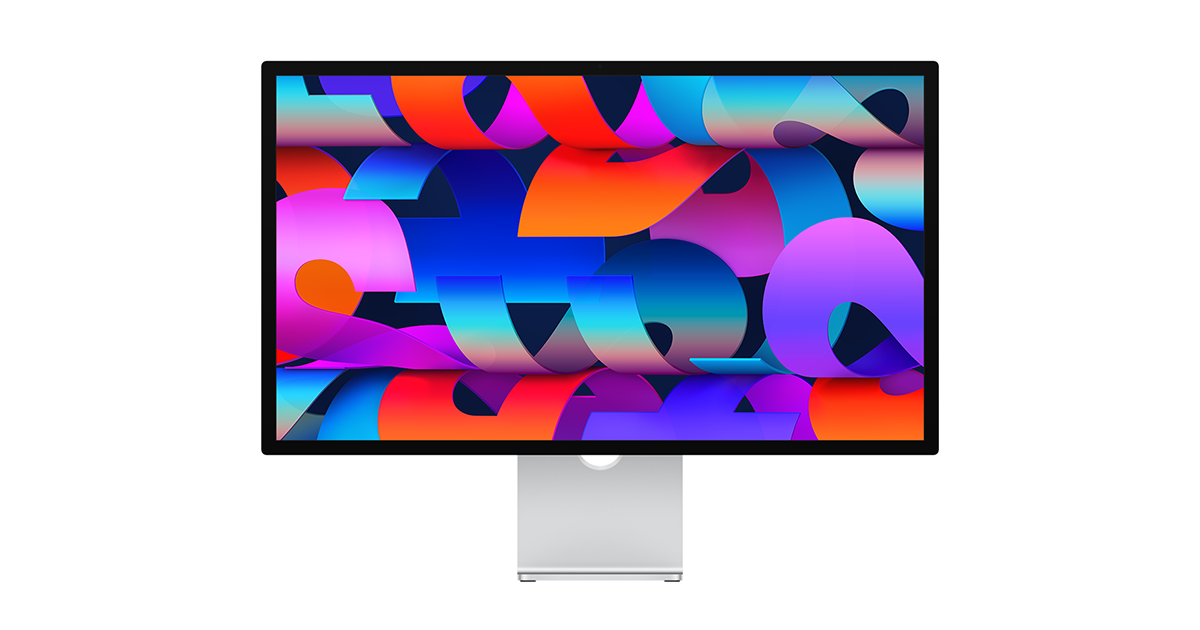
Best overall for Mac
Apple Studio Display (2026, standard glass)
Most MacBook Pro owners who want the best screen should buy Apple’s Studio Display.
View at WalmartIts 27-inch 5K panel (5120 x 2880, 218 pixels per inch, 600 nits) matches the way macOS scales its interface, so text looks as sharp as on the MacBook’s own screen. One Thunderbolt 5 cable charges the MacBook Pro at up to 96W and connects a 12MP Center Stage camera with Desk View and six speakers, a complete video-call setup. The standard model only tilts; a height-adjustable stand and a VESA mount are separate configurations. Skip it if you want a stand that adjusts out of the box, or use a Windows laptop as well.
What we like
- 5K at 218 ppi, matched to macOS scaling
- Thunderbolt 5 with up to 96W of charging
- 12MP Center Stage camera and six speakers built in
Watch out for
- Tilt-only stand in the standard configuration
- 60Hz, below the MacBook Pro’s own 120Hz screen
- Camera features and firmware updates need a Mac
- Best 5K alternative
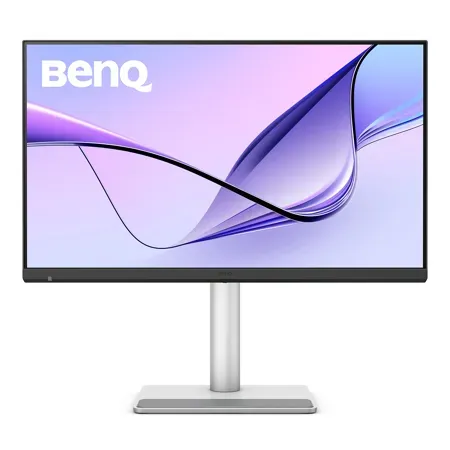
BenQ MA270S 27" 5K Monitor for Mac
BenQ’s MA270S is the 5K monitor to buy if you want a stand that adjusts for height, tilt, swivel and pivot without paying for Apple’s optional stand.
View at AdoramaIt is a 27-inch 5K screen designed for MacBooks, with a Nano Gloss panel and Mac-specific color tuning. Two Thunderbolt 4 ports deliver up to 96W of charging, and Smart KVM lets one keyboard and mouse switch between two Macs. Skip it if your desk faces a bright window, since the glossy finish can reflect it, or if you want a camera built in.
What we like
- 5K for sharp macOS text
- Dual Thunderbolt 4 with up to 96W of charging
- Height, tilt, swivel and pivot stand; Smart KVM
Watch out for
- Glossy finish can reflect bright windows
- Only one confirmed US retailer (Adorama)
- Best big screen
BenQ MA320U 32" 4K Monitor for Mac
The BenQ MA320U is for people who want more space rather than more pixels per inch.
View at AdoramaIt puts a 31.5-inch 4K Nano IPS panel on your desk, covering 97% of the P3 color space with DisplayHDR 600. Its main USB-C port charges a MacBook at up to 90W and a second USB-C port supplies 15W. It has built-in speakers, a stand with 115mm of height adjustment plus tilt, swivel and pivot, and brightness and volume control from the Mac. Skip it if small, crisp text matters most to you: 4K at 32 inches is less sharp than 5K at 27.
What we like
- 31.5-inch 4K with 97% P3
- USB-C with up to 90W of charging, plus a 15W port
- Height, tilt, swivel and pivot stand; speakers
Watch out for
- 4K at 32 inches is less sharp than 5K at 27
- USB-C, not Thunderbolt
The short version
- Best overall for Mac: Apple Studio Display. 5K, 96W Thunderbolt 5, built-in camera and speakers.
- Best 5K alternative: BenQ MA270S. 5K, dual Thunderbolt 4 with 96W, fully adjustable stand.
- Best big screen: BenQ MA320U. 31.5-inch 4K, 90W USB-C, fully adjustable stand.
How they compare
Monitor | Size and resolution | Connection to the Mac | Charging | Stand |
|---|---|---|---|---|
Apple Studio Display | 27", 5K (5120 x 2880) | Thunderbolt 5 | Up to 96W | Tilt (height stand is a separate model) |
BenQ MA270S | 27", 5K | Thunderbolt 4 (x2) | Up to 96W | Height, tilt, swivel, pivot |
BenQ MA320U | 31.5", 4K (3840 x 2160) | USB-C | Up to 90W | Height, tilt, swivel, pivot |
Why 5K matters on a Mac
macOS draws its interface at exactly twice the size on a high-resolution screen, so text looks sharp at a comfortable size. On a 27-inch 5K monitor that works out to the equivalent of a 2560 x 1440 workspace drawn with four times the pixels. A 27-inch 4K monitor sits between those steps: macOS either makes everything slightly too large or scales the image, which can look a little softer. That's why both 27-inch picks here are 5K. A 32-inch 4K screen like the MA320U is a reasonable middle ground, since its larger size puts the default scaling closer to comfortable.
Charging a MacBook Pro from the monitor
Match the monitor's wattage to the charger in your MacBook Pro's box. Apple ships the 14-inch MacBook Pro with M5 with a 70W USB-C power adapter and says it fast-charges from a 96W or higher source. All three monitors here supply at least 90W, so any of them can replace that charger, and the two 96W options match Apple's fast-charging figure.
The 16-inch MacBook Pro ships with a 140W adapter. On that model these monitors still charge it, but more slowly, and the battery can drain under heavy load. If you own a 16-inch and want to work plugged into the monitor all day, keep Apple's charger on the desk too.
Two monitors on a MacBook Pro
How many external displays a MacBook Pro can drive depends on its chip, so check the display support listed in Apple's tech specs for your model before you buy a second screen. If it supports two, a Thunderbolt dock is usually the tidiest way to connect them; our Thunderbolt docks for MacBooks and Windows laptops guide compares the options. Don't rely on daisy-chaining: macOS doesn't support DisplayPort MST, so most monitors can't pass a picture on to a second screen from a Mac.
USB-C monitors that also suit a Mac
Any monitor that accepts video over USB-C (DisplayPort Alt Mode or Thunderbolt) works with a MacBook. Our best USB-C monitors guide includes 4K options with 65W charging. They make sense if you're happy with 4K sharpness and your MacBook came with a 70W charger or less.
Setting up the monitor on your Mac
- Connect one cable from the monitor's Thunderbolt or USB-C port (the one that charges) to your MacBook Pro, then check the battery icon to confirm it is charging.
- Open System Settings, then Displays. Choose whether the monitor extends your desktop or mirrors the MacBook's screen, and drag the display icons to match where they sit on your desk.
- Pick a resolution option. On a 5K monitor, the default gives the sharpest text at a comfortable size; on a 4K monitor, try the options either side of the default and keep the one that reads best.
- To make the monitor your main screen, drag the white menu bar in the Displays arrangement onto it.
Which MacBook Pro is this for?
These picks suit any MacBook Pro with USB-C or Thunderbolt ports; check charging wattage on the 16-inch, as above. If you haven't bought the laptop yet, our MacBook Air vs MacBook Pro comparison covers which one makes more sense for office work.
How we chose
These recommendations are research-based. We have not tested these monitors. Every figure here comes from Apple's spec pages or a retailer's published spec sheet, linked under Sources. We looked for monitors that suit macOS: 5K at 27 inches where possible, at least 90W of charging over one cable, and a stand that adjusts. We left out portable add-on screens and monitors with no USB-C connection, such as LG's 34-inch 34SR60QC, which connects over HDMI only. We link to US retailers we could confirm sell each exact model; we don't compare their prices.
Questions people ask
Does a MacBook Pro work with any USB-C monitor?
Yes, if the monitor accepts video over USB-C (DisplayPort Alt Mode or Thunderbolt). What differs is how much it can charge the MacBook and whether its resolution suits macOS scaling; 5K at 27 inches looks sharpest.
Is 4K good enough for a MacBook Pro?
4K works well, especially at 32 inches. At 27 inches, macOS either shows everything slightly large or scales the image, which can look a little softer than 5K, most noticeably in small text.
Will a 96W monitor charge a 16-inch MacBook Pro?
Yes, but more slowly than Apple’s 140W adapter, and the battery can drain under heavy load. On the 14-inch with M5, which ships with a 70W adapter, a 96W monitor matches Apple’s fast-charging figure.
How many external monitors can a MacBook Pro run?
It depends on the chip. Check the display support in Apple’s tech specs for your model, and use a Thunderbolt dock rather than daisy-chaining, since macOS doesn’t support DisplayPort MST.
Can the Apple Studio Display be used with a Windows laptop?
It can show a picture from other devices, but Apple says its camera features and firmware updates require a Mac. It is best suited to a Mac desk.
Sources we used
Comments
No comments yet. Start the conversation.