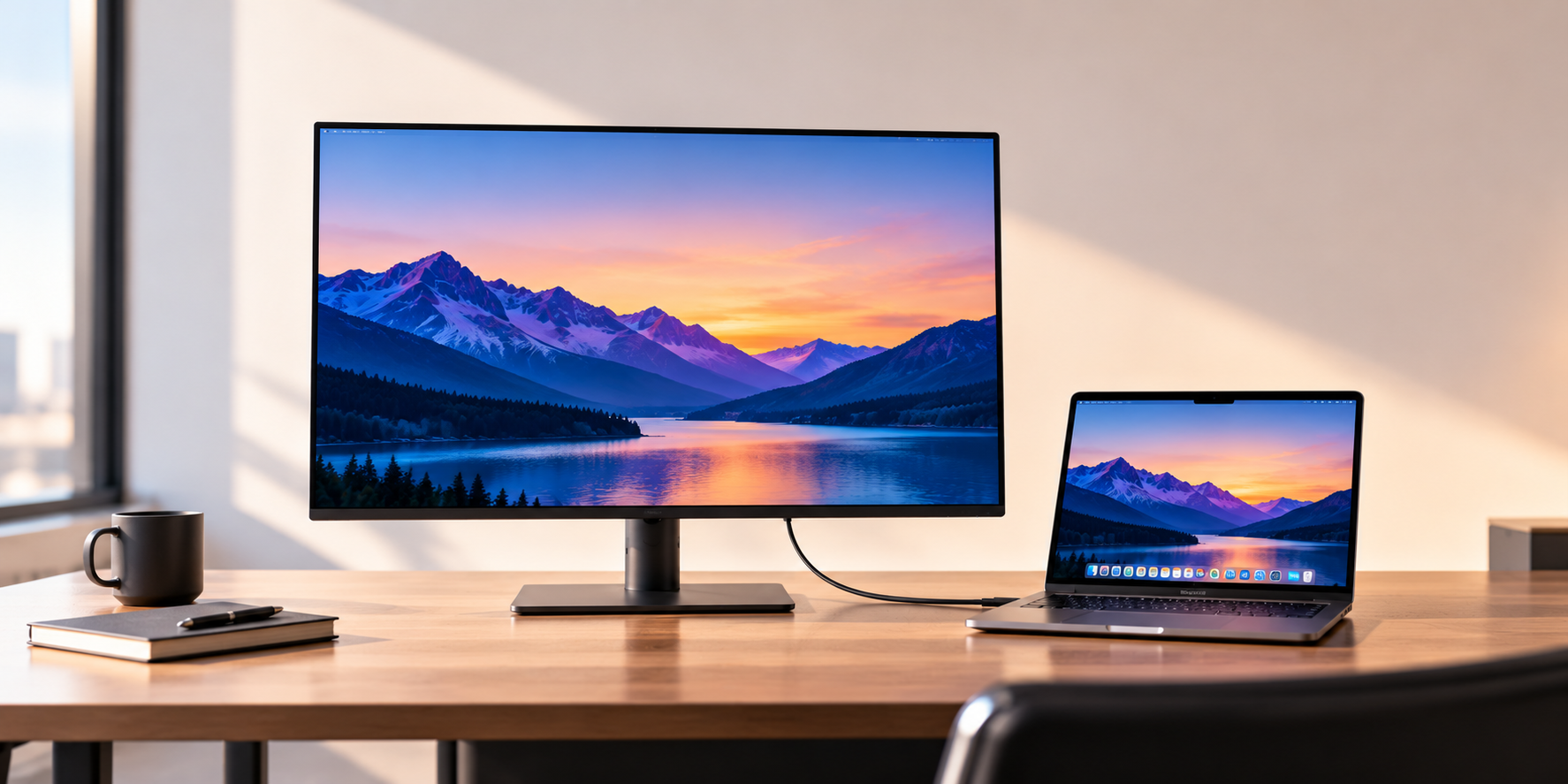
The best monitor for most home offices is the Dell 27 Plus 4K USB-C Monitor (S2725QC). It puts a sharp 27-inch 4K screen at 120Hz on your desk, and one USB-C cable carries the picture, the monitor's USB ports and up to 65W of laptop charging. Its stand adjusts for height, tilt, swivel and pivot, so most people won't need a separate arm. If your laptop needs more power, you use a Mac or you want a wider screen, the other picks below cover those cases.
Our picks at a glance
- View at Walmart
Best overall
- View at Walmart
Best 1440p pick
- View at Walmart
Best single cable for bigger laptops
- View at Dell
Best ultrawide
- View at Walmart
Best for Mac
The picks in detail
- Top pick
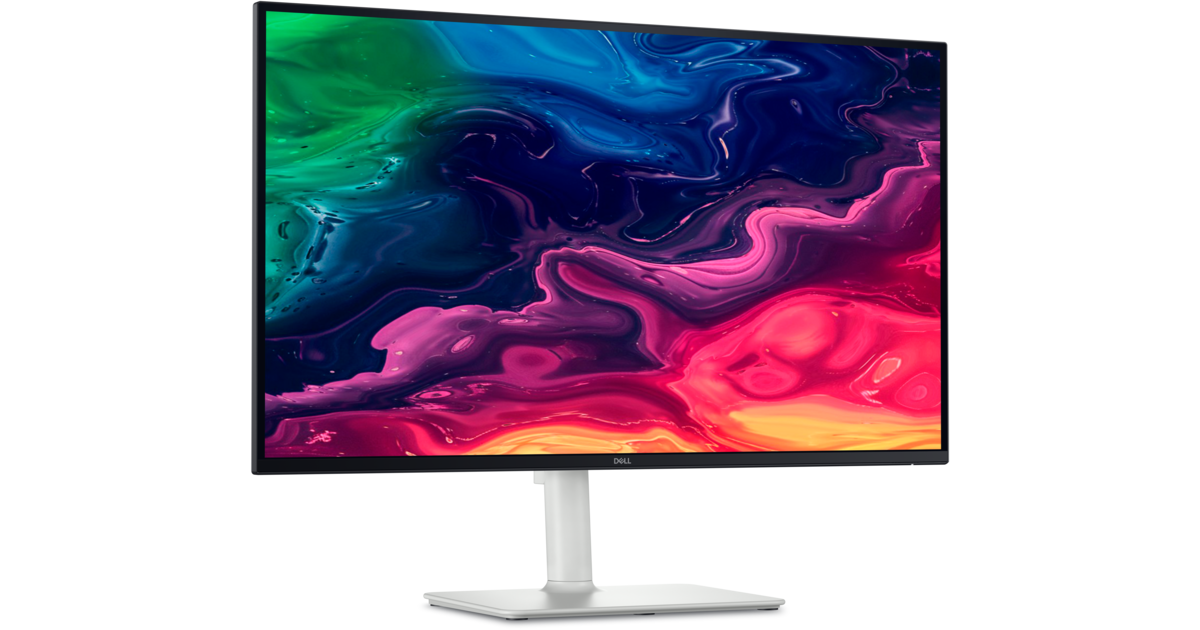
Best overall
Dell 27 Plus 4K USB-C Monitor (S2725QC)
The Dell 27 Plus 4K is the monitor most home offices should buy.
View at WalmartIts 27-inch 4K IPS panel runs at 120Hz, and its USB-C port carries video (DisplayPort Alt Mode), data and up to 65W of laptop charging, so one cable connects the whole desk. A second USB-C port supplies 15W for a phone or accessory, the stand adjusts for height, tilt, swivel and pivot, and it has built-in speakers. 65W covers most thin-and-light laptops; if your laptop came with a bigger charger, look at the U2725QE instead.
What we like
- USB-C with video, data and up to 65W of charging
- 4K at 120Hz on a 27-inch IPS panel
- Height, tilt, swivel and pivot stand; built-in speakers
Watch out for
- 65W may not keep up with high-power laptops
- USB data is 5Gbps, not Thunderbolt
- Best 1440p pick
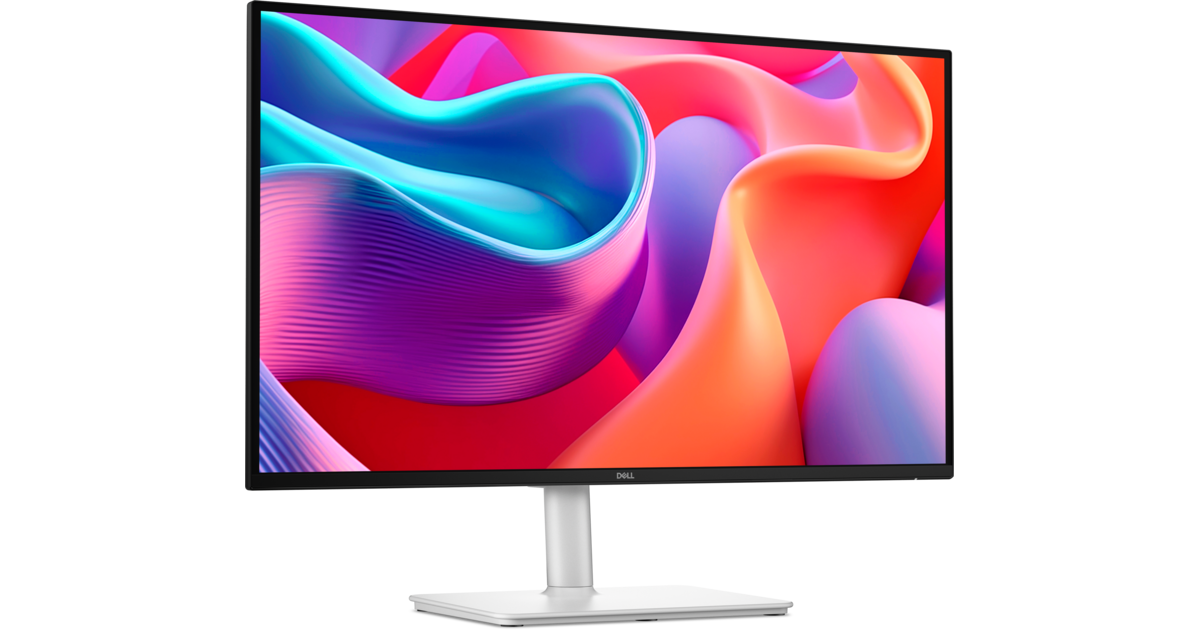
Dell 27 Plus QHD USB-C Monitor (S2725DC)
The Dell 27 Plus QHD keeps everything that makes the S2725QC easy to live with, the 65W USB-C connection, 5Gbps data and the fully adjustable stand, but swaps the 4K panel for a 2560 x 1440 IPS panel at 144Hz.
View at WalmartText is less crisp than on 4K at 27 inches, but 1440p runs comfortably at 100% scaling and still gives far more room than a 1080p screen. It also has two 3W speakers. Pick it if you prefer the higher refresh rate or a screen that needs no scaling.
What we like
- USB-C with up to 65W of charging
- 144Hz for smooth scrolling
- Height, tilt, swivel and pivot stand; two 3W speakers
Watch out for
- 1440p is less sharp than 4K at 27 inches
- Only one HDMI input
- Best single cable for bigger laptops
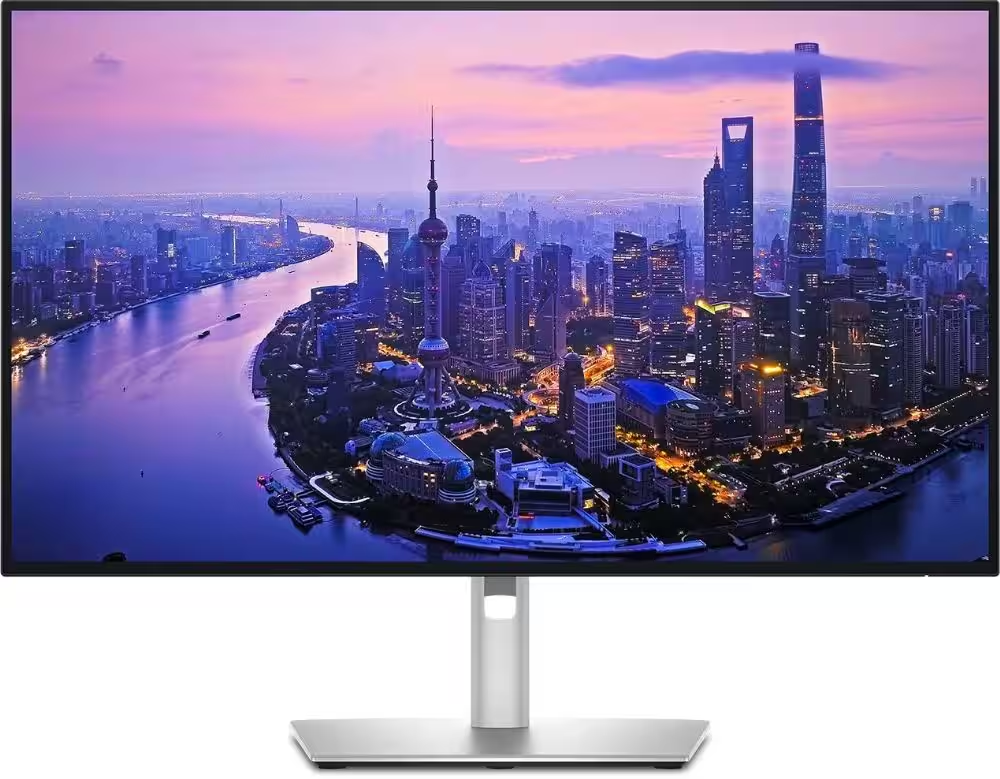
Dell UltraSharp 27 4K Thunderbolt Hub Monitor (U2725QE)
The Dell UltraSharp 27 4K Thunderbolt Hub is the one to buy if a single cable has to charge a power-hungry laptop and run a full desk.
View at WalmartIts Thunderbolt 4 connection carries video, data and up to 140W of power, and it adds Ethernet, USB-A and HDMI 2.1 ports. It can daisy-chain up to two more 4K monitors on a Windows laptop that supports it (Macs don’t support this DisplayPort daisy-chaining, so on a Mac connect each screen separately or use a dock). The 27-inch 4K IPS Black panel runs at 120Hz and is factory calibrated to 99% DCI-P3, and the stand adjusts for height, tilt, swivel and pivot.
What we like
- Thunderbolt 4 with up to 140W of charging
- Built-in Ethernet, USB-A and HDMI 2.1; daisy-chaining
- Factory-calibrated 4K IPS Black panel at 120Hz
Watch out for
- Much of the hub goes unused on a one-laptop, one-screen desk
- The same 27-inch 4K size as the S2725QC, so no extra screen space
- Best ultrawide
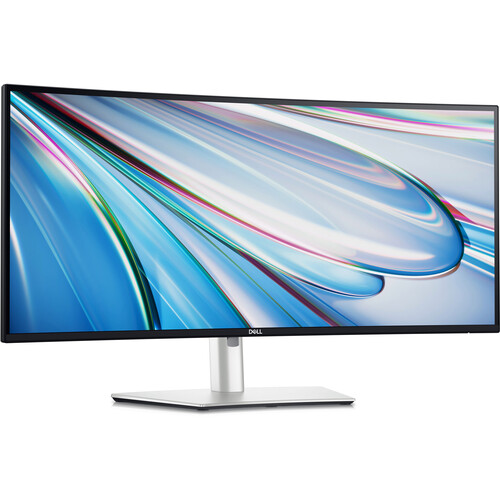
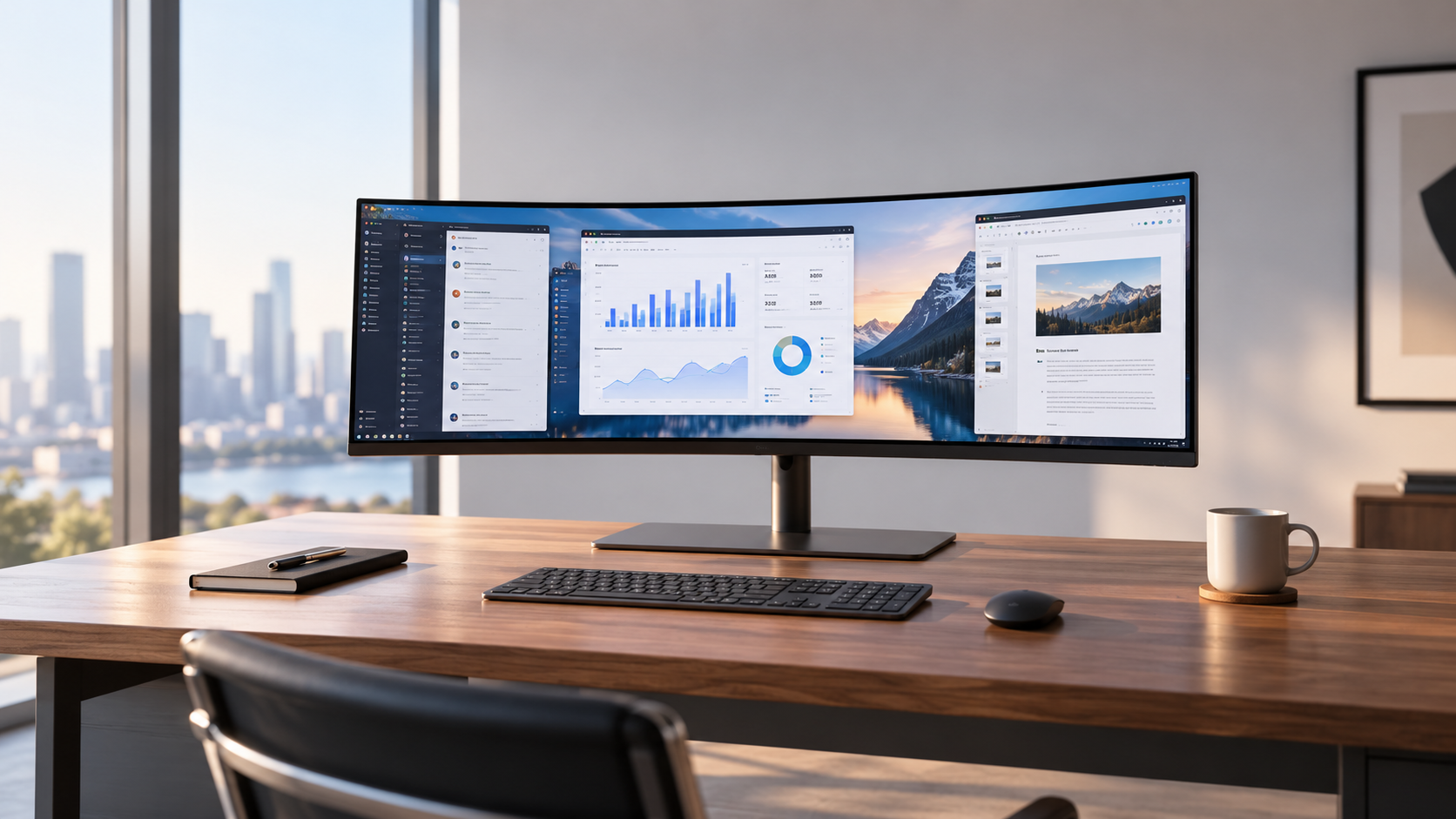
Its 34-inch curved IPS panel (3440 x 1440 at 120Hz) gives one continuous canvas for wide spreadsheets and side-by-side documents, and a single Thunderbolt 4 cable carries video, data and power to a compatible laptop. Dell lists 98% DCI-P3 and 100% sRGB coverage, which puts it ahead of the VA-panel ultrawides for color work, and the stand adjusts for height, tilt and swivel. It also has DisplayPort and HDMI inputs.
What we like
- One Thunderbolt 4 cable for video, data and power
- 98% DCI-P3 and 100% sRGB color coverage
- Height, tilt and swivel stand
Watch out for
- Lower contrast (2000:1) than the VA ultrawides
- No pivot listed for the stand
- Best for Mac

Apple Studio Display (2026, standard glass)
Apple’s Studio Display is the monitor built around the Mac.
View at WalmartIts 27-inch 5K panel (5120 x 2880, 218 pixels per inch, 600 nits) matches the way macOS scales its interface, so text looks as sharp as on the MacBook’s own screen. One Thunderbolt 5 cable charges a MacBook Pro at up to 96W and connects a 12MP Center Stage camera with Desk View and six speakers, which makes it a complete video-call setup. The standard model only tilts; a height-adjustable stand and a VESA mount are separate configurations.
What we like
- 5K at 218 ppi, matched to macOS scaling
- Thunderbolt 5 with up to 96W of charging
- 12MP Center Stage camera and six speakers built in
Watch out for
- Tilt-only stand in the standard configuration
- 60Hz, below the MacBook Pro’s own 120Hz screen
- Camera features and firmware updates need a Mac
We have not tested these monitors. Every figure in this guide comes from the makers' and retailers' published spec sheets, linked under Sources.
The short version
- Best overall: Dell 27 Plus 4K (S2725QC). 27-inch 4K at 120Hz, 65W USB-C, fully adjustable stand.
- Best 1440p pick: Dell 27 Plus QHD (S2725DC). 2560 x 1440 at 144Hz with the same 65W USB-C and stand.
- Best single cable for bigger laptops: Dell UltraSharp 27 4K Thunderbolt Hub (U2725QE). Thunderbolt 4 with up to 140W, Ethernet and daisy-chaining.
- Best ultrawide: Dell UltraSharp 34 (U3425WE). A 34-inch curved IPS screen on one Thunderbolt 4 cable.
- Best for Mac: Apple Studio Display (MFEX4LL/A). 27-inch 5K, 96W Thunderbolt 5 charging, camera and speakers built in.
How the picks compare
Monitor | Size and resolution | Refresh | Laptop connection | Stand |
|---|---|---|---|---|
Dell S2725QC | 27", 3840 x 2160 (IPS) | 120Hz | USB-C, up to 65W | Height, tilt, swivel, pivot |
Dell S2725DC | 27", 2560 x 1440 (IPS) | 144Hz | USB-C, up to 65W | Height, tilt, swivel, pivot |
Dell U2725QE | 27", 3840 x 2160 (IPS Black) | 120Hz | Thunderbolt 4, up to 140W | Height, tilt, swivel, pivot |
Dell U3425WE | 34" curved, 3440 x 1440 (IPS) | 120Hz | Thunderbolt 4 (video, data, power) | Height, tilt, swivel |
Apple Studio Display | 27", 5120 x 2880 (5K) | 60Hz | Thunderbolt 5, up to 96W | Tilt (height stand is a separate model) |
How to choose a monitor for a home office
Six things decide which monitor suits you: the size and resolution, how much power your laptop needs, the ports you want on the monitor, Mac scaling, one screen or two, and the stand. Panel type and refresh rate matter less than most listings suggest. Each section below ends with what we would buy.
Size and resolution
Size and resolution work together. The number that tells you how sharp text will look is pixel density, in pixels per inch (ppi): the same resolution looks sharper on a smaller screen and softer on a larger one. Here is how the common sizes work out.
Screen | Resolution | Pixel density |
|---|---|---|
24" Full HD | 1920 x 1080 | About 92 ppi |
27" QHD (1440p) | 2560 x 1440 | About 109 ppi |
27" 4K | 3840 x 2160 | About 163 ppi |
27" 5K | 5120 x 2880 | About 218 ppi |
32" 4K | 3840 x 2160 | About 138 ppi |
34" ultrawide | 3440 x 1440 | About 110 ppi |
Most people should buy a 27-inch monitor. It fits a normal desk, holds two documents side by side and is the size most good office monitors are made in. At 27 inches, 4K gives noticeably crisper text than 1440p. 1440p is easier to run at 100% scaling, and on the S2725DC it comes with a higher refresh rate, so it is a sound second choice.
A 32-inch screen should be 4K; at 1440p the text would be coarser than on a 27-inch QHD screen. A 34-inch ultrawide at 3440 x 1440 has the same pixel density as a 27-inch 1440p screen, just wider, so text and windows stay a comfortable size without changing Windows display scaling. Skip 24-inch 1080p screens unless you need a small second monitor or your desk is too shallow for anything bigger.
A bigger screen sits closer to you on a shallow desk, so measure your desk depth before you buy a 32-inch or 34-inch monitor.
USB-C charging: match the monitor to your laptop's charger
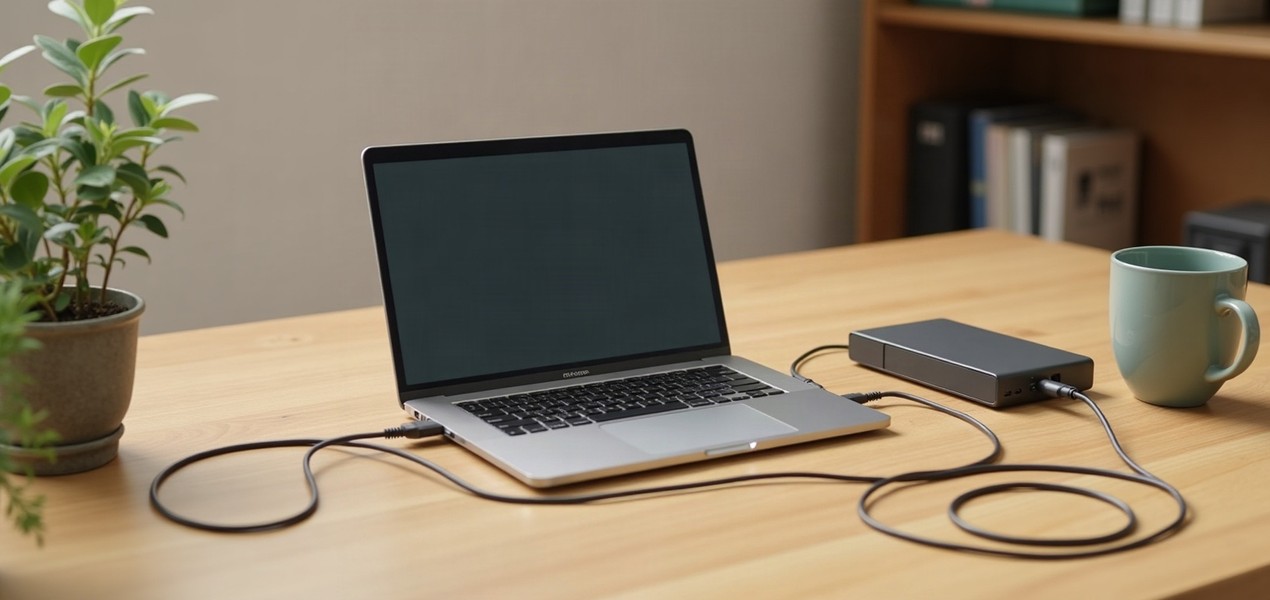
A USB-C monitor lets one cable do three jobs: send the picture from your laptop, connect the monitor's own USB ports and charge the laptop. That only works if the monitor's USB-C port delivers enough power, and the wattage is the spec most listings bury.
Look at the wattage printed on the charger that came with your laptop. If the monitor supplies the same or more, it can replace that charger on your desk. If it supplies less, the laptop usually still charges, just more slowly, and the battery can drain under heavy load. If your charger is rated at 65W or less, the S2725QC or S2725DC covers it. If it is rated higher, the U2725QE's 140W Thunderbolt connection is the safer choice.
Two things to check before you rely on one cable:
- The monitor's wattage, not just its port. Some monitors sold as "USB-C" supply only 15W, enough for a phone but not to keep most laptops charged. We left LG's 27U631A-B out of our best USB-C monitors guide for that reason.
- Your laptop's port. It has to support video output (DisplayPort Alt Mode or Thunderbolt) and USB Power Delivery charging. Most recent laptops do, but some budget models only carry data over USB-C. Your laptop maker's spec page will say.
Macs follow the same rule. Apple ships the 14-inch MacBook Pro with M5 with a 70W USB-C power adapter, and says it fast-charges from a 96W or higher source. A 65W monitor will still charge it, more slowly; the Studio Display and the BenQ MA270S both supply 96W.
Hub ports: what one cable can replace
A monitor with a built-in hub can stand in for a docking station on a simple desk. The S2725QC adds a 15W USB-C port for a phone or accessory. LG's 27-inch 4K smart monitor (27U731SA-W) has two USB-A ports and two HDMI 2.0 inputs, so a second device can use it too. The U2725QE goes much further: Ethernet, USB-A and HDMI 2.1, plus daisy-chaining for up to two more 4K monitors.
If you have one laptop, one monitor and a keyboard, mouse and webcam, a USB-C monitor's hub is all you need. If you want two external monitors, wired Ethernet or more ports than any monitor offers, buy a separate dock. Our guides to docking stations for two monitors and Thunderbolt docks for MacBooks and Windows laptops cover the options, and our USB-C and Thunderbolt docking explainer sets out what each kind can do. Thunderbolt uses the same connector as USB-C but guarantees higher data speeds and extras such as daisy-chaining; our Thunderbolt 5 vs Thunderbolt 4 vs USB4 comparison explains the differences.
Choosing a monitor for a Mac
Any monitor that accepts video over USB-C (DisplayPort Alt Mode or Thunderbolt) works with a MacBook, including every pick here. What differs on a Mac is how text looks.
macOS draws its interface at exactly twice the size on a high-resolution screen. On a 27-inch 5K monitor that works out to the equivalent of a 2560 x 1440 workspace drawn with four times the pixels, so text is sharp at a comfortable size. A 27-inch 4K monitor sits between those steps: macOS either makes everything slightly too large or scales the image, which can look a little softer. Many people are happy with 4K, and the difference shows most in small text. A 32-inch 4K screen is a reasonable middle ground, since its larger size puts the default scaling closer to comfortable.
If a Mac is your main computer and sharp text matters to you, buy a 27-inch 5K monitor. The Studio Display is the complete package. The BenQ MA270S is the 5K alternative with a stand that adjusts for height, tilt, swivel and pivot, dual Thunderbolt 4 with 96W of charging and Smart KVM for switching one keyboard and mouse between two Macs; its glossy finish can reflect bright windows. For more space rather than more sharpness, the BenQ MA320U puts a 31.5-inch 4K Nano IPS panel on your desk with 90W USB-C charging and 115mm of height adjustment. Our best monitors for MacBook Pro guide compares all three, and our MacBook Air vs MacBook Pro comparison helps if you haven't chosen the laptop yet.
Two monitors on a Mac don't need Thunderbolt daisy-chaining. How many external displays a MacBook can drive depends on its chip, so check the display support listed in Apple's tech specs for your model before you plan a two-screen desk. If it supports two, a Thunderbolt dock is usually the tidiest way to connect them.
One ultrawide or two monitors
Both give you more room than one standard screen, but they suit different work.
- Two monitors suit separate tasks: writing in one app while you refer to another, or a video call on one screen and notes on the other. The bezels between the screens form a dividing line some people like. Your laptop must be able to drive two external displays, through two video ports or a dock that supports dual displays.
- One ultrawide gives a single continuous canvas for one wide application, such as a spreadsheet with many columns or a video timeline. It needs one cable rather than two, and with USB-C or Thunderbolt that cable can charge the laptop too.
Most people who work in one big window at a time should buy an ultrawide; people who keep two apps open side by side all day should buy two monitors. If you go for an ultrawide, pick one with USB-C or Thunderbolt so it replaces your laptop charger as well. Of the five in our best ultrawide monitors for work guide, the Dell U3425WE (Thunderbolt 4), Dell S3425DW and LG 34WR55QK-B (both USB-C) carry video and power over one cable. The Samsung ViewFinity S50GC and MSI PRO MP341CQW E12 use DisplayPort and HDMI only, so a laptop still needs its own charger.
Four of those five ultrawides are curved; the Samsung S50GC is flat. A curve keeps the far edges of a 34-inch screen roughly the same distance from you as the center, while a flat screen keeps every spreadsheet line straight. It is a matter of taste, so try both in a store if you can. For two separate screens, the dual monitor setup guide covers cables and common fixes.
Panel types: IPS, IPS Black and VA
Most office monitors use one of two panel types. IPS panels generally hold color and viewing angles better. VA panels generally have higher contrast, which suits dim rooms and mixed lighting. The VA ultrawides in our guide list 3,000:1 contrast (3,500:1 for the MSI), against 2,000:1 for the IPS-panel U3425WE. Dell's U2725QE uses an IPS Black panel, an IPS variant with deeper blacks than standard IPS.
Most people should buy IPS. Choose VA if your room is often dim and you want deeper blacks more than off-angle color accuracy. If your work touches photo or video editing, check the color-coverage figures: the U2725QE is factory calibrated to 99% DCI-P3, the U3425WE lists 98% DCI-P3, and the BenQ MA320U lists 97% of the P3 color space.
Refresh rate
Refresh rate is how many times a second the screen redraws. 60Hz is fine for office work. At 120Hz or 144Hz, scrolling long documents and dragging windows looks smoother, and three of our picks offer it at no cost in sharpness. The Studio Display and LG's 27U731SA-W run at 60Hz.
Take 120Hz when the monitor you want has it, but don't choose a monitor for it. Skip gaming-branded monitors unless you also play games: their very high refresh rates and RGB lighting add nothing to spreadsheets and email.
Stand adjustability and monitor arms
A stand that adjusts for height, tilt and swivel lets you set the screen where you want it without stacking books under it. Pivot also lets you turn the screen to portrait for long documents. The S2725QC, S2725DC and U2725QE adjust in all four ways, and the U3425WE adjusts for height, tilt and swivel. The LG 27U731SA-W and the standard Studio Display only tilt.
Buy a monitor with a height-adjustable stand unless you plan to use an arm. An arm makes sense for two screens or to free desk space. Check three things first: the VESA pattern on the back of the monitor (usually 75 x 75mm or 100 x 100mm), the monitor's weight without its stand, and its size. For two large screens, the Ergotron HX Desk Dual Monitor Arm (45-476-224) holds two monitors up to 32 inches, from 5 to 17.5 lbs each (Ergotron's spec sheet; 35 lbs in total). It gives up to 11.5 inches of counterbalanced height adjustment, comes with a desk clamp and a grommet mount, and has a 10-year warranty. Our best dual monitor stands and arms guide covers it and three other stands and arms.
Other monitors worth a look
These didn't make the top five but suit particular desks.
- LG 27" 4K Smart Monitor with webOS (27U731SA-W). 4K, 65W USB-C and LG's built-in webOS apps, with two HDMI inputs. The stand only tilts and it runs at 60Hz.
- Dell S3425DW. A curved 34-inch VA ultrawide with a USB-C single-cable connection, 3,000:1 contrast and 95% DCI-P3. It has no Thunderbolt.
- LG 34WR55QK-B. A curved VA ultrawide whose USB-C port supplies 65W, with Picture-by-Picture for showing two inputs side by side. It runs at 100Hz.
- Samsung ViewFinity S50GC. The flat ultrawide option, at 100Hz. It has no USB-C, so a laptop needs its own charger.
- MSI PRO MP341CQW E12. The widest color coverage of our ultrawides (91% DCI-P3, 114% sRGB), 3,500:1 contrast and built-in speakers, but no USB-C.
Setting up the rest of the desk
Once the monitor is on the desk, our dual monitor setup guide covers display arrangement and scaling in Windows and macOS. For the whole room, our home office setup guide covers the desk, chair, lighting and cables in order, and our laptops for working from home guide lists the ports on each laptop pick.
How we chose
These recommendations are research-based. We have not tested these monitors. We started from the monitors in our specialist guides, all sold by at least one major US retailer, and read each maker's or retailer's published spec sheet for the resolution, refresh rate, laptop connection and charging wattage, ports and stand. We then chose one monitor for each of the most common home-office needs. We looked most closely at:
- Charging wattage. The single most important USB-C spec, and the one listings are least clear about. We left out "USB-C" monitors that can't charge a laptop.
- Resolution for the size. 4K or 1440p at 27 inches, 3440 x 1440 for a 34-inch ultrawide, and 5K at 27 inches for Macs.
- The stand. Height adjustment counts, because without it many people end up buying an arm.
- Office features over gaming features. We left out gaming-branded monitors, whose high refresh rates and lighting add nothing to work.
We link to US retailers we could confirm sell each exact model; we don't compare their prices.
Questions people ask
What size monitor is best for a home office?
A 27-inch monitor suits most home-office desks. Choose 4K at that size for the crispest text, or 1440p if you prefer 100% scaling and a higher refresh rate.
Will a USB-C monitor charge my laptop?
Yes, if your laptop’s USB-C port supports charging and the monitor supplies enough power. Compare the monitor’s wattage with the figure on your laptop’s charger: if the monitor’s is the same or higher, it can replace the charger; if it is lower, the laptop charges more slowly and can drain under heavy load.
Is one ultrawide better than two monitors for work?
An ultrawide is better for one wide application, such as a large spreadsheet, and needs only one cable. Two monitors are better if you keep two separate apps open all day.
Do I need a 5K monitor for a MacBook?
No. Any monitor with video over USB-C works with a MacBook, and 4K looks good, especially at 32 inches. A 27-inch 5K screen gives the sharpest macOS text, because it matches the way macOS scales its interface.
Does a MacBook need Thunderbolt daisy-chaining to run two monitors?
No. How many external displays a MacBook can drive depends on its chip, so check the display support in Apple’s tech specs for your model. If it supports two, a Thunderbolt dock is usually the tidiest way to connect them.
Is 60Hz enough for office work?
Yes. 120Hz or 144Hz makes scrolling and window dragging look smoother, which is pleasant to have, but 60Hz is fine for documents, email and video calls.
Sources we used
- Dell 27 Plus 4K USB-C Monitor (S2725QC) spec sheet
- Dell 27 Plus QHD USB-C Monitor (S2725DC) spec sheet
- Dell UltraSharp U2725QE product listing and specifications (Best Buy)
- Dell UltraSharp 34 Thunderbolt Hub Monitor (U3425WE) spec sheet
- Apple Studio Display technical specifications
- MacBook Pro technical specifications
- LG 27U731SA-W spec sheet
- LG 27U631A-B spec sheet (15W USB-C, left out)
- Dell 34 Plus USB-C Monitor (S3425DW) spec sheet
- LG 34WR55QK-B UltraWide Monitor spec sheet
- Samsung ViewFinity S50GC spec sheet
- MSI PRO MP341CQW E12 spec sheet (B&H Photo)
- BenQ MA270S product details (Adorama)
- BenQ MA320U specifications (Newegg)
- Ergotron HX Desk Dual Monitor Arm specifications (Staples)
- Ergotron HX Desk Dual Monitor Arm product details (Adorama)
Comments
No comments yet. Start the conversation.