Most people working from home should buy a laptop with 16GB of RAM. It handles email, documents, spreadsheets, a busy browser and a video call at the same time without slowing down. Step up to 24GB or 32GB only for photo or video editing, very large spreadsheets, or virtual machines. If you buy a Mac, choose carefully: its memory can’t be upgraded after purchase, so the amount you pick at checkout is what you keep.
Our picks at a glance
- View at Adorama
A Mac with enough memory from day one
- View at Lenovo
A Windows laptop with memory you can add later
Lenovo ThinkPad T14 Gen 7 (14" AMD), Ryzen 5 PRO, 16GB, 512GB
- View at Adorama
When 24GB of memory is worth paying for
The picks in detail
- Top pick
A Mac with enough memory from day one
Apple MacBook Air 13" (M5), 16GB, 512GB
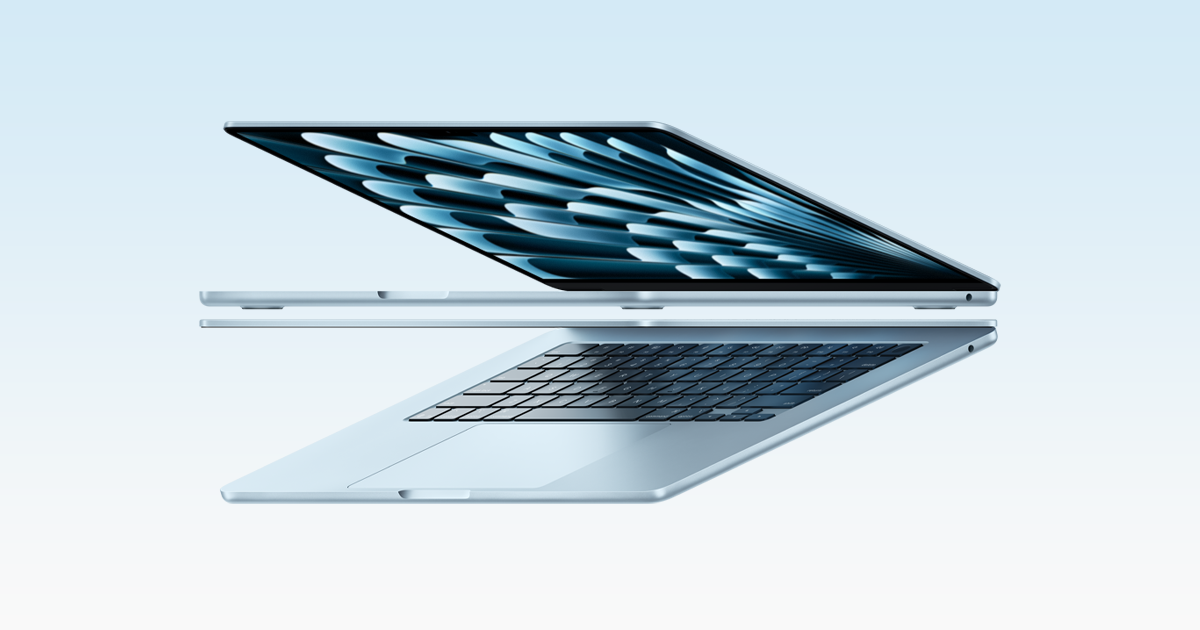
If your work runs on a Mac, buy the 13-inch MacBook Air with M5 and take the 16GB model.
View at AdoramaThis configuration has 16GB of memory and a 512GB SSD, and Apple rates its battery at up to 15 hours of wireless web use. It has two Thunderbolt 4 ports plus MagSafe charging, drives up to two external displays, and weighs 2.7 lbs. The memory can’t be upgraded after purchase, so 16GB is the least you should buy. Skip it if your employer needs Windows, or if you want built-in HDMI or Ethernet.
What we like
- 16GB of memory and a 512GB SSD
- Up to 15 hours of web use (Apple’s rating)
- 2.7 lbs; up to two external displays
Watch out for
- Memory can’t be upgraded later
- Only two Thunderbolt ports, no HDMI
- A Windows laptop with memory you can add later
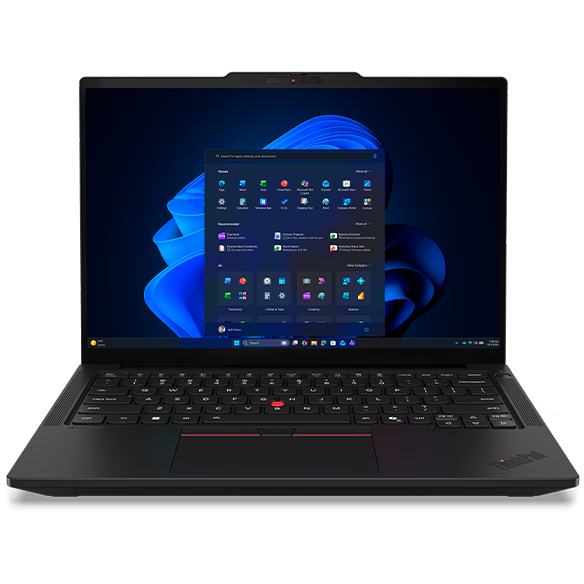
Lenovo ThinkPad T14 Gen 7 (14" AMD), Ryzen 5 PRO, 16GB, 512GB
Buy the ThinkPad T14 Gen 7 (AMD) if you want a Windows laptop you can add memory to later.
View at LenovoIt pairs an AMD Ryzen 5 PRO 230 with 16GB of DDR5 in a SODIMM slot, a standard memory module rather than chips soldered to the board. It adds a 400-nit anti-glare 14-inch screen, a 5MP camera with IR face login and a privacy shutter, Wi-Fi 7, a backlit keyboard and a fingerprint reader. Skip it if you want to buy from a store you already use: only Lenovo sells this configuration.
What we like
- Replaceable SODIMM memory
- 5MP IR camera with privacy shutter; Wi-Fi 7
- One-year onsite warranty
Watch out for
- Sold only by Lenovo in this configuration
- Lenovo’s page doesn’t publish battery life or weight
- When 24GB of memory is worth paying for
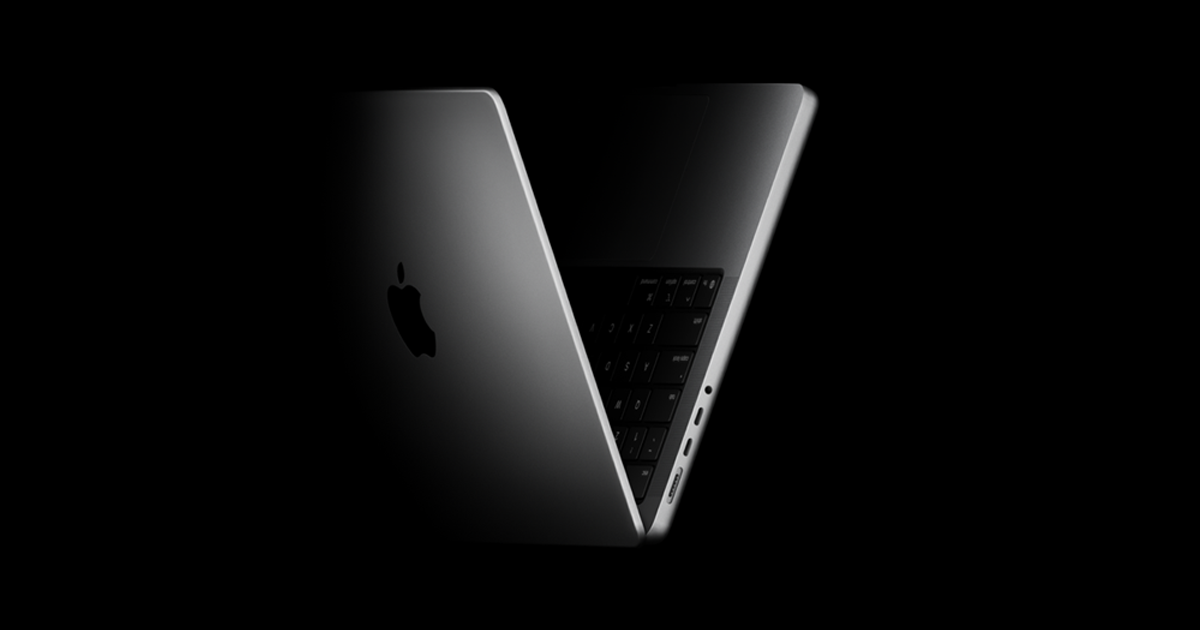
Apple MacBook Pro 14" (M5), 24GB, 1TB
The 14-inch MacBook Pro with M5 is the machine to look at once 16GB is no longer enough.
View at AdoramaThe configuration we link has 24GB of memory and a 1TB SSD, for photo or video editing and heavy multitasking, with a Liquid Retina XDR screen that refreshes at up to 120Hz, three Thunderbolt 4 ports plus HDMI and an SD card slot, and up to 24 hours of video playback (Apple’s rating). It weighs 3.4 lbs. Skip it if your work is documents, browsers and calls: the Air does that just as well.
What we like
- 24GB of memory and a 1TB SSD in the configuration we link
- HDMI, SD slot and three Thunderbolt 4 ports
- Up to 16 hours web, 24 hours video (Apple)
Watch out for
- Heaviest at 3.4 lbs
- Wi-Fi 6E, not Wi-Fi 7 like the Airs
RAM (random-access memory) is where your laptop holds whatever you are actively using: open apps, browser tabs and background tasks. More RAM lets you keep more of them open before the laptop starts to slow down. For the rest of what matters in a work laptop, see our complete guide to the best laptops for working from home.
The short version
- 8GB: enough for one or two apps at a time, but a video call plus a full browser can push it to its limit. Don’t buy a new work laptop with 8GB.
- 16GB: the right amount for most remote work. Several browser tabs, a video call and a document or spreadsheet open at once, with room to spare.
- 24GB or 32GB: for heavier work, such as photo or video editing, large data-heavy spreadsheets, or running a virtual machine alongside everything else.
Is 16GB of RAM enough?
Yes, for most remote work. Email, video calls, a browser with plenty of tabs and office documents all fit comfortably in 16GB. Browsers use a lot of memory, and a video call running next to a dozen tabs can fill most of an 8GB laptop, which is when switching between apps starts to lag. With 16GB that same workload has headroom.
Every MacBook Air and MacBook Pro Apple sells now starts at 16GB, and every laptop in our best business laptops for home offices guide has 16GB in the configuration we link.
When to buy 24GB or 32GB
Buy more than 16GB if your work includes any of these:
- Photo or video editing, where the editing app alone can use several gigabytes.
- Large spreadsheets with a lot of data or many formulas.
- Several heavy apps at once, for example a video call, a virtual machine and a code editor together.
- Keeping a Mac for many years while your work grows heavier, since you can’t add memory later.
On a MacBook, the steps above 16GB are 24GB and 32GB. The 14-inch MacBook Pro we recommend for heavier work comes with 24GB. On Windows laptops, 32GB is the usual step up. For documents, email and calls, more than 16GB brings no benefit you will notice.
Can you add RAM later?
It depends on the laptop, so check before you buy.
- Macs: no. MacBook memory can’t be changed after purchase. Choose the amount you need when you order.
- Most thin Windows laptops: usually no. The memory is soldered to the main board.
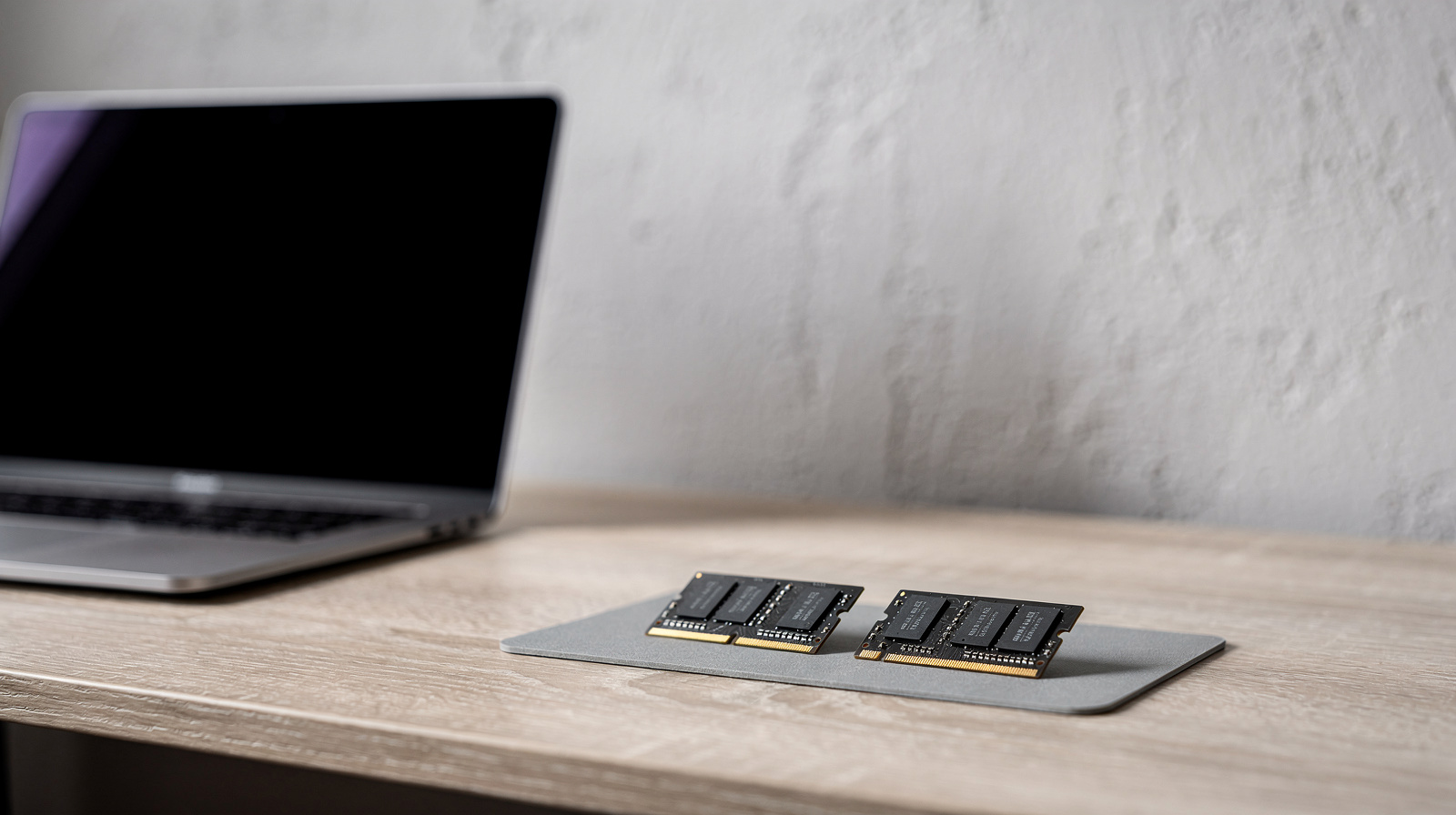
- Laptops with SODIMM slots: yes. A SODIMM is a standard memory module you can swap for a bigger one. Both ThinkPads in our laptop guides use SODIMM memory.
If a laptop has a SODIMM slot, buying 16GB now and adding more later is a sensible plan. If the memory is soldered, as on every Mac, buy what you will need for the laptop’s whole life on day one.
How to check how much RAM you use
Windows: open Task Manager (Ctrl+Shift+Esc), go to the Performance tab and select Memory. The total installed RAM is shown at the top, and the graph shows how much is in use. If it sits near the total during a normal working day, more RAM would help.
Mac: choose Apple menu > About This Mac to see how much memory is installed. To see whether you are short, open Activity Monitor and click Memory. Look at the Memory Pressure graph at the bottom: green means your Mac is using its memory efficiently, yellow means it may eventually need more, and red means it needs more now.
RAM vs storage: not the same thing
RAM and storage (the SSD) are both measured in gigabytes, but they do different jobs. RAM holds what you are using right now and is cleared when you shut down. Storage keeps your files and apps whether the laptop is on or off. Running low on storage stops you saving files or installing apps; running low on RAM slows the laptop down. If it is disk space you are short of, an external SSD adds room without replacing the laptop.
Mac or Windows: does it change the answer?
No. 16GB is the right amount for office work on both. The difference is what happens later: a Windows laptop with a SODIMM slot can be upgraded, a Mac can’t. Our MacBook Air vs MacBook Pro comparison covers which Mac to buy and with how much memory.
How we chose these numbers
We have not tested these laptops. The guidance here comes from the makers’ published memory options and Apple’s own guide to reading memory use in Activity Monitor, linked under Sources.
Questions people ask
Is 16GB of RAM enough for working from home?
Yes, for most remote work. 16GB covers a video call, a shared document and a busy browser at once. Buy 24GB or 32GB only for editing, very large spreadsheets or virtual machines.
Is 8GB of RAM enough for office work?
It can cope with one or two apps at a time, but a video call plus many browser tabs can fill it. For a new work laptop, buy 16GB.
Can I add more RAM to a MacBook later?
No. MacBook memory can’t be upgraded after purchase, so choose the amount you need when you order. Every current MacBook Air and MacBook Pro starts at 16GB.
Can I add more RAM to my Windows laptop later?
Only if it has a SODIMM slot. Many thin laptops have memory soldered to the board, while some business laptops, such as the ThinkPads in our guides, use replaceable modules. Check the exact model’s spec sheet before you count on it.
Does more RAM make my laptop faster?
Not on its own. More RAM prevents the slowdown that happens when the laptop runs out of memory and has to swap data to slower storage. If you aren’t hitting that limit, extra RAM won’t be noticeable.
Sources we used
Comments
No comments yet. Start the conversation.