For most people working from home, the best laptop is the 13-inch MacBook Air with M5 and 16GB of memory. It handles documents, browsers and video calls with ease, Apple rates it at up to 15 hours of web use, and at 2.7 lbs it moves from desk to sofa without thought. If your employer or your software needs Windows, buy the Dell Pro 14 (Core Ultra 7, 16GB) instead: it comes with Windows 11 Pro and built-in Ethernet.
Our picks at a glance
- View at Adorama
Best overall
- View at Newegg
Best Windows laptop for work
- View at Lenovo
Best for video calls and upgrades
Lenovo ThinkPad T14 Gen 7 (14" AMD), Ryzen 5 PRO, 16GB, 512GB
- View at Adorama
Best big screen
- View at Walmart
Best big-screen Windows laptop
The picks in detail
- Top pick
Best overall
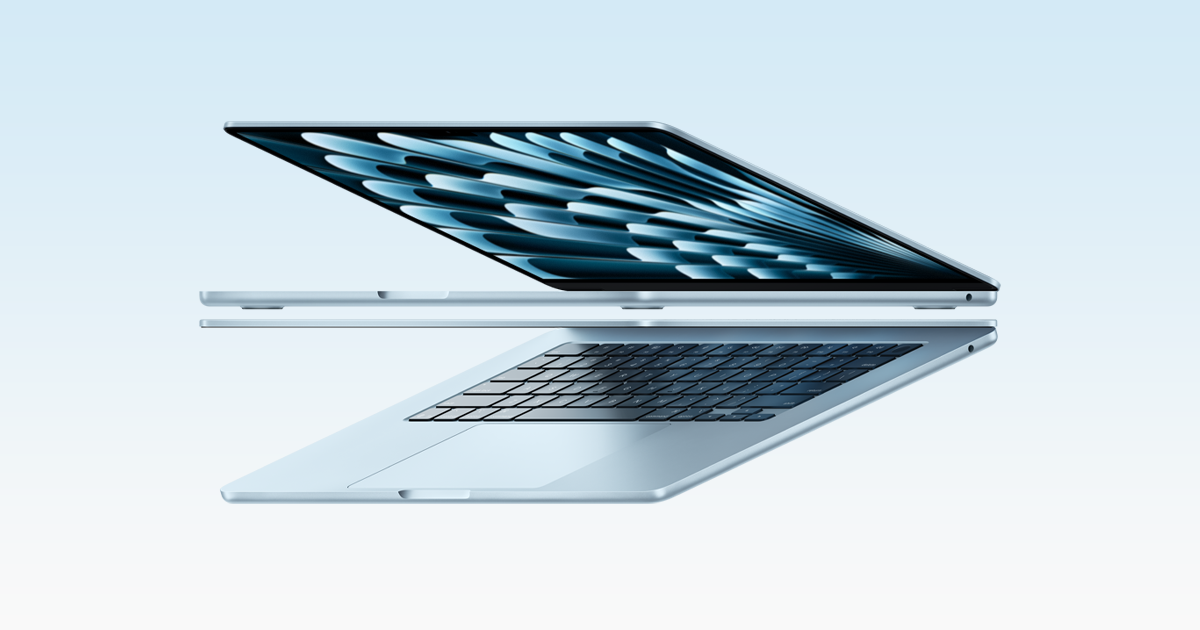
Apple MacBook Air 13" (M5), 16GB, 512GB
The 13-inch MacBook Air with M5 is the laptop most people working from home should buy, if their work runs on a Mac.
View at AdoramaThe configuration we link has 16GB of memory and a 512GB SSD, which covers documents, spreadsheets, a full browser and video calls. Apple rates it at up to 15 hours of wireless web use, it weighs 2.7 lbs, and it drives up to two external displays, so it works on the sofa and at a desk. Its 12MP Center Stage camera records 1080p video. The memory can’t be upgraded later, so 16GB is the least you should buy.
What we like
- Up to 15 hours of web use (Apple’s rating)
- Light at 2.7 lbs; up to two external displays
- 12MP Center Stage camera with Desk View; Wi-Fi 7
Watch out for
- Only two Thunderbolt 4 ports, no HDMI or SD slot
- Memory can’t be upgraded after purchase
- Best Windows laptop for work
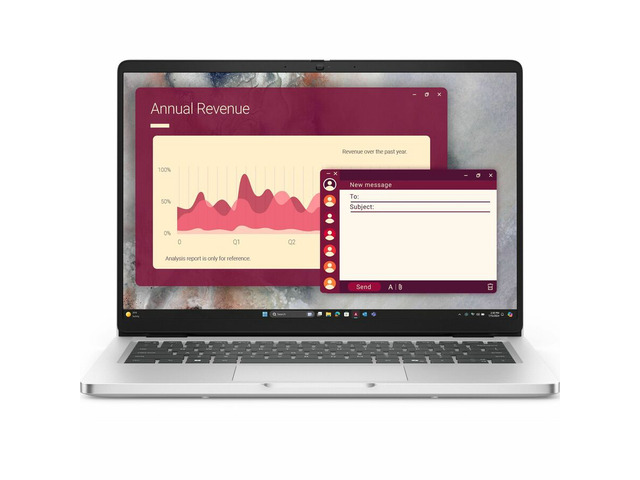
Dell Pro 14 (PC14250), Core Ultra 7, 16GB, 512GB
If your employer runs Windows, or your apps need it, the Dell Pro 14 is the safe choice.
View at NeweggThis configuration pairs an Intel Core Ultra 7 255U with 16GB of DDR5 memory, a 512GB SSD and Windows 11 Pro, which includes the device management and BitLocker encryption that company IT departments use. The 14-inch screen is 1920 x 1200, it weighs 3 lbs, and it has built-in Gigabit Ethernet for a wired connection at your desk. Five major US retailers sell this exact configuration, so it is easy to find.
What we like
- Windows 11 Pro, Core Ultra 7, 16GB, 512GB
- Built-in Gigabit Ethernet
- 3 lbs and sold by five major US retailers
Watch out for
- The listing we checked doesn’t publish the full port list
- Wi-Fi 6, not the newer Wi-Fi 7
- Best for video calls and upgrades
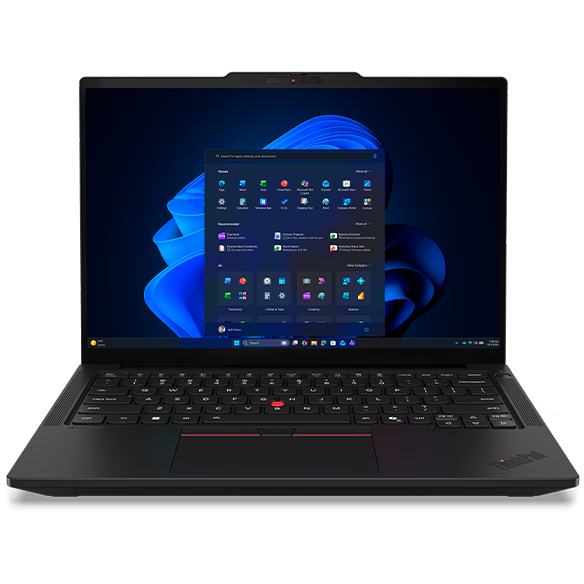
Lenovo ThinkPad T14 Gen 7 (14" AMD), Ryzen 5 PRO, 16GB, 512GB
The ThinkPad T14 Gen 7 (AMD) has the best camera setup of the Windows picks: a 5MP camera with IR face login and a privacy shutter.
View at LenovoIt pairs an AMD Ryzen 5 PRO 230 with 16GB of DDR5 in a SODIMM slot, a standard memory module you can swap for a bigger one later. Its 14-inch screen is 400 nits and anti-glare, and it adds Wi-Fi 7, a backlit keyboard, a fingerprint reader and one year of onsite warranty service.
What we like
- 5MP IR camera with a privacy shutter
- Replaceable SODIMM memory
- Wi-Fi 7 and one-year onsite warranty
Watch out for
- Sold only by Lenovo in this configuration
- Lenovo’s page doesn’t publish battery life or weight
- Best big screen
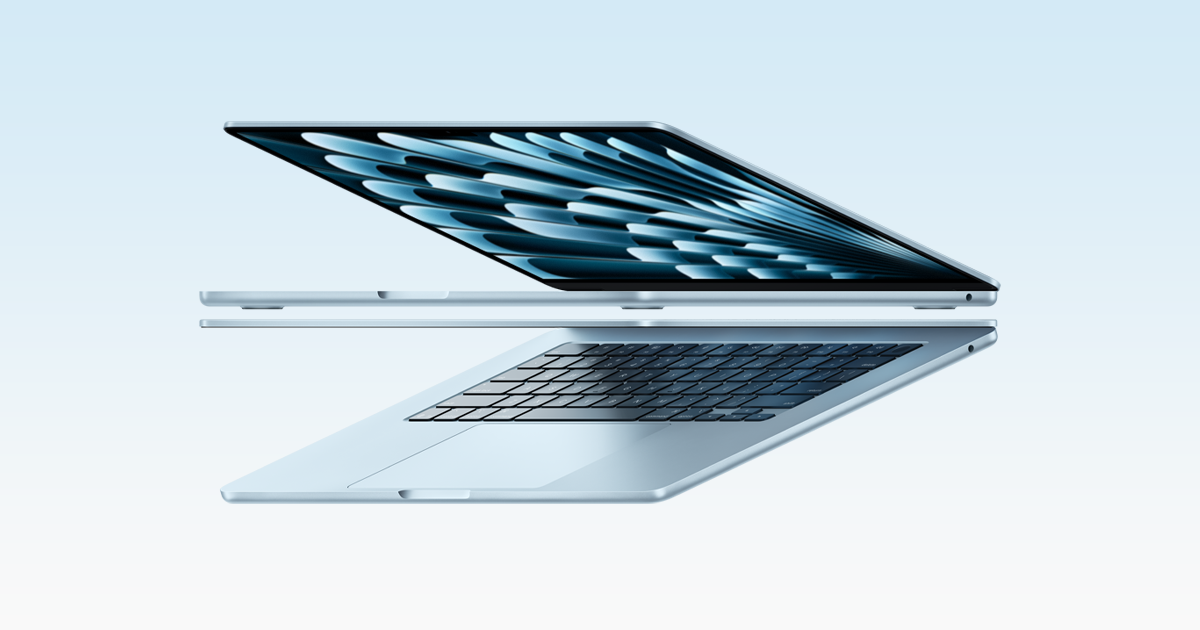
Apple MacBook Air 15" (M5), 16GB, 512GB
The 15-inch MacBook Air gives you a 15.3-inch 2880 x 1864 screen for working without a monitor, with the same M5 chip family (here with a 10-core GPU), 16GB of memory and a 512GB SSD.
View at AdoramaApple rates its battery the same as the 13-inch, up to 15 hours of web use, from a larger 66.5Wh battery. It has six speakers instead of four. The ports are the same two Thunderbolt 4 plus MagSafe, and it is bigger to carry.
What we like
- 15.3-inch, 2880 x 1864 screen
- Up to 15 hours of web use (Apple’s rating)
- Six speakers
Watch out for
- Same two Thunderbolt ports as the 13-inch
- Larger to carry around the house
- Best big-screen Windows laptop
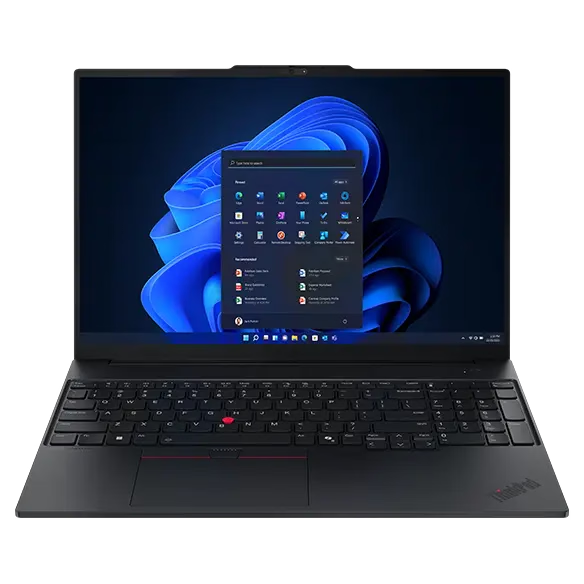
Lenovo ThinkPad E16 Gen 3 (16" Intel), Core 7, 16GB, 512GB
The ThinkPad E16 Gen 3 is the pick for Windows users who want a big screen and a number pad for spreadsheets.
View at WalmartThis configuration has an Intel Core 7 240H, 16GB of replaceable SODIMM memory and a 512GB SSD, on a 16-inch 1920 x 1200 screen. Lenovo lists USB-A, USB-C, Thunderbolt 4 and HDMI ports, so it connects to most desks without an adapter. Lenovo places the E series a step below the T series, and the screen is 300 nits, so it suits a home office better than a bright room.
What we like
- 16-inch screen with a full number pad
- Thunderbolt 4, HDMI, USB-A and USB-C
- Replaceable memory; one-year onsite warranty
Watch out for
- 300-nit screen, dimmer than the T14’s
- Bigger and heavier than a 14-inch laptop
- Best for heavier work
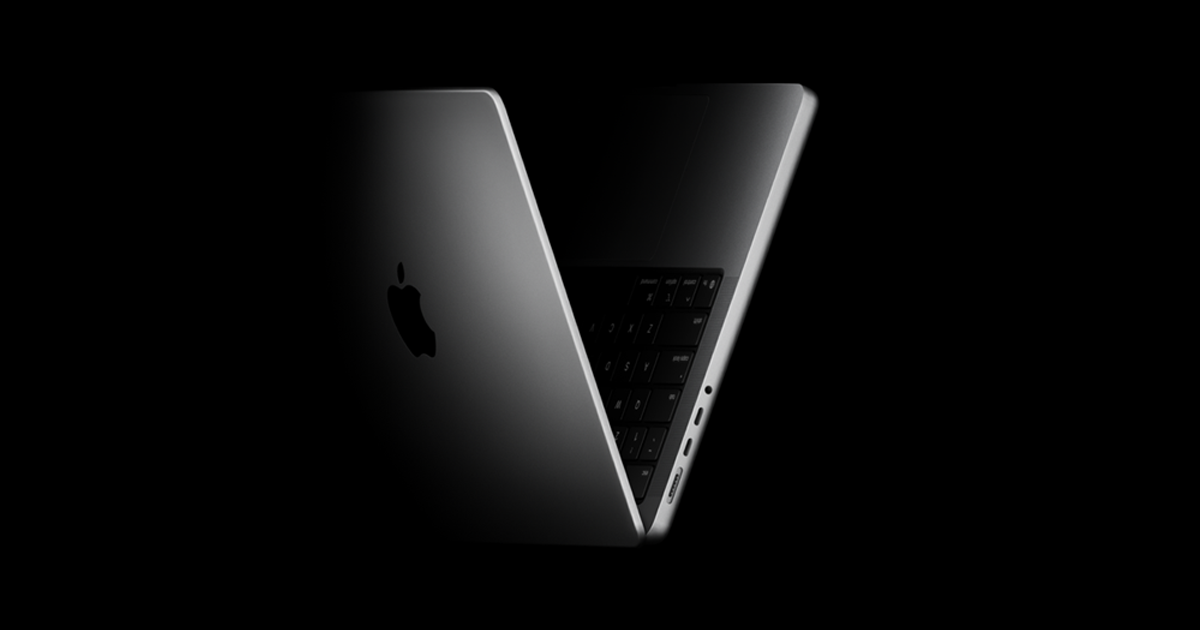
Apple MacBook Pro 14" (M5), 24GB, 1TB
The 14-inch MacBook Pro with M5 is worth it if you will use what it adds over the Air.
View at AdoramaThe configuration we link has 24GB of memory and a 1TB SSD, for photo or video editing and many heavy apps at once. Its Liquid Retina XDR screen refreshes at up to 120Hz and reaches up to 1000 nits for everyday content (Apple’s figure), against the Air’s 500. It adds a third Thunderbolt 4 port, HDMI and an SD card slot, and Apple rates it at up to 16 hours of web use and 24 hours of video. At 3.4 lbs it is the heaviest pick.
What we like
- 24GB of memory and a 1TB SSD
- 120Hz XDR screen, up to 1000 nits
- HDMI, SD slot and three Thunderbolt 4 ports
Watch out for
- Heaviest pick at 3.4 lbs
- More laptop than documents and calls need
Below are six laptops for remote work, then a guide to the choices that matter: Mac or Windows, memory, storage, screen size, ports and calls.
The short version
- Best overall: MacBook Air 13-inch (M5), 16GB, 512GB. Light, long battery life, two external displays.
- Best Windows laptop for work: Dell Pro 14 (Core Ultra 7, 16GB, 512GB). Windows 11 Pro and Gigabit Ethernet.
- Best for video calls and upgrades: Lenovo ThinkPad T14 Gen 7 (AMD). 5MP IR camera with shutter, replaceable memory.
- Best big screen: MacBook Air 15-inch (M5), 16GB, 512GB. A 15.3-inch screen with the same battery rating.
- Best big-screen Windows laptop: Lenovo ThinkPad E16 Gen 3. A 16-inch screen, a number pad and HDMI.
- Best for heavier work: MacBook Pro 14-inch (M5), 24GB, 1TB. A 120Hz XDR screen, more ports, more memory.
For a closer look at the Windows business picks, see our best business laptops for home offices. For the Mac side, our MacBook Air vs MacBook Pro comparison goes deeper.
How the picks compare
These are the exact configurations we link. Weights and screen figures are the makers’ own; “not published” means the maker’s page we used leaves it out.
Laptop | Processor | Memory | Storage | Screen | Weight |
|---|---|---|---|---|---|
MacBook Air 13" | Apple M5 | 16GB | 512GB | 13.6", 2560 x 1664, 500 nits | 2.7 lbs |
Dell Pro 14 | Intel Core Ultra 7 255U | 16GB DDR5 | 512GB | 14", 1920 x 1200 | 3 lbs |
ThinkPad T14 Gen 7 | AMD Ryzen 5 PRO 230 | 16GB DDR5 (SODIMM) | 512GB | 14", 1920 x 1200, 400 nits | Not published |
MacBook Air 15" | Apple M5 | 16GB | 512GB | 15.3", 2880 x 1864, 500 nits | See Apple’s spec page |
ThinkPad E16 Gen 3 | Intel Core 7 240H | 16GB DDR5 (SODIMM) | 512GB | 16", 1920 x 1200, 300 nits | Not published |
MacBook Pro 14" | Apple M5 | 24GB | 1TB | 14.2" XDR, 3024 x 1964, up to 1000 nits, 120Hz | 3.4 lbs |
Battery. Apple rates both MacBook Airs at up to 15 hours of wireless web use and 18 hours of video, and the 14-inch MacBook Pro at up to 16 and 24 hours. The Dell listing we checked rates the Pro 14 at up to 10.3 hours. Lenovo doesn’t publish a figure for either ThinkPad configuration. Makers test in different ways, so treat these as a rough guide, not a contest.
How to choose a laptop for working from home
Most remote work is email, documents, spreadsheets, a browser full of tabs and video calls. Any laptop here handles that. What separates them is the system your work runs on, how much you carry the laptop, and what you plug into it at your desk.
Mac or Windows: start with your job
Use whatever your employer’s software and IT team support. If your company issues or manages your laptop, ask before you buy: many IT departments rely on Windows 11 Pro features such as device management and BitLocker encryption, and some apps only run on Windows.
If you choose for yourself, our view is simple:
- Choose a MacBook if your work runs in a browser, Microsoft 365, Google Workspace or Mac apps, and you value battery life and weight. The MacBook Air is hard to beat on both.
- Choose Windows if your company requires it, you use Windows-only software, or you want things the Macs here don’t offer: built-in Ethernet (Dell Pro 14), replaceable memory (both ThinkPads) or a number pad (ThinkPad E16).
How much RAM do you need?
RAM (memory) holds whatever you are actively using: open apps, browser tabs and the video call running in the background. For remote work, 16GB is the sensible minimum, and every pick here has at least that. A video call, a shared document and a busy browser together can use more than 8GB, which is when an 8GB laptop starts to slow down as you switch between apps.
Buy 32GB, or the 24GB MacBook Pro we link, only for heavier work: large spreadsheets with a lot of data, photo or video editing, or a video call, a virtual machine and a code editor running together.
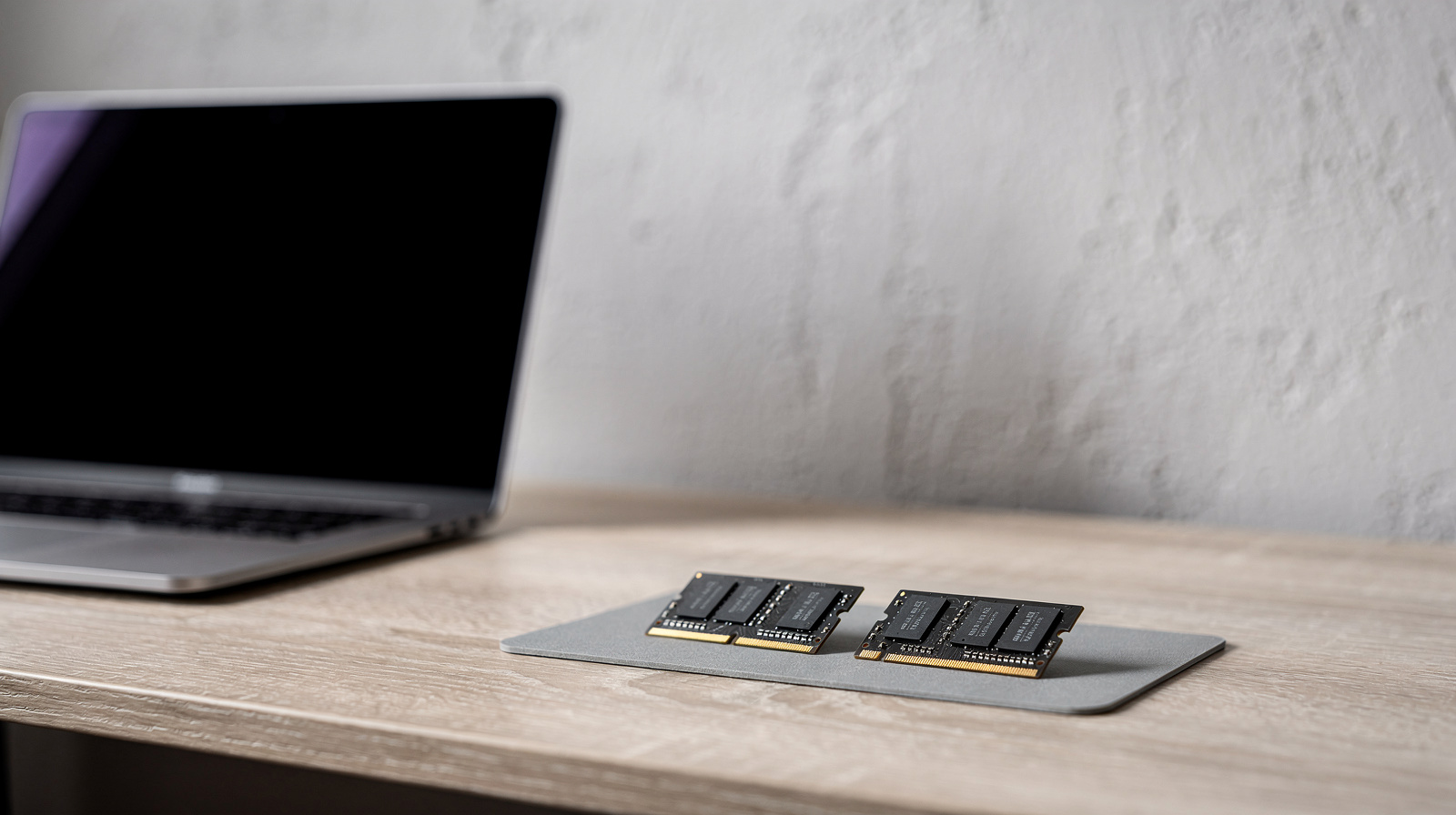
Check whether the memory can be upgraded before you buy. The MacBooks’ memory can’t be changed after purchase, so choose the amount you need up front. Both ThinkPads use SODIMM memory, a standard module you can swap for a bigger one later. The Dell listing we checked doesn’t say either way. Our guide to how much RAM you need explains how to check what you use now.
Storage: 512GB is the floor
Storage (the SSD) is not the same as RAM. RAM is cleared when you shut down; storage permanently holds your files and apps. Running out of storage stops you saving files or installing apps, while running low on RAM slows the laptop down.
For work files and apps, 512GB is the size we chose for five of the six picks. Pick 1TB, as on the MacBook Pro we link, if you keep photo or video projects on the laptop. On a Mac you can’t add internal storage later, so if you are unsure, an external SSD is a simple way to add room for archives and backups. Whatever you buy, keep a backup: our guide on how to back up your computer covers the options.
Screen size vs portability
Think about where you will work most days.
- 13 to 14 inches suits you if you move between rooms or travel. The 13-inch MacBook Air is the lightest pick at 2.7 lbs, and the Dell Pro 14 weighs 3 lbs.
- 15 to 16 inches suits you if the laptop is your only screen. The 15-inch MacBook Air gives you a 15.3-inch screen, and the ThinkPad E16 adds a full number pad.
- If you work at a desk most days, a smaller laptop plus an external monitor gives you more room than any laptop screen. See our best monitors for a home office for help choosing one.
Brightness matters if you sit near a window. Apple rates the MacBook Airs at 500 nits and the MacBook Pro at up to 1000 nits for everyday content. The ThinkPad T14’s screen is 400 nits with an anti-glare finish. The E16’s 300-nit screen is the dimmest here, so it suits a room you can control. The Windows picks all use 1920 x 1200 screens, a 16:10 shape that shows a few more lines of a document than a 1920 x 1080 screen.
Ports and charging over USB-C
The ports decide how easily the laptop connects to your desk.
- MacBook Air (13 and 15-inch): two Thunderbolt 4 ports, MagSafe charging and a headphone jack. Because it charges over MagSafe, both Thunderbolt ports stay free for monitors and accessories.
- MacBook Pro 14-inch: three Thunderbolt 4 ports, HDMI, an SD card slot, MagSafe and a headphone jack. HDMI saves carrying an adapter if you present on a TV.
- ThinkPad E16 Gen 3: Lenovo lists USB-A, USB-C, Thunderbolt 4 and HDMI.
- Dell Pro 14: built-in Gigabit Ethernet. The listing we checked doesn’t publish the full port list, so check Dell’s spec page before you plan a one-cable desk around it.
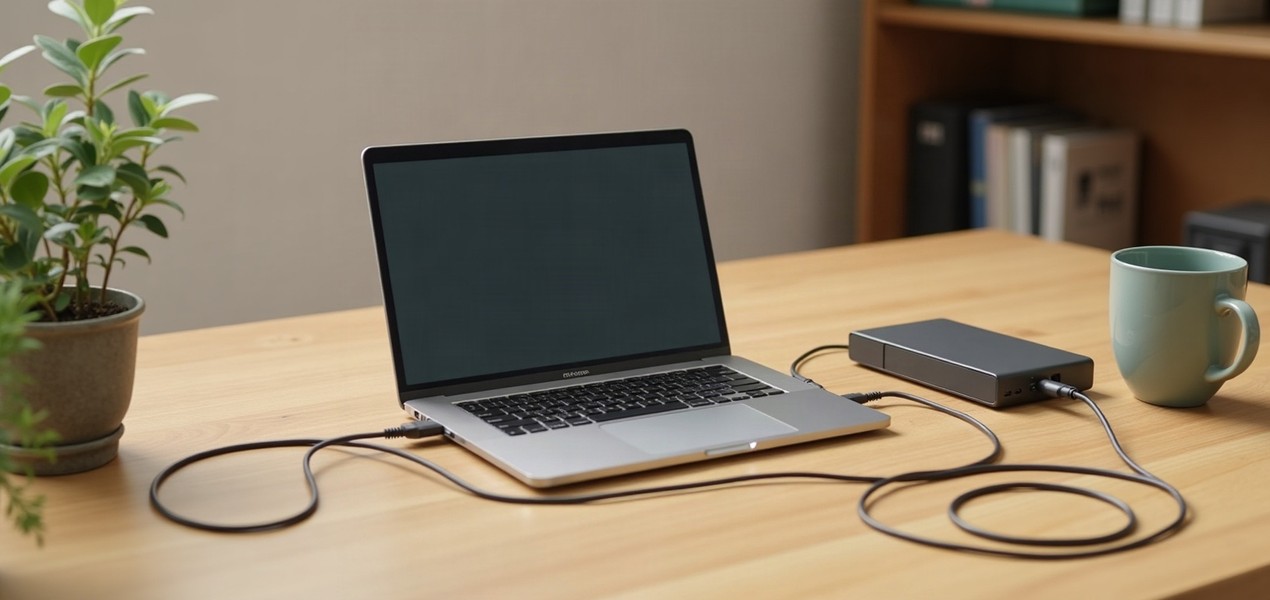
The tidiest home-office setup is one cable from the laptop to a USB-C monitor or dock that carries video, accessories and charging. Check the wattage printed on your laptop’s charger: if the monitor or dock supplies the same or more, it can replace that charger on your desk. Our best USB-C monitors guide lists the charging wattage of each screen, and our USB-C and Thunderbolt docking stations explained covers docks.
On a Mac, the chip sets the number of external screens. Apple lists up to two external displays for both M5 MacBook Airs and the M5 MacBook Pro, and a dock can’t raise that limit. For two screens on one desk, see our dual monitor docking stations and Thunderbolt docks for MacBook and Windows laptops. Mac owners should also read our monitors for MacBook Pro guide, which works for the Air too.
Webcam and microphones for calls
All three MacBooks have a 12MP Center Stage camera with Desk View, and Apple lists 1080p video recording on the Air and Pro. The ThinkPad T14 has a 5MP camera with IR face login, and Lenovo lists a privacy shutter on both ThinkPads, so you don’t need a stick-on cover. Lenovo’s and Apple’s pages give these details; the Dell listing we checked doesn’t describe its camera.
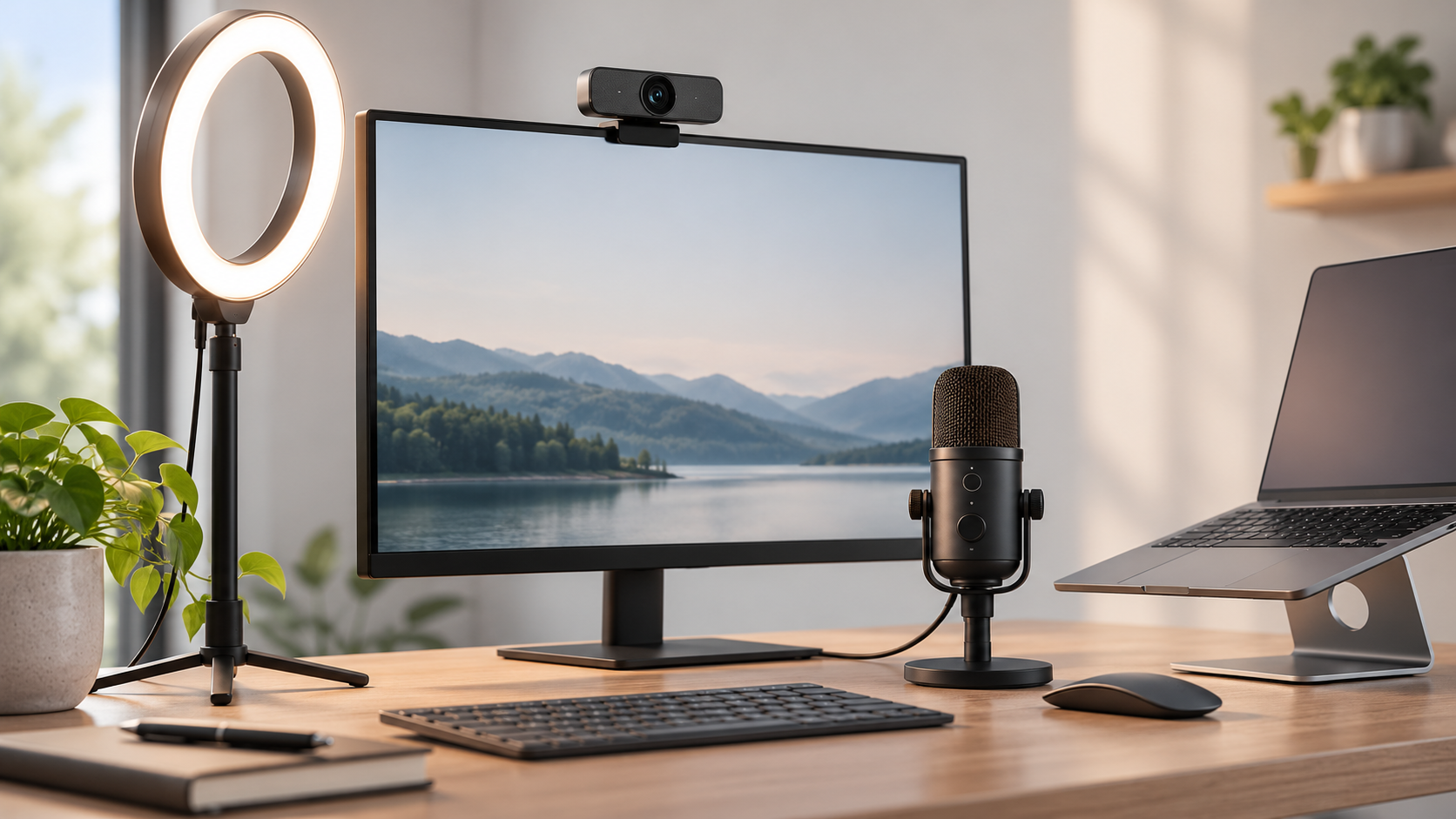
A laptop camera is fine for most calls. An external webcam earns its place when the laptop lid stays closed on a dock, or when you want the lens at eye level on a monitor. Our webcam vs laptop camera guide explains when it is worth it.
The spec sheets we rely on don’t compare the laptops’ microphones, so we make no claim about them. If you spend hours a day on calls, a USB microphone is the surest upgrade for how you sound.
Business features worth having
Business lines such as Dell Pro and Lenovo ThinkPad come with extras that matter more at home than you might expect:
- Windows 11 Pro on the Dell, with device management and BitLocker encryption. For your own business, Windows 11 Home is often enough.
- IR cameras for Windows Hello face login, and fingerprint readers, so you sign in quickly without typing a password. The T14 has both.
- Privacy shutters on the camera, on both ThinkPads.
- Onsite warranty. Both ThinkPad configurations include one year of onsite service, so a technician comes to you instead of you shipping the laptop away. For the Dell and the MacBooks, check the warranty on the retailer’s page, and consider an extended plan if a week without your laptop would stop your work.
When a MacBook Pro is worth it over an Air
Buy the MacBook Air if your work is documents, browsers and calls. Buy the 14-inch MacBook Pro if you will use at least one of these:
- The screen. The Pro’s XDR screen refreshes at up to 120Hz, so scrolling looks smoother, and Apple rates it at up to 1000 nits against the Air’s 500. That helps next to a bright window.
- The ports. A third Thunderbolt 4 port, HDMI and an SD card slot save you carrying adapters.
- The memory. The configuration we link has 24GB and a 1TB SSD, which suits photo and video editing or many heavy apps at once.
- Battery for video. Apple rates the Pro at up to 24 hours of video playback against the Air’s 18. For web use the gap is one hour (16 vs 15).
The Pro also weighs 3.4 lbs against the 13-inch Air’s 2.7 lbs. If none of the points above apply to you, the Air is the better buy.
How we chose
This guide is research-based. We have not tested these laptops. Every figure comes from the maker’s or a retailer’s own published spec sheet, linked under Sources. We started from laptops sold new by at least one major US retailer and kept only configurations with at least 16GB of memory and an SSD. We left out consumer models sold with 8GB of memory and business laptops we could only find used or refurbished. For each pick we link only the exact configuration described here, and we say where a maker’s page leaves out a figure rather than guessing it. We don’t show or compare prices; each retailer link shows the current one.
Questions people ask
What is the best laptop for working from home?
For most people, the 13-inch MacBook Air with M5 and 16GB of memory: it is light, Apple rates it at up to 15 hours of web use, and it drives two external displays. If your work needs Windows, the Dell Pro 14 with Windows 11 Pro is the safe choice.
Is 16GB of RAM enough for working from home?
Yes, for most remote work. 16GB covers a video call, a shared document and a busy browser at once. Consider more only for heavy spreadsheets, photo or video editing, or virtual machines.
Should I buy a Mac or a Windows laptop for work?
Buy whatever your employer’s software and IT team support. If you have a free choice, a MacBook Air is hard to beat for battery life and weight, while ThinkPads and the Dell offer replaceable memory, built-in Ethernet or a number pad.
Is a MacBook Air good enough for office work?
Yes. Documents, spreadsheets, browsers and video calls are well within what the M5 MacBook Air handles. Buy at least 16GB of memory, since it can’t be upgraded later.
Can I upgrade a laptop’s memory later?
It depends on the laptop. Both ThinkPads here use standard SODIMM memory you can replace, while MacBook memory can’t be changed after purchase. Check the exact model’s spec page before you count on an upgrade.
Sources we used
Comments
No comments yet. Start the conversation.